
Sommaire
What is QualCoder
QualCoder is free, open source desktop software for qualitative data analysis. QualCoder is the qualitative research equivalent of R for statistics.
QualCoder is for individual researchers, academics, students or small teams managing their own qualitative or mixed-methods projects.
QualCoder can code text, images, audio and video, write journal notes and memos. You can organise codes in a tree-like categorisation scheme. Various reports can be generated. Most reports can be exported as html, open document text (ODT), plain text or Excel files.
QualCoder includes a set of AI-assisted features that utilise Large Language Models to help explore, analyse, and interact with data in innovative ways. Familiarise yourself with new data by exploring broad topics or concepts in an interactive chat with the AI. Dive deeper into specific aspects with AI-assisted coding and text analysis. And if you reach the point where you must synthesise and consolidate your results, discuss them in a code chat with the AI.
Why use QualCoder?
- QualCoder is free of charge. Many qualitative analysis programs charge expensive one-time fees or monthly subscriptions.
- QualCoder is easy to use. It has all you need to perform qualitative analysis without the complicated interfaces of some alternatives
- QualCoder works offline. Internet is not always available and QualCoder does not require internet to work.
- QualCoder data protection. Your data remains on your computer. Imported text documents can apply pseudonyms to names. Qualcoder does not have any telemetry, no tracking. The AI features are entirely optional. AI pre-processing occurs locally on your computer using local memory to search documents which reduces the amount of data sent to the cloud to enhance privacy.
- QualCoder is not tied to a computer. If you change workplace you do not have to worry about being tied to your former workplace's licence or to buy a new licence. The QualCoder licence allows you to use the software regardless of where you work or on what computer it is installed on.
- QualCoder is multi-platform. It runs on Linux, Windows and macOS, this means that you do not have to worry if you change operating systems, and it also means you can collaborate with colleagues on different platforms. See Note.
- QualCoder relies on the community. If you find an error or have a feature request or feedback, write about it on QualCoder's page on github.
- QualCoder is always improving. QualCoder is actively developed meaning that newer, improved versions are being released.
- QualCoder supports open standards. QualCoder aims to support the REFI-QDA Standard, you may exchange codebooks and projects with your colleagues even if they do not use QualCoder, as long as the software they use supports the REFI-QDA Standard. It means that you do not risk your data being unavailable. REFI-QDA import and export is not guaranteed 100% compliant.
- QualCoder can be modified. You can modify and adapt QualCoder to your needs, as long as you release your changes for everyone. This also means you can copy the software and give it to your colleagues or students free of charge.
- QualCoder is a software option to support open science. UNESCO recommendations on open science
- Accessibility. Qualcoder allows you to see what coding colours may look like for people with various colour-blindness. According to a vision-impaired user of QualCoder, QualCoder is fully functional with the NVDA screen reader LinkedIn Post.
Current release
Download latest version available on GitHub
The in development code is available here: https://github.com/ccbogel/QualCoder
Support QualCoder
If you like QualCoder and found it useful for your work. Please leave a review on these sites, like Saashub or AlternativeTo.
If you like QualCoder a lot, or have developed a novel use for it, please write an article about QualCoder.
It has taken many, many hours of work to create this software that is provided free to use.If you use and like QualCoder please support the development.

QualCoder is written in python using Qt6 for the graphical interface. QualCoder has been used on Windows 11, macOS and various Linux distros: Ubuntu, Lubuntu, ZorinOS, Arch, Fedora.
Citation
Curtain, C. Dröge, K. Missaghieh--Poncet, J. Salomón, L. (2026) QualCoder 4.0 [Computer software]. Retrieved from https://github.com/ccbogel/QualCoder/releases/tag/4.0
Replace the version number (4.0) as needed for the version you are using.
License
QualCoder is licensed under the LGPL v3 licence.
Installation and running
INSTALLATION
For the manual installations (using the command line or terminal) A specific release version may be mentioned, for example version 4.0. Please check on the releases page for the most current version, as it may be newer.
Prerequisites
VLC is optional for audio/video coding.Optionally, install ffmpeg for waveform display, see phoenixnap.com/kb/ffmpeg-windows. Note, QualCoder crashes on Linux Fedora Fedora when attempting to show or code audio/video.
Pick the latest release.
You have two options for executables created on Windows 11:
Option 1: A Windows installer on the release page.
Option 2: A portable version that does not require installation. You can run the downloaded file directly. It may take up to 30 seconds for the program to open.
On first use, Windows will warn you that QualCoder is from an unknown publisher. Click "More info > Run anyway". It costs a lot of money to get a trusted publisher certificate - so that will not be possible for the foreseeable future. If you are uncomfortable with these warnings install from the source as detailed next.
Alternatively, install from source code:
Use a virtual environment (commands in point 6 below). Not using a virtual environment may affect other Python software you may have installed.
- Download and install the Python programming language. Please use a recent version on Windows. Python3. Download the latest "Windows installer (64-bit)" (or the one matching your architecture) for one of the above mentioned Python versions.
IMPORTANT: in the first window of the installation mark the option "Add Python to PATH"
-
Download the QualCoder software from: https://github.com/ccbogel/QualCoder from the Green Code button. This is the newest, but not yet officially released code (occasionally coding errors creep in). Click the green button "Code", and then "Download ZIP". Alternatively, choose the most recent release zip, see the right-hand side of this page for the link to Releases.
-
Unzip the folder to a location (e.g. downloads). (Tip, remove the doubled-up folder extraction QualCoder-master\QualCoder-master when asked where to extract. Just QualCoder-master).
-
Use the Windows command prompt. Type "cmd" in the Windows Start search engine, and click on the black software "cmd.exe" - the command console for Windows. In the console type or paste, using the right-click mouse copy and paste (ctrl+v does not work)
-
In the command prompt, move (using the
cdcommand) into the QualCoder folder. You should be inside the QualCoder-master folder or if using a release (the Qualcoder-4.0 folder). e.g.
5a. Instead of the next below commands, run the bat file which will run all these commands below, by typing this in and pressing Enter:
run_from_source_Windows.bat
If you get errors using a bat file, then run the below commands instead.
- Install the virtual environment and required python modules.
The install may take up to 10 minutes. On some Windows systems you may need to replace the python command with py or python3 below:
python -m venv env
env\Scripts\activate
python -m pip install --upgrade pip
python -m pip install -r requirements.txt
- Start QualCoder by first moving to the inner src folder:
- If running QualCoder in a virtual environment, to exit the virtual environment type:
deactivate
The command prompt will then remove the (env) wording.
To start QualCoder again
If you are not using a virtual environment, as long as you are in the same drive letter, eg C:
python -m qualcoder
If you are using a virtual environment:
cd to the src folder inside the QualCoder-master (or Qualcoder release folder):
Install from App bundles:
Make sure you have installed any macOS updates before starting the installation. Go to the System Settings app on your Mac. Click General in the sidebar (you may need to scroll down), then click Software Update.
Install QualCoder: Double-click the downloaded dmg-file. Drag QualCoder into the link to your applications.
Start QualCoder from your Launchpad or by double-clicking the app within your applications folder. We are currently not able to sign the app bundles, so when you first try to run the program, you may get a pop-up warning that QualCoder is from an unregistered developer or "QualCoder can't be opened because Apple cannot check it for malicious software." Depending on your processor, you may see one of these:
If you see "Show in Finder" or OK. Click Ok.
If you see "Done" or "Move to trash". Click Done.
Next, go to Settings and select Privacy and Security. Scroll down until you see a message stating QualCoder was prevented from starting. Click on "open anyway". You may be prompted to enter your password and may need to click "Open" again. After entering your password, just wait for the program to open up. It may take several seconds.
From now on, QualCoder should start without issues.
You can install QualCoder without admin right. You must copy the binaries in /Users/mylogin/Applications directory. You must delete the attribute on the application directory, typing on the terminal:
xattr -d com.apple.quarantine /Users/mylogin/Applications/QualCoder.app
Install from source code:
Use a virtual environment (commands in point 6 below). Not using a virtual environment may affect other Python software you may have installed.
-
Download and install the Python programming language. Please use Python 3.10, 3.11 or 3.12 on Windows, other versions may cause issues Python3. Download the latest "macOS 64-bit universal2 installer" for one of the above mentioned Python versions and open it to install Python.
-
Download the QualCoder software from: https://github.com/ccbogel/QualCoder from the Green Code button. This is the newest, but not yet officially released code (occasionally coding errors creep in). Click the green button "Code", and then "Download ZIP". Alternatively, choose the most recent release zip, see the right-hand side of this page for the link to Releases.
-
Unzip the folder to a location (e.g. downloads) by double-clicking it.
-
Use the Terminal app (
Applications -> Utilities -> Terminal). -
In the terminal, move (using the
cdcommand) into the QualCoder folder. You should be inside the QualCoder-master folder or if using a release (e.g. Qualcoder-4.0 folder). e.g.
- Install the virtual environment and required python modules.
The python3 command uses the most recent installed version of Python. You can use a specific version on your macOS, if you have many Python versions installed, e.g. python3.10. To verify you are using the correct Python version type which python3, which should output: /Library/Frameworks/Python.framework/Versions/3.<version>/bin/python3. If the output is /usr/bin/python3, don't continue, since this is your system's Python and it is discouraged to use.
The install may take up to 10 minutes.
python3 -m venv env # this creates the virtual environment with the name "env" in your current directory
source env/bin/activate # this activates the virtual environment "env", (env) should appear in front of your prompt
pip3 install --upgrade pip # optionally; pip and pip3 are equivalent withing a virtual environment
pip3 install -r requirements.txt
- Run QualCoder from the command prompt
- If running QualCoder in a virtual environment, to exit the virtual environment type:
The command prompt will then remove the (env) wording.
To start QualCoder again
If you are not using a virtual environment:
If you are using a virtual environment:
If you are using a Debian-based system (Debian, Ubuntu / Lubuntu / ZorinOS, Linux Mint), there is an executable file available on the release page. Download and double click to run. You might first need to right-click on the file and go to Properties, then check the Executable checkbox.
If you are using a different operating system, please install from the source code. The procedure is set out below.
Note: Fedora uses Wayland which may not work well with the Qt graphical interface. It is suggested you also install Xwayland.
To install from source code below, inside a virtual environment.
Depending on your operating system, you will need to download Python and its dependencies. Here are the commands for your operating system:
- If you are on Debian based system (Debian, Ubuntu / Lubuntu / ZorinOS, Linux Mint) :
Install pip. This is a tool that downloads extra python modules :
sudo apt install python3-pipIf you are using audio or video, install VLC (download from site) or:sudo apt install vlcIf you are using the alternative Ubuntu Desktop manager Xfce you may need to run this:sudo apt install libxcb-cursor0 - If you are on Fedora : There is a problem with using VLC from python. The software crashes, we are unable to find a solution to this. So audio and video cannot be used within a QualCoder project on Fedora.
-
If you are on Arch/Manjaro Linux : If you are using audio or video, install VLC (download from site) or:
sudo pacman -S vlcand Install pip and venv:sudo pacman -S python python-pip python-virtualenv -
Download and unzip the QualCoder folder.
-
Then
cdto the QualCoder folder.
For example, you may now be in this folder, where you unzipped QualCoder:
yourcomputer:~Downloads/QualCoder-4.0
3a. Instead of the commands from 3b. onwards, run the shell file which will run all these below commands. Make this file executable (Right-click and go to Properties), then type the below command and press Enter:
./run_from_source_Linux.sh
3b. Set up virtual environment and install python modules. The virtual environment will be in its own folder called env. Installing required modules takes a while.
python3 -m venv env
source env/bin/activate
pip install --upgrade pip
pip install -r requirements.txt
-
Move to the inner src folder, then:
-
After using QualCoder deactivate the virtual environment.
deactivate
Usage any time after the install, move to the QualCoder folder then:
To exit the environment:
deactivate
You can also make a .desktop file for launching QualCoder:
Create a .Desktop file for launch, enter this command (adapt it according to the location of the source code folder):
bash -c 'cd ~/.local/share/qualcoder/src/ && ~/.local/share/qualcoder/env/bin/python3.12 -m qualcoder'
Settings
The settings screen allows you to change several features including language, coder name and font type and font size, as well as options for the AI integration.
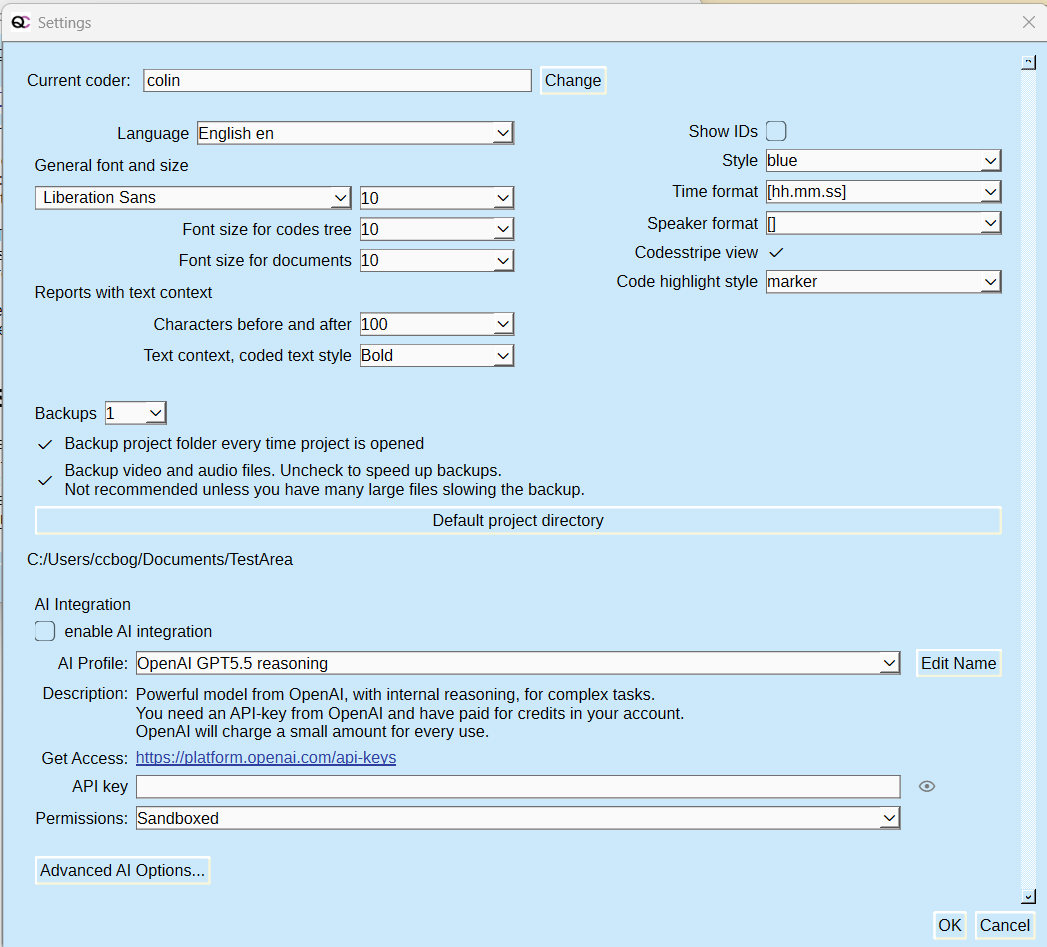
Coder name
Multiple coders can code and annotate the same text. Your current coder name is displayed at the top of the settings dialog.

This name will be used to identify your contributions to the project. Click the "Change" button to alter your identity or to create, rename, or merge other coders within the current project. Read Working in a Team for more information.
General settings
The default language of QualCoder is English. French, German and Spanish are alternative regularly updated languages. Other languages have not been thoroughly reviewed for accuracy. For other community-maintained languages, download the relevant.zip file and place it in the .qualcoder/i18n folder, then select your language in the settings.
Checking the Show IDs box displays the numeric IDs for codes, files, cases and more. These IDs may be useful when writing sql queries.
There area few options to change the overall look of QualCoder.
For transcribing audio and video, the time format and bracket type can be selected.
Backups
Project backup can be set to automatically backup every hour, or no backup. QualCoder keeps the most recent backups with a date and hour time stamp. The backup name is: projectname_BKP_yyyymmdd_hh.qda Where hh is 24 hour time. This also means multiple backups are not done within an hour. So a new backup cannot overwrite another backup created within the same hour. A limited number of backups are kept, older backups are deleted. Setting option allows you to choose from 1 to 10 backups.
We recommend that you make a backup before doing any substantial changes, such as reorganising codes and categories, merging projects, or merging codes. QualCoder does perform hourly backups (keeping up to the most recent five) if backups are set in the settings.
Rename or move to another location particular backups that you need to keep. When the backups are set, an additional option is to choose to backup the audio/video files. For completeness of backups it is recommended to back up audio and video, however this may slow down opening of the software if you have many large files. Alternatively you can link to large audio/video files rather than import them into the project folder. The default project directory is where many file operations will default to, for export or looking to import files.
In your home folder QualCoder will create a .qualcoder folder with a QualCoder.log file for logging events and a config.ini file which will contain a lot of settings such as the current coder’s name, preferred fonts, language and a preferred working directory. Do not store any data or project inside the .qualcoder folder. The only file that you should put in here is a stopwords.txt file, only if you need to apply a different set of stopwords for word cloud and word count functions. This folder is only for the QualCoder software to use as it is running.
Advanced options and logging
The AI related options at the bottom of the Settings dialog are described here: AI Setup
AI Setup
Note that the AI features in QualCoder are opt-in and disabled by default. After a fresh install, a wizard will appear that can guide you through the setup if you choose to enable them. You can restart it later by selecting the menu option "AI > Setup Wizard."
All AI-related options are located at the bottom of the settings dialog. Scroll down as needed.
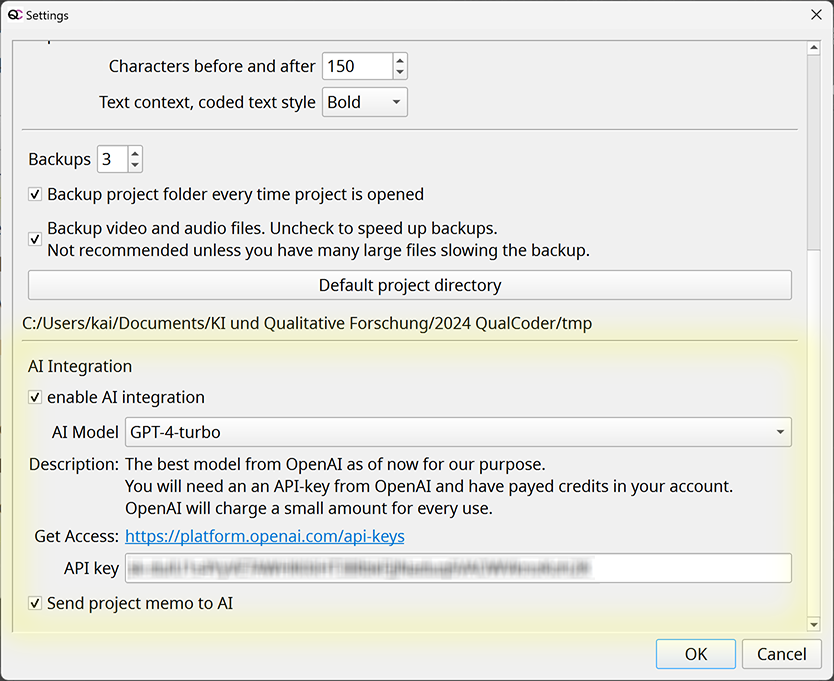
Steps of the setup wizard:
- Enable the AI integration by clicking the checkbox in the Settings dialog.
- Choose the AI model you want to use and configure it.
- The local AI memory is then set up and built automatically. Be patient, as this may take a while.
- After that, the AI agent in QualCoder is ready to use.
You might also want to read how to best prepare your project for AI use and our notes on data privacy below.
AI Model Selection
With QualCoder, you can choose from a wide range of commercial and non-commercial AI providers, and even use local models hosted on your own machine. Select one of the options in the "AI profile" drop-down in the Settings dialog.
Frontier Models from OpenAI, Anthropic, or Google
These large models deliver the most nuanced analysis of your empirical data and provide the smoothest overall experience. You have several options:
Access via API key
- Set up an account with one of the providers, acquire an API key, and paste it into the QualCoder settings dialog.
- OpenAI: Go to the OpenAI Platform, add billing details, then open
Settings > API keys > Create new secret key. - Anthropic: Create an account in the Claude Console, add API credits or billing details, then go to
Settings > API Keys > Create Key. - Google Gemini: Sign in to Google AI Studio, select or create a Google Cloud project, then choose Get API key. A limited free tier may be available for some models.
- OpenAI: Go to the OpenAI Platform, add billing details, then open
- API access is pay-per-use. The provider will charge a small fee for each request. Typically, you purchase "credits" in advance, which are then consumed over time. Because qualitative research usually involves relatively small datasets, the cost of using AI in your analysis is typically modest.
- Data privacy: Any information sent via the paid API interface is usually excluded from future model training and retained on the servers only for 30 to 50 days for billing and abuse monitoring. However, you should always check your provider's current data protection policy, as conditions may change.
ChatGPT Plus, Pro, or Team subscription
- Since QualCoder version 4.0, you can also use your ChatGPT subscription (Plus, Pro, or Team) as an AI provider inside the app. In this case, usage in QualCoder is deducted from your account's general quota at no extra cost. As this is an experimental feature, future availability may vary.
- To enable this option, select "OpenAI_ChatGPT_Login..." from the AI profile dropdown in the Settings dialog, then click on "Authenticate...". A ChatGPT login page will open in your default browser. Here, you must authorise QualCoder to use AI models from this account. This replaces the API key needed for other AI profiles.
- If your authentication expires after a few weeks, return to the settings dialog to renew it.
- Note that QualCoder has no access to any information in your ChatGPT account besides the raw AI models. This is also true in the other direction, as ChatGPT cannot access any data inside QualCoder.
- Still, it is good practice to disable the option "Improve the model for everyone" in your ChatGPT profile's "Data Controls" settings. This prevents the content of your interactions with ChatGPT from being used for future AI model training.
- QualCoder uses the same communication interface as OpenAI's programming assistant Codex. If your organisation has disabled Codex in your ChatGPT account, you might not be able to use this integration with QualCoder.
- For Anthropic Claude or Google Gemini subscriptions, connecting them to QualCoder is less straightforward. If you are technically inclined, you may still get it to work by using CLIProxyAPI as a bridge. If you go this route, add a custom AI profile in QualCoder and use
http://localhost:8317/v1as the "API Base URL" parameter.
Microsoft Azure
Microsoft hosts large AI models from OpenAI on its Azure cloud platform. This is especially useful if you want to ensure that your data is processed entirely in the EU or another specific geographic region. Azure offers special "Data zone" settings for this. Prices are slightly higher than with OpenAI directly, but still reasonable.
To use a model, you must first "deploy" it with your Azure account using the Azure AI Foundry. Search for tutorials on how to do that, or take a look at: https://www.youtube.com/watch?v=a2JtWKSKP4Q
To proceed, you will need the following information:
- your deployment name,
- the endpoint URL (it must look something like https://XXX.openai.azure.com/), and
- your API key.
Go to "Project > Settings > AI Integration", click on "Advanced AI Options > New AI Profile", and give it a name. Then enter your API key in the corresponding field, your Azure deployment name in the fields "Large Model" and "Fast Model" (these can be identical), and the Azure endpoint URL in the field "api_base". You may also want to adjust the context window size depending on the model.
Academic AI Infrastructure
Non-profit academic AI infrastructure gives you access to medium-sized models while maintaining very high data privacy standards. These services are usually free of charge for eligible personnel. The output quality of such mid-size models has improved a lot lately and is good enough for most tasks in QualCoder. However, it is still not on the same level as the large commercial offerings. You may also encounter more hiccups when interacting with the AI agent, such as operational errors or malformed source references.
Blablador - free AI service provided by the German academic research agency Helmholtz Society.
- This service offers excellent privacy and is free to use for academic purposes worldwide. For more information, see this presentation from Alexandre Strube.
- Blablador requires a free personal API key from the Helmholtz Society. You can sign up with your university account or with GitHub, Google, or ORCID. Follow the instructions here: https://sdlaml.pages.jsc.fz-juelich.de/ai/guides/blablador_api_access/.
Other Academic Options
Germany:
- GWDG SAIA Göttingen: Access seems to be limited to universities in northwestern Germany. To use it, you must first set up an account at GWDG and acquire an API key. Then open QualCoder, go to "Project > Settings > AI Integration", click on "Advanced AI Options > New AI Profile", and give the profile a name. After that, enter your API key in the corresponding field, the URL
https://chat-ai.academiccloud.de/v1in the field "API base", and select a large and fast model from the list. You may also want to adjust the context window size depending on the model. - hessian.AI Darmstadt: Experimental access, only for eligible people from Hessian universities in Germany. Follow the instructions for GWDG above, but use
https://llm-service.ai.tu-darmstadt.deas the API base URL.
Mid-size Models like Mistral, DeepSeek, and Others
The "AI profile" drop-down in the settings dialog also offers options for Mistral (France), DeepSeek (China), and OpenRouter, a platform through which many large language models on different servers can be accessed.
For all of these options, you will need an API key and most likely also a paid account for serious work. Check the data privacy conditions carefully before using any of these services.
Local AI Models on Your Own Machine
Local AI models offer the highest level of data protection, but they also require fairly powerful hardware to run at a reasonable speed and quality. In my testing, Gemma-4-31B-it worked quite well. It needs at least 24 GB of VRAM in 4-bit quantisation with an acceptable context window size. For any serious agentic work in QualCoder, I would not go much smaller than that. AI-assisted coding, however, may still work with slightly smaller models.
- Ollama is a popular choice for running language models locally and works well with QualCoder, using Ollama's OpenAI-compatible API.
- Make sure Ollama and the AI model are set up and running. Then select the preconfigured
Ollama local AIprofile in the Settings dialog, which useshttp://localhost:11434/v1/as the API base. - The API key is not actually used by Ollama, but it must not be empty, or an error occurs.
- Select a large and fast model from the list, most likely the same one for both, as you will usually have only one model loaded at a time. You may also want to adjust the context window size depending on your Ollama settings.
Other Models
If you have access to other large language models on cloud platforms, university servers, or your own machine, you can try integrating them into QualCoder as well.
- The service you wish to use must provide an interface compatible with the OpenAI API. This is often the case, since this API has become a de facto standard in recent years.
- Click on "Advanced AI Options > New AI Profile" in the settings dialog, enter the API network address under "API Base URL", and enter the model name in the fields for the large and fast model (these can be identical). You may also want to adjust the context window size depending on the model.
- If you want more options, edit the config.ini file, located in the .qualcoder subfolder of the user's home directory. Do this only when QualCoder is not running. The AI model definitions are listed at the end of config.ini and have the following format (omit the "<>" marks):
[ai_model_your_model_name]
desc = A description shown in the UI.
       Can have more than one line.
access_info_url = <URL pointing to a website with model info. Can be empty>
large_model = <The exact name of the model in the API>
large_model_context_window = <The maximum number of tokens in a single request>
fast_model = <Can be identical to large_model or name a smaller model, used for simple tasks>
fast_model_context_window = <The maximum number of tokens for the small model>
reasoning_effort = default
api_base = <The URL of the API base, e.g., http://localhost:11434/v1 for a local Ollama>
api_key = <The API key if needed, or "None" instead. Do not leave this field empty.>
If you get other services running in QualCoder, or if you tried and failed, we would like to hear about your experience.
Advanced AI Options
At the very bottom of the Settings dialog, you will find an "Advanced AI Options" button. Clicking it reveals a few more options.
- One common use case is to switch to a newer or better AI model if your provider offers one. You can do that by selecting the model from the drop-down list in the "large model" and "fast model" fields, or by entering the exact name directly. To find the correct model name, search the web for
YOUR MODEL api name. The large and fast models can be identical, but the fast model may also be much smaller because it is used only for housekeeping tasks, such as generating automatic titles for new AI agent chats. - Reasoning: This parameter determines how much internal "thinking" the AI does before responding. Not every model supports this parameter, so leave it on "default" if in doubt. Also note that QualCoder already has a lot of "thinking" loops built into the agent workflow itself, so a high reasoning setting may give you less improvement than expected. However, high reasoning will consume more energy, cost more, and also slow the AI down, so use this option with care.
- When it comes to the other advanced options, it is probably best to leave them at their default values if you don't know what they mean. Note that the "temperature" and "top_p" parameters might be silently ignored by some models, especially in reasoning mode.
The Local AI Memory Setup
- The AI agent in QualCoder uses a special local memory to search empirical documents quickly and find relevant passages. This greatly reduces the amount of data sent to the cloud, thereby enhancing privacy, saving resources, and increasing speed.
- The memory is powered by a small local open-source AI model, approximately 2.5 GB in size, which is downloaded automatically the first time you activate the AI. Model storage locations:
- Windows: C:\Users\YOUR_USERNAME\cache\torch\sentence_transformers
- Linux: /home/YOUR_USERNAME/.cache/torch/sentence_transformers
- MacOS: /users/YOUR_USERNAME/.cache/torch/sentence_transformers
- Once you open a QualCoder project, this AI model reads all text documents and incorporates them into its internal memory.
- This process occurs only once. When you reopen the project later, the "AI memory" loads quickly from disk. If you add new documents to your project or edit existing ones, your local AI memory is updated accordingly.
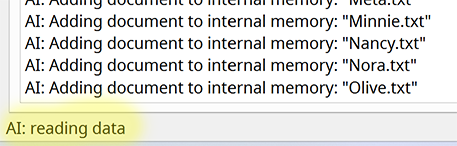
- The initial process of reading and memorising your documents may take some time, so please be patient. It happens in the background, with the status bar showing "AI: reading". While this is happening, AI-related functions are unavailable, but you can use the rest of QualCoder as usual.
Technical note: The QualCoder local AI memory is a hybrid system based on E5 sentence encoder embeddings stored in a FAISS vector store for semantic search, and a SQLite BM25 index for fast keyword retrieval. In addition, the AI agent can use regular expressions to search the project data.
Improve AI Usability in Your Project
The AI agent in QualCoder should be able to read and understand the structure of your project, your empirical documents, codes, and memos. It should also have a clear picture of the goals, research questions, and methods that drive your research. This allows it to provide much more targeted answers. Some suggestions:
- Update your project memo (menu "Project > Project Memo") with a short description of your research topics, questions, objectives, and the empirical data collected. This information will accompany every request sent to the AI, resulting in much more useful answers.
- Give your empirical documents readable names so the AI agent can infer the type of data, e.g., "Interview Alice.txt". You can rename documents directly in the "Manage files" tab without re-importing them.
- When working with interview transcripts, it is advisable to mark the interviewer and respondent in every turn, e.g., with a prefix like "Interviewer:" and "Alice:". This allows the AI agent to grasp the different roles in the interview even when looking at only a small section of the transcript.
- If you use memos to record personal notes and unfinished brainstorming ideas that you do not want to share with the AI agent, put these notes behind a "#####" mark. Any memo content below this mark will not be sent to the AI.
Some Notes on Privacy and Data Protection
-
We understand that using cloud-based services like those from OpenAI raises questions regarding data privacy and protection.
-
However, we believe that QualCoder's use of these services is aligned with the ethical principles that guide qualitative social research. Otherwise, we would not offer such features.
-
The final decision rests with you and depends heavily on your specific project, the type of data you handle, and the AI provider you decide to use. We aim to make it as transparent as possible what happens to your data so that you can make an informed decision.
QualCoder follows a "Privacy by Design" approach:
-
The app will send as little data as possible to the cloud, using local processing whenever feasible. Most features use the local AI memory described above to make a preselection of relevant data. Afterward, only a small number of selected text chunks, each about 500 characters long, are sent to the cloud for deeper analysis.
-
When you use the OpenAI API, your data is governed by the Enterprise privacy regulations. These regulations are much stricter in terms of data protection than those of free chatbots on the internet. OpenAI guarantees that the data sent via this interface will NOT be used to train AI models, will be kept confidential, and will be deleted within 30 days. Other AI service providers offer similar conditions.
-
QualCoder is not limited to commercial AI providers. For instance, we have partnered with "Blablador," a service running large language models on non-commercial academic hardware that offers excellent privacy (see above).
-
Additionally, it is possible to add your own models to QualCoder, including those running entirely locally on your machine without any network access. As of today, however, the trade-off in output quality is so significant that local AI models have only limited use cases, unless you have very powerful hardware. This situation will hopefully change in the future.
-
In general, we recommend that you anonymise your data very carefully before using any cloud-based AI service for analysis.
Working Together in a Team
There are several strategies for organising collaborative work on the same project in QualCoder. Choose whichever best fits your methodological approach and specific working environment.
1) Sequential Editing of the Same Project
This approach can be applied to both inductive and deductive coding. It is based on the principle that all team members work on the same project files, albeit not simultaneously.
Coordinating the Sequence of Work:
- You can do this via email so that each person, upon completing their tasks, mails the zipped project folder to the subsequent individual on the list.
- You can also work sequentially on the same computer, using the same project folder.
- If you coordinate the work manually, using a cloud-sharing service like OneDrive or Dropbox to transfer the files is also an option. However, it's critical that a) under no circumstances should two people access the same project simultaneously, and b) the project must be fully synced with the cloud service before passing the work to the next individual. The succeeding person must also ensure they have downloaded the latest version from the cloud before beginning their tasks. Be careful: Project versions getting out of sync may corrupt your data, and you then have to revert to a backup copy.
- Please do not use REFI-QDA Project export as a routine approach for collaboration when all coders are using QualCoder. Use one of the other options described here instead. If you need to open a project in different software (e.g., Taguette, NVivo, Atlas.ti, MAXQDA, Dedoose, Quirkos), only then should you use the REFI-QDA Project export. Project features can be lost when transferring a project between qualitative software using the REFI-QDA Project export.
Handle coder-names carefully (see below).
2) Using a Master Project: The 'Coding Separately Then Merging' Approach
This strategy allows your team to work simultaneously to some extent. It is most effective if you use a deductive coding approach, where the code system doesn't change much during the analysis. If you use it with inductive coding, be prepared to spend some time cleaning up and consolidating the code system when merging the work of different team members.
Follow these steps:
- Create a master project with the code system already defined (if applicable).
- Ideally, import all empirical documents at this stage. Avoid linking to external files, as this complicates the distribution of the project.
- Zip your project folder, including all subfolders and files, and send it to your collaborators (email, file transfer, or USB-stick).
- Decide on a strategy for handling coder names in your team, as explained in the notes below.
- Now, each team member can unzip their local copy of the project and work on it independently, adding codes, codings, memos, etc. However, do not edit the imported text of the empirical documents themselves, since this will potentially cause problems during the merging process later.
- Finally, gather all the local copies and sequentially merge them into your master project, using the process described here.
Important Considerations Regarding Coder Names
- In most cases, you want to have a unique name for each coder on your team so that individual contributions can be identified even after merging the project together.
- In Project > Settings, click the "Change" button next to the coder name to open a window where you can alter your own identity or create, rename, or merge other coders within the current project.
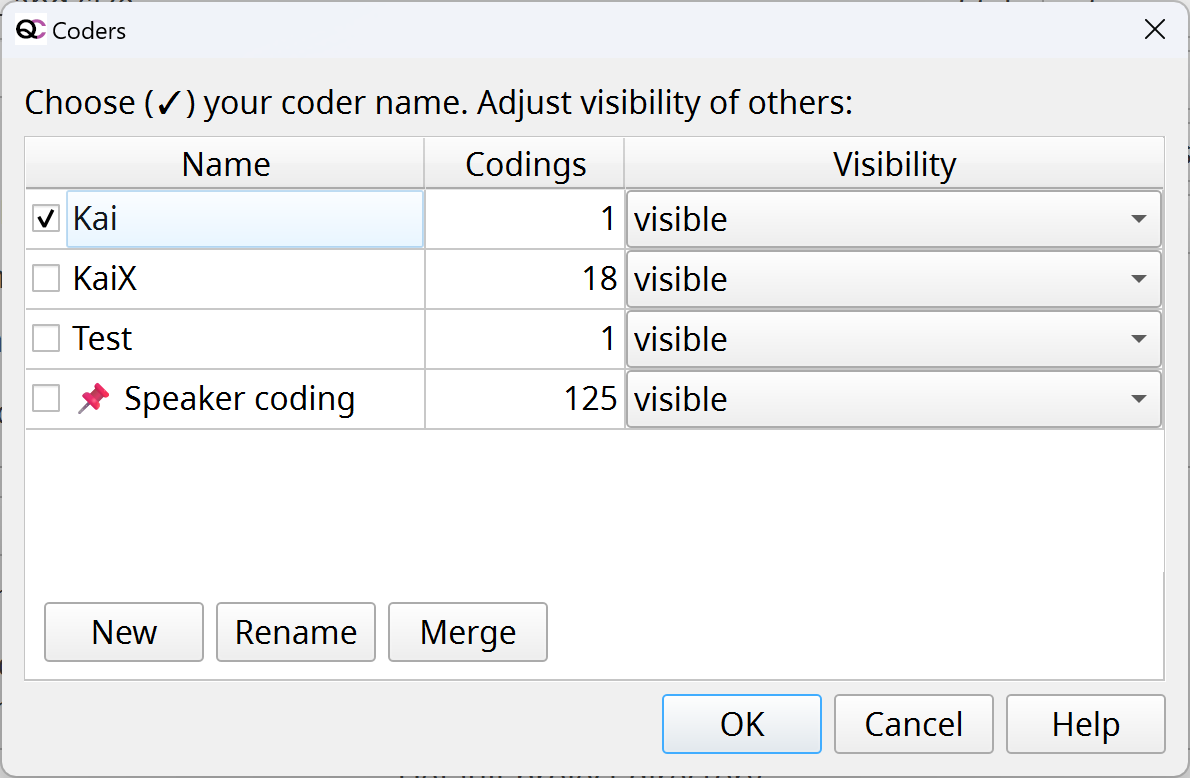
(Note that "📌 Speaker coding" is used internally to automatically mark speaker utterances in transcripts. This name should not be used for other purposes.)
- Be careful, especially with the Merge function, as there is no Undo. If you make a mistake while you are in the coder names screen, press the cancel button, and the changes will be reverted. After clicking OK, the changes are permanent. However, the merge function will make a copy of your project before the merge with a pre_coder_merge suffix.
- In the same window, you can control the visibility of other collaborators. Since version 3.8 of QualCoder, contributions from other coders are always visible and editable by default unless you choose otherwise. Hiding other contributors is especially useful for measuring inter-coder reliability, which requires multiple people to code the same document without influencing each other.
- This window is also accessible from the toolbar in the code text, code image, and code PDF workspaces, albeit with limited options.
Warning
Do not keep the project folder on a network drive or in a cloud location, and access that location whilst running Qualcoder. If the database connection is lost, it would corrupt the database while QualCoder is performing a series of database operations.
Backups
Make a backup of the project folder before making any substantial changes, such as a substantial reorganisation of codes and categories, merging projects, or merging codes. QualCoder does perform hourly backups (keeping up to the most recent five, if backups are set in the settings). Also, do not store extra files or outputs within the project folder.
In addition, for good data management practices, you should have a regular backup schedule for your work and also back up the project to different devices or drives.
Creating a New Project
You can create a new project from the ‘Project’ menu.
If you name it "Test", the project will be saved as Test.qda. Test.qda is actually a folder with subfolders containing the database, empirical documents, and other files. If you want to email the project to someone else, zip the entire folder.
Main screen
The Action Log tab in the main window displays various changes that are made when using QualCoder. The main window has a menu bar at the top full of options. There are five tabs for: action log, manage, reports, coding and AI chat. Switching directly between tabs is generally OK. But if you are adding, renaming, deleting files in Manage Files or changing codes or code categories in the coding area, it is better to refresh each tab by selecting the relevant option in the Menu bar at the top of the screen. For example, changing files in Manage files, then doing coding or reports - select an option in the Menu for coding or report, rather than clicking directly on the tab for coding or reports. This is because some management changes may not refresh.
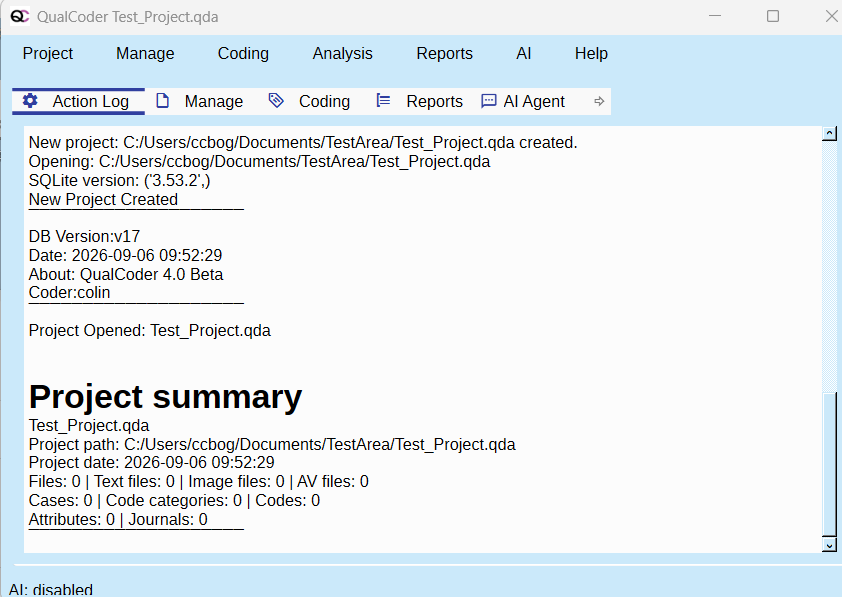
Do not run your project from a cloud location (OneDrive, Dropbox, etc.). The reasons are: sometimes files cannot be imported into the project. Accessing a cloud-stored project from different computers is especially dangerous, as it can cause synchronisation problems and even corrupt the database. See this page for safe strategies for working in a team and on multiple computers. Similarly, Do not run your project from a USB (flash) stick, as database corruption can occur.
Good data management practices
For any project, maintain good data management practices, such as having backups stored regularly, and ideally backups stored in different locations (e.g., cloud, different computer folders, hard drives, USB sticks).
Write a project memo
This is especially important if you want to use the AI-based features in QualCoder. The project memo is used to provide some contextual information about the current project and the type of empirical documents we are dealing with. This information, which is included in every query, helps the AI to produce much more targeted and useful responses. You can access the Project Memo from the Project > Project Memo menu.
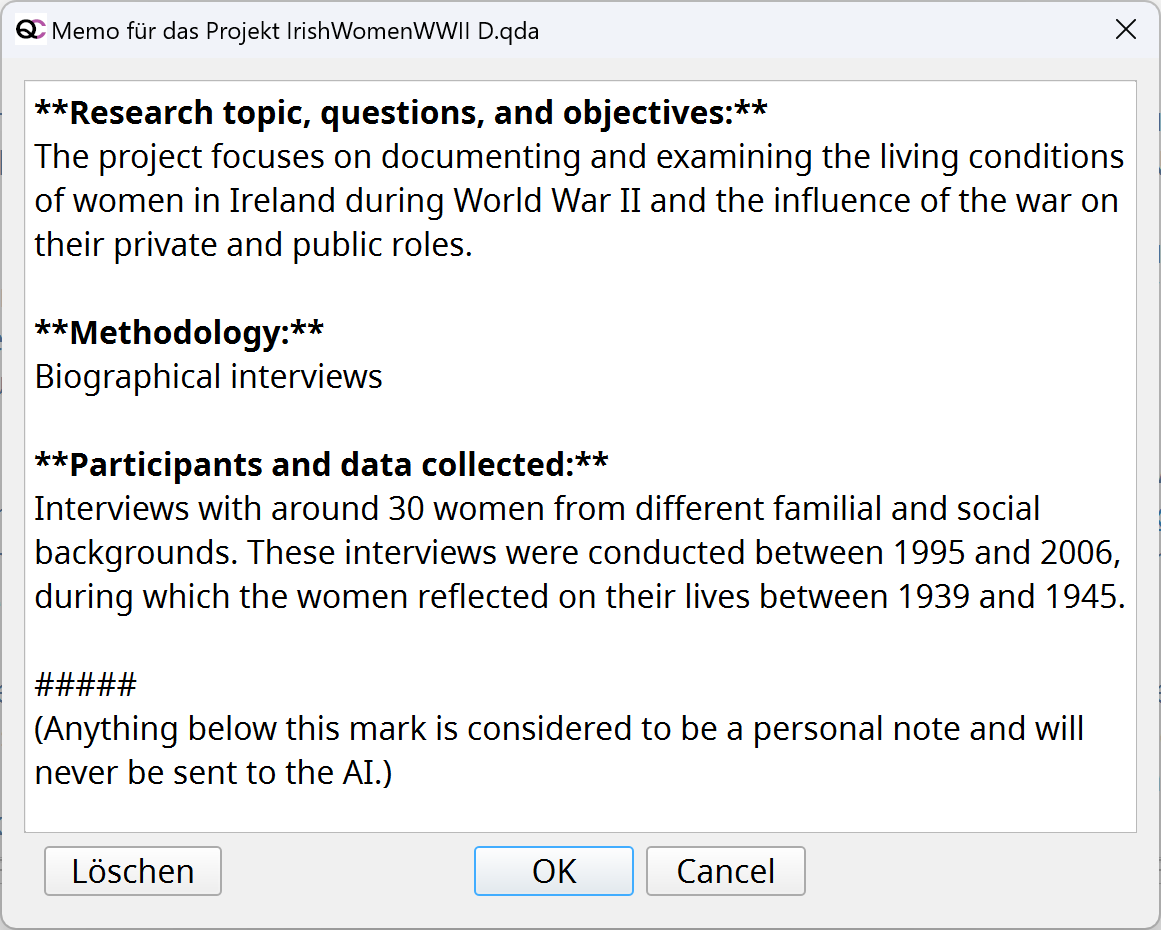
QualCoder provides a template for the most important information. You don't have to follow this template exactly, but try to keep the project description short (between 300 and 700 characters). You can also add notes about your theoretical framework, but be careful not to "preformat" the AI's perspective too much.
If you also want to use the project memo for other notes that should not be shared with the AI, you can enter the tag "#####" to the text. Anything below this mark will not be sent to the AI (this works with any memo in QualCoder).
If you do not want the project memo to be sent to the AI at all, disable it in the Settings dialog.
Manage Files
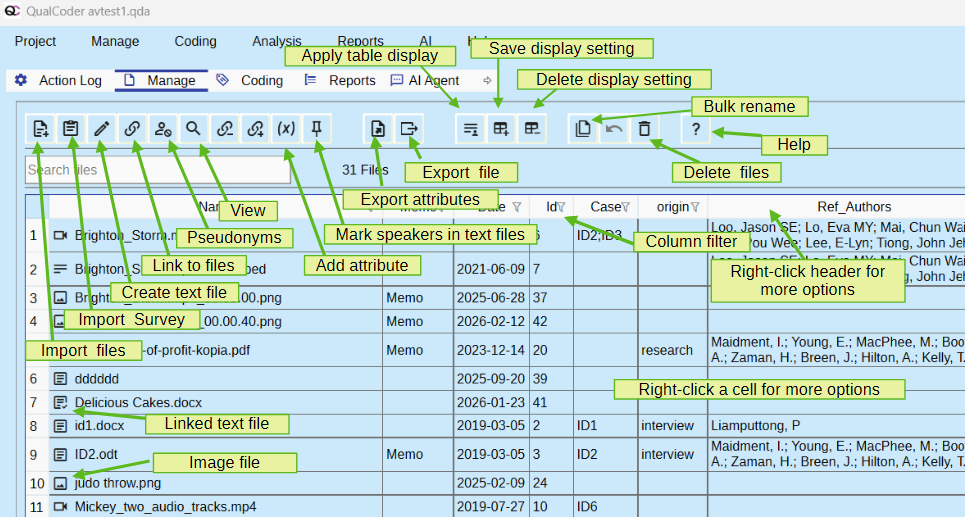
Each file is preceded by an icon that describes the type of file. Other columns show the file name, date of creation/upload, association with cases, and other attributes.
Importing files
Import text from plain text documents, docx, epub, md, odt, pdf, rtf and tex (LaTex.tex, note |input and |include files are not resolved). Import images from: jpg, jpeg, and png. Import audio/video formats: mp3, m4a, mp4, wav, mov, ogg. PDFs can be coded as text or as images. Alternatively, rather than importing files into the project folder, you can link to files locally in your computer's file system. This may be a good option if you have a specific folder structure that is important to your project.
Text files containing emoticons can be imported and displayed. However, emoticons can 'offset' subsequent coding strips, by 1 character per emoticon.
Import and link buttons:  Linked files can be imported into the project folder, and conversely, files stored in the project folder can be exported out of the project folder and linked to.
Import linked, export to linked buttons: 
You can add file attributes by clicking the (x) button. For example, create a character variable called location and fill it with city names.
If you are beginning with QualCoder, open the Examples folder and import ID1.docx, ID2.odt, and seascape.jpg.
After import, open each file by double-clicking it or by using the right-click menu. You can test pseudonymisation (see below) by removing ID2.odt, adding Joe Bloggs through the Pseudonymise button, and then importing the file again.
PDFs
PDFs with highlights can be imported and their highlighted segments coded automatically. Older projects extracted text differently from version 4.0. So when opening an older project, version 4.0 will try to match the text segments as best as possible. However, it may not be identical.
Pseudonymisation (data de-identification)
Pseudonymisation is available to replace words or phrases. For many languages (possibly except Chinese, Japanese, Korean), providing the character before the phrase and the character after the phrase are non-alphabetical and non-numerical, this is an easy cut-off to enact. Pseudonymisation is case-sensitive. Original words must be at least 2 characters long, and pseudonyms must be at least 3 characters long. Alternatively, leave the pseudonym entry blank for a randomly generated term.
An 'Anonymise on import' button is accessed in Manage files. This allows you to set up a list of original terms to pseudonyms, and must be in place before any importing text documents. It does not apply retrospectively to already imported documents.
 The button opens a window to allow the user to add, or remove from the list, the words or phrases to be anonymised. Additionally, for each new phrase to be pseudononymised, check that the replacement term has not already been used in the anonymised list.
The list you create is stored within the project folder, the qda folder. The list is stored in json format. After all importing is done, the researcher can remove the file to a different safe location, for reference as needed. The json file can be opened in a text editor such as NotePad.
Imported text files and qualitative columns in imported surveys will be pseudonymised.
PDF files are not pseudonymised.
Auto speaker codings
"Mark speakers" creates codes for every speaker in an interview or group discussion, and assigns utterances automatically. You can reach it via the file context menu or the following toolbar button:

See this section for more details.
General functions
Filename entries can be changed in the database. The file names of the original files will not be changed. A right-click context menu allows you to view, export, delete a current file. The trashcan button is an option to select multiple files for deletion. The question mark '?' opens this help page. Files can be viewed either by right-click menu on the file, or by clicking the magnifying glass icon. This is where transcripts for audio and video can be entered, when viewing an audio or video file.
Bulk rename of all file rows.
You provide a prefix and then a numbered suffix is added. This applies to all visible rows in the table. You can pre-select visible rows by right click and 'show this value' for example on an attribute.
This button allows you to bulk rename files:

Attributes
Attributes are variables to describe the files. These can be added using the (x) button or through the Manage Attributes menu option. They can be character or numeric. The above image shows an added character attribute called origin as well as one of several reference attribute columns Ref_author.
Attributes can be exported to an Excel file via a button: 
Filtering columns and rows
Filtering rows
The right-click context menu also allows you to re-order the files according to name, date, and file-type and when right clicking in the name or date columns. You can show only selected attribute types: Choose Show this value option You can also select Show values like. Show values like can be applied multiple times to further shorten the list of displayed rows.
Column visibility
Sometimes, a lot of columns can be displayed, which can be overwhelming. You can hide columns by right-clicking on the table header row for options to hide that column or to hide columns beginning with specific text. Or to show columns where the column name starts with specific text.
Save and load column and row filters
There are three buttons to save, load and delete filter settings, so that you can view the manage files table in ways that you want, quickly.

Open attribute URLs
Right-click on a URL in an attribute and open the URL with the default web browser. This is only if the attribute is a URL and it passes URL validation.
Copy reference to clipboard
Use the right-click menu option for reference columns (Ref_Authors, Ref_Title, Ref_Journal, Ref_Type, Ref_Year). This allows copying reference to the clipboard as a Vancouver or APA style reference.
Assign a selected file to a case
You can assign a file to a case via right-click menu when in the cases column.
Artificial Intelligence
If you have enabled AI integration in QualCoder, newly imported text files will be read by the local AI model and stored in its local memory. This happens in the background (status bar shows "AI: reading"). You can continue to use QualCoder, but the AI-enhanced features will not be available until the AI has finished updating its memory. This also happens if you edit an already imported text file in QualCoder.
If you ever get the impression that the AI memory is out of sync and has missed some updates to your data (which should not happen under normal circumstances), you can rebuild the memory from scratch by selecting "AI > Rebuild Internal Memory". This will reread all documents, which may take a while.
Text file creation and editing
You can create and enter text into text in the database by pressing the pencil icon.
Create text entry button: 
Text files can be edited providing no coding or annotations or case assignment have been performed with the text file.
Best practice
Save a copy of the project before editing the text of a coded text file.
Sections of the text file or audio/video transcribed file will have sections of text underlined in green (case assigned), yellow (annotation) or red (coded). Text can be edited even after the text is coded or annotated or assigned (fully or partially) to a case.
You can select text that is not underlined and copy/replace without problems. You can click on a position (without selecting a section of text) to then type, delete, or paste text. This can occur in underlined (coded, annotated, case-assigned) or not underlined (not coded/annotated/case-assigned) text locations. You will see the underlines shift as text is added or removed.
Info
There are some limitations: It is best to avoid selecting sections of text to delete (or to type or paste over) if those sections have a combination of not underlined (not coded/annotated/case-assigned) and underlined (coded, annotated, case-assigned). The reason is that the positions of the underlying codes/annotations/case-assigned may not correctly match as intended. If you have made a change that you think has affected these coded/annotated/case-assigned positions badly, exit the text editing window by pressing the Cancel button.
Audio and Video files
Video (mov, mp4, wmv, ogg) and audio files (wav, mp3, m4a) can be imported. Loading an audio or video file will also automatically create a blank text transcribed file. This file will have the same name as the audio or video file, but have a .txt extension. Initially, this text transcription will be empty. You can transcribe the file yourself or get the file professionally transcribed and copy and paste the text into this file.
You can open an audio or video file to view. For video, this opens two windows, one for viewing the video and one for the controls and a transcript, shown below. When an audio or video file is loaded into QualCoder a blank text transcription file is automatically created. The transcription file name defaults to videoname.txt.
The transcribed text file is created and stored within the database, and can be exported to a text file. The file can be edited.
Warning
Important note: The edits occur within the database. An original text file is NOT changed. Transcriptions cannot be linked as an external file.
If you have a .srt file (a transcript file that is read by VLC) you can place this alongside the video inside the project folder, in the video folder, shown in the image below. When the video is played, the translation wording will be shown as subtitles in the video. Also, if you open the .srt file in a text editor, copy and paste this into the associated video text file. Then this text will be shown as the transcription for the video.
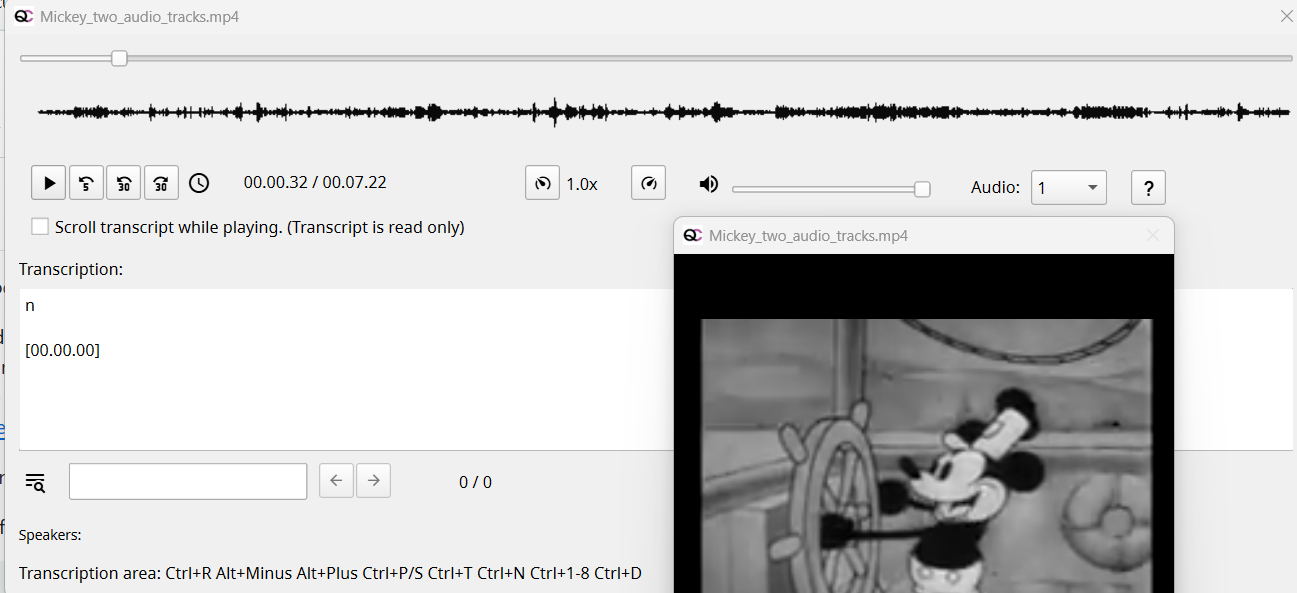
If you have ffmpeg installed a waveform is shown. If the audio files has multiple audio tracks, only the first track is shown for the waveform.
Transcribing audio and video
To transcribe open the Manage files menu option, then view the audio or video file. The audio/video will load and there will be a text area to enter transcribed text.
QualCoder does not have an automated audio to text feature. Use other services such as: Microsoft Word Transcribe, otter.ai, Vosk, audapolis, noScribe an offline transcriber for 99 different languages or SocioTranscribe.
Transcriptions may contain timestamps indicating when the text is being pronounced during the video. The following formats are recognised by QualCoder, where SSS are milliseconds:
For the above, brackets can be [] or {}. These can be changed in the Settings menu.
The video file might contain multiple audio tracks. There is a drop-down box that allows you to choose another audio track.
Transcriptions may contain speaker names indicating who is speaking. Speaker names are bracketed in this format: [name] or {name} or name: .
Manually transcribing audio and video is helped with some keyboard shortcuts. Transcribing and adding or editing text can only occur if the existing text has no codes or annotations.
The key shortcuts are:
Ctrl+R Rewind 5 seconds
Alt+R/Alt+Minus (available in 3.3+) Rewind 30 seconds
Alt+F/Alt+Plus (available in 3.3+) Forward 30 seconds
Ctrl+S or Ctrl+P Stop/Start toggle audio/video. From stop to play will rewind 2 seconds.
Ctrl+Shift > Increase play rate up to 2 times
Ctrl+Shift < Decrease play rate down to 0.1
The above controls are also available from the toolbar icons.
Ctrl+T Insert timestamp in this format: [hh.mm.ss]
Ctrl+N Add a speaker name. This also pauses the audio/video.
Ctrl+D Delete one or more speaker names.
Ctrl+1 to 8 Insert speaker name in this format: [name]
Transcriptions that have codes, annotations and / or case-assigned
Sections of the text file or audio/video transcribed file will have sections of text underlined in green (case assigned), yellow (annotation) or red (coded). Text can be edited even after the text is coded or annotated or assigned (fully or partially) to a case.
You can select text that is not underlined and copy/replace without problems. You can click on a position (without selecting text) to then type, delete, or paste text. This can occur in underlined (coded, annotated, case-assigned) or not underlined (not coded/annotated/case-assigned) text locations. You will see the underlines shift as text is added or removed.
There are some limitations
It is best to avoid selecting sections of text to delete (or to type or paste over) if those sections have a combination of not underlined (not coded/annotated/case-assigned) and underlined (coded, annotated, case-assigned). The reason is that the positions of the underlying codes/annotations/case-assigned may not correctly match as intended. If you have made a change that you think has affected these coded/annotated/case-assigned positions badly, exit the text editing window by pressing the Cancel button.
Example files
There are sample files in the Examples folder. These can be used to test importing files of different document formats and of importing an image. There are also example files to test importing case attributes, and for importing a survey.
Manage Bad Links to Files
If your project contains externally linked files, these files can be moved, renamed, or deleted.
The Manage bad links feature allows you to edit the existing link and replace it with a new one, by finding the correct file and its location. Bad links do affect images, audio and video files. Text is not impacted unless you need to review an original text document. This is because the plain text, on which coding occurs, is imported into the QualCoder database.
The automated search takes time and looks through the user's home directory for up to 2 matching file names. This is intended to speed up finding the link to files where the link is currently pointing to nothing.
Manage cases
Cases are useful for collating various files to a particular circumstance or person. Cases can have attributes such as age and gender for participants. You can add a memo of notes to each case and rename a case by double-clicking on a case name. Not all projects need cases, for example, a project of individual interviews would be loaded as individual text transcripts, and those files can be assigned attributes in Manage Files, such as a person's role, age, etc.
A table lists the cases and their attributes. The number of files associated with a case is shown. Click on the Files cell in the table to add or change files associated with that case. This displays the case file manager dialog, described below.
When a survey is imported, each survey row can be assigned to a case. The case name is the unique identifier in the first column of the csv or Excel spreadsheet. Large surveys (e.g., 1000 or more rows) can take a long time to import, as cases take some time to create.
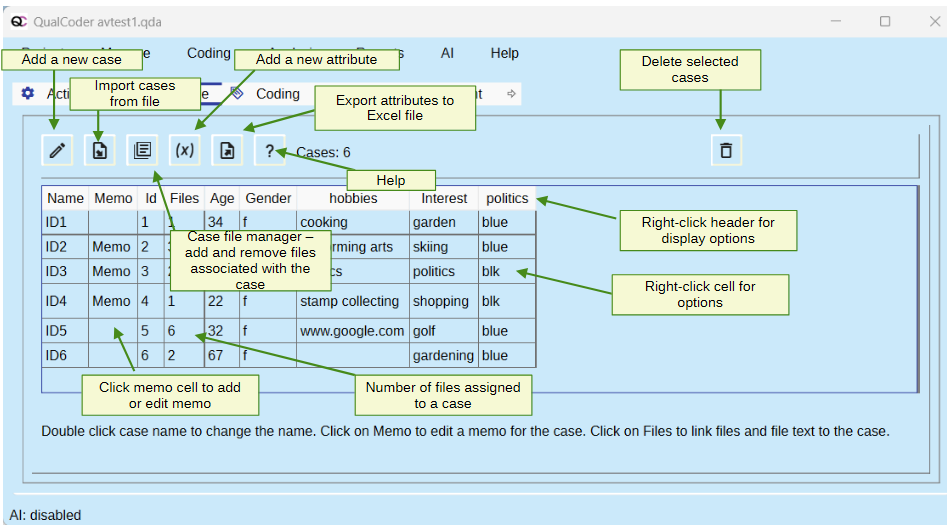
Hiding and showing rows and columns
Hide columns by right-click on the table header row for options to hide that column or to hide columns beginning with specific text. Or to show columns starting with a text value. Hide rows by right-click menu and selecting a text value that equals or 'is like' some chosen text. Right click to order by case name or by attribute value, ascending or descending.
Pratical example
Add the three students (or cases) by clicking the Add case icon. Name each student: ID1, ID2 and ID3.
Case file manager
Now, add each student’s file to each student. Click on the cell in the Files column for case ID3 for example. This opens the case file manager dialog. Alternatively, click on the documents icon which will also open the case file manager.
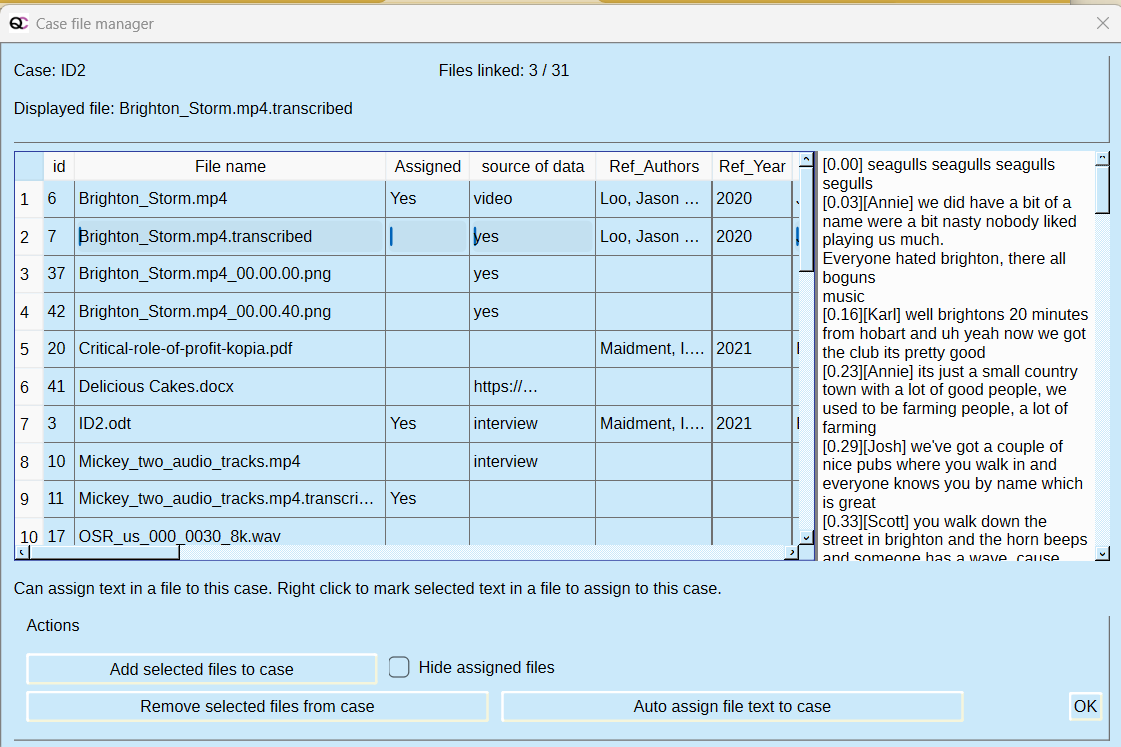
In the case file manager, click on a case, say ID3, then click the Add selected files to case button. Select one or more files in the files list. Add the files to the case. For example add the miguel-henriques.jpg to ID3. You can remove files and view the files associated with the case. You will see file text will be underlined in red, which indicates this text is associated with this case.
You can also select a case, manually highlight text portions within a larger text document, and right-click to mark – or assign -the text to the selected case.
Importing cases and case attributes
You can import attributes from a CSV or XLSX file using this button:

The first row must contain the attribute headings. The first column must contain matching case names (for this example: ID1, ID2, ID3). Note that this is case sensitive. Open the cases.csv file in the Examples folder to see how it is laid out.
For this example – delete all the cases shown. Then, import the attributes from the cases.csv file through the Import Attributes dialog. You will again need to link the files and file text to each case.
Exporting case information
You can export the Cases table to an Excel (xlsx) file, using this button:

Attributes
Attributes are variables associated with files, cases or journals. They can be useful to add context when interpreting your analysis. Open the Manage Attributes dialog. You can add, delete, rename and add memo notes to attributes. You can right-click on a numeric attribute to convert to Character, but not from Character to Numeric.
The only options for attributes are numeric and character. There are no options for boolean, date or time or specific numeric types such as integer. However, if you are running SQL queries, via Reports > Database queries, you may need to cast the numeric attribute to an Integer or Real, e.g. cast(my_var as integer).
Attributes can be added in the Manage Attributes, Manage Files, Manage Cases or Manage Journals sections by clicking on the (x) button, shown below. Attributes can be imported from a survey, and also from an REFI-QDA project file. Note REFI-QDA project import is not guaranteed to successfully import.
It is not the intention for QualCoder to perform statistical analyses of the attributes. Use statistical software such as R.
Attributes can also be added or deleted using the Manage > Manage Attributes option:
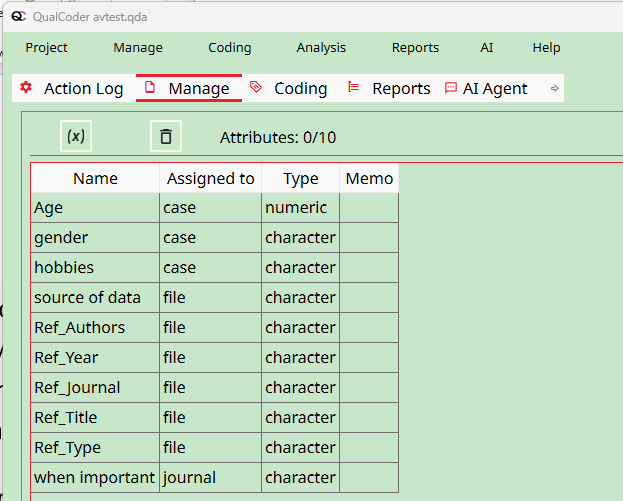
In this area you can delete attributes. But even though you can delete reference attributes, we recommend that you do not do this, unless you are certain all your references are not needed. These are prefixed with 'Ref_' and are associated with imported references that link a file to a specific reference. See Manage References to import and link references to files.
References
Go to Manage > References to import a bibliography. This must be in RIS or NBIB formatted plain text. The file can have endings of .txt or .ris or .nbib. You can also import references from Zotero 7 - ensure that Zotero is open and running first, and enable the local API in Zotero Settings -to allow QualCoder to communicate with Zotero. The PDF or EPUB reference files in Zotero will also be imported.
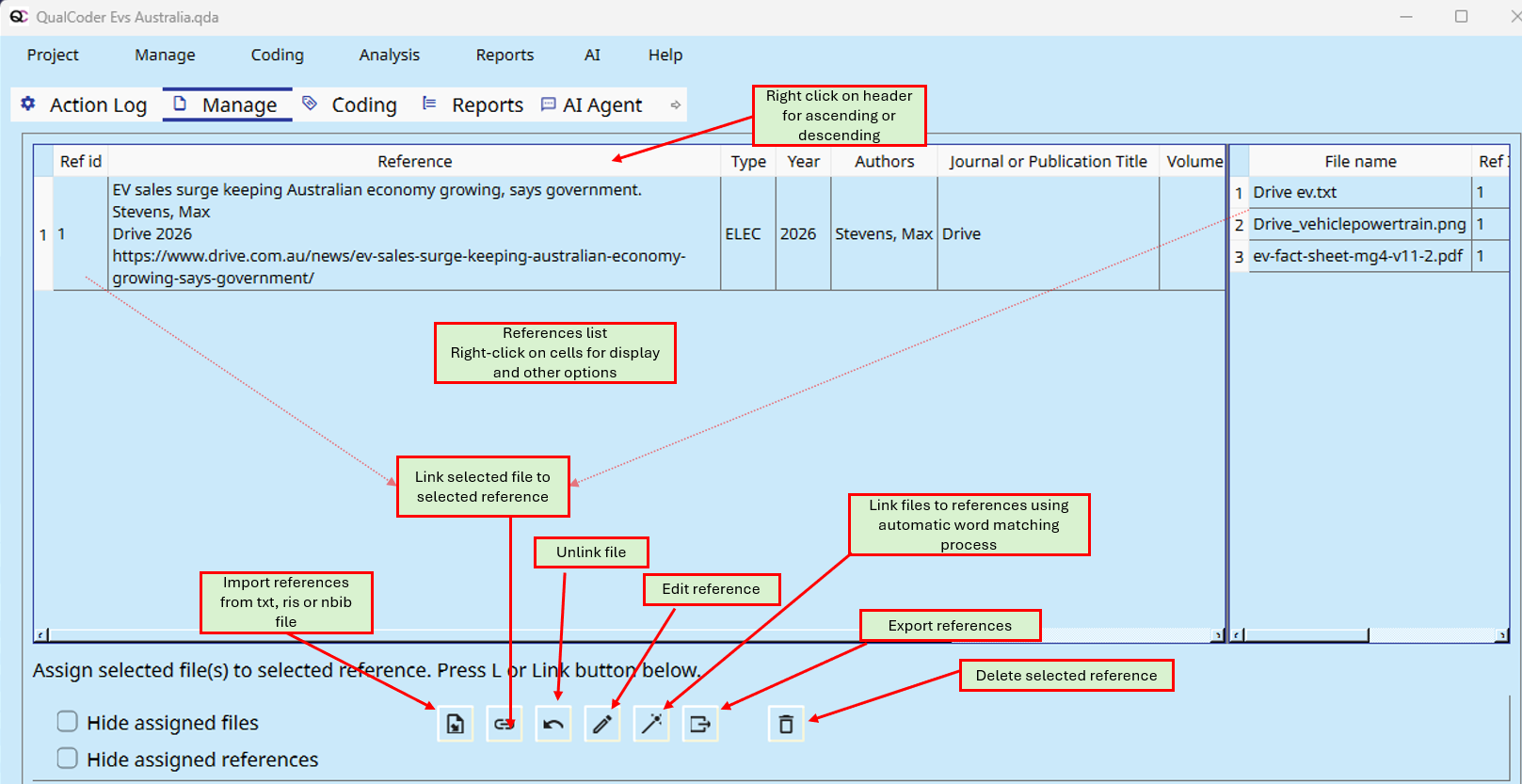
Press the import button, and select a bibliography file (.txt, .nbib., .ris). This example was from a text file with a reference in ris format - see Examples folder bibliography.ris. Options are to import all, new references, or specific references. If there are attachments, such as with a Zotero import, these can be imported also.
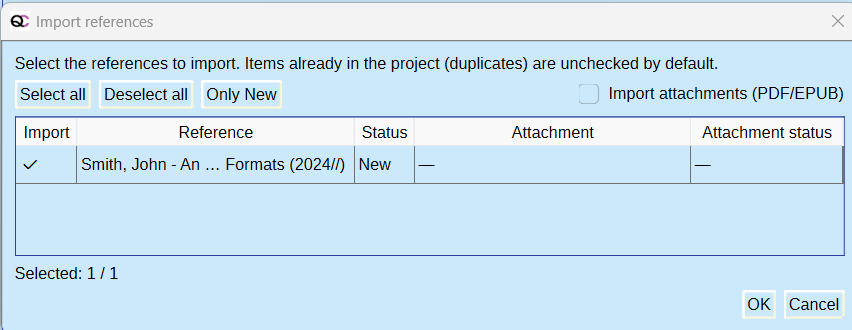
You can link, and unlink, references to files. You can manually edit an imported reference. You can delete a reference.
In the Manage Files screen there will be four new attribute columns: Ref_Authors, Ref_Title, Ref_Type, Ref_Year

Files linked to references will have details in those columns.
References can be displayed in analysis - such as the Analysis - Code Retrieval
You can export all references to ris format with the export button.
Coding Text
Select Code text from the Coding menu. Once text segments are coded, hovering the mouse over the coding shows the code name as a tooltip. Clicking on the coded segment also shows the code name.
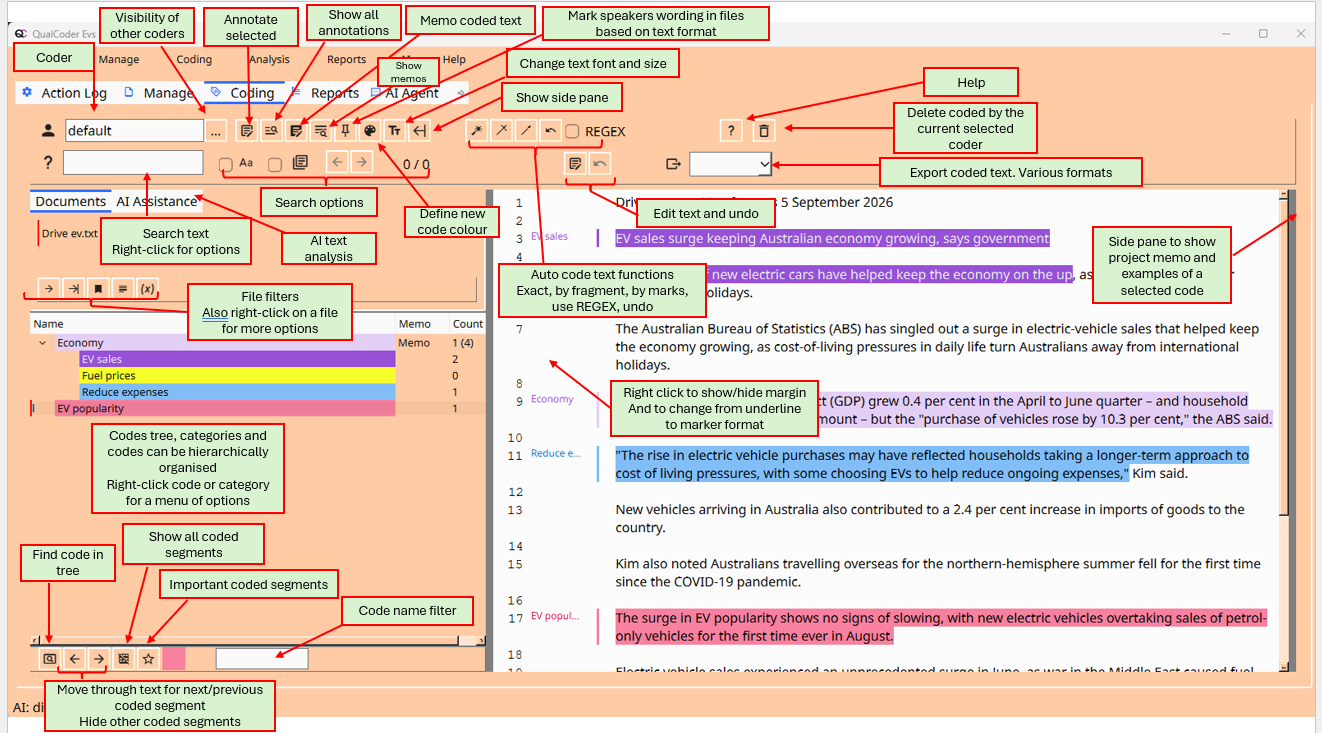
Coded text can be highlighted via an underline, or a marker style:


Select a file
Select a file for coding from the selection list in the left-hand upper pane. Underneath are buttons that allow you to move to the next file, to move to the most recently coded file and to go to a bookmarked position in a file, to view the file memo and an Attributes button that filters the files based on their attributes. Additionally, there is a right-click menu of options, including sorting.
Create a code
Create a new code by right-clicking in the left-hand lower window pane. Codes can be assigned a colour by right-clicking on the code and selecting the change code colour option. There is a button in the header section with an artist palette image that will set all newly created codes to your selected colour, instead of random colour assignment.
Right click on a code for more options from a menu: add a memo to a code, delete a code, renaming, adding a new code, and adding a new category, showing codes like (a certain name), Move a code or category, add a category, sorting.
Coding text
The easiest way to code text, is to select some text, then left-click with the mouse on a code in the code tree. Alternatively, select some text. Right-click to open a menu and mark the text with options such as the current code, recent codes, a new code, ir in vivo coding.
Hover the mouse pointer over coded text to see information of the code and any memo. Coded text can be uncoded by clicking on the text segment and pressing the Unmark button.
Coded text segments can be memoed - through the right-click menu, by pressing 'M' or by clicking on the right-most 'notepad and pencil' button. Coded and memoed text is italicised.
Important coded texts, such as exemplars for a report, can be flagged Important by using the right-click menu when on the coded text and selecting the Important option. The Star button underneath the codes tree toggles between showing all coded text and coded text flagged as important.
Overlapping codes
Overlapping codes can be difficult to view clearly. Overlapping sections are underlined. Mouse hover will show overlapped coded text. You can press 'O' after clicking on an overlapping section to cycle through the codes at that location.
Annotations
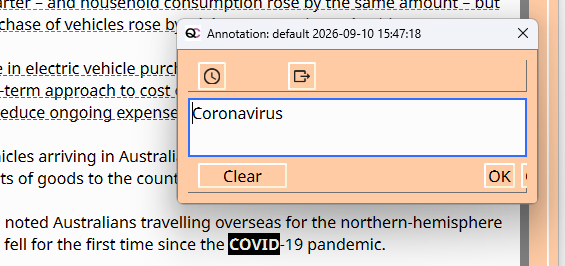
Add an annotation (a memo for a text segment) to a text selection. These are useful for explaining acronyms and jargon. The text will become bold to mark the position of the annotation. To re-open an annotation, select some of the bolded-text and right-click to get the Annotate option. Alternatively, click the leftmost notepad and pencil button, or press the 'A' key. To remove an annotation, open the annotation and delete all the text.
Auto-code
The top right of the screen has buttons for auto-coding text:

You can:
-
auto-code exact text. An extra window will ask which files you want to auto-code.
-
auto-code sentences based on a text fragment. An extra window will ask which files you want to auto-code.
-
auto-code the current file using start and end text marks. You can use ‘\n’ for a line ending character. The start mark text is included in the coded section.
-
Undo previous auto-coding
-
A check box to activate Regex. This is a special function to apply a more flexible auto-coding based on wildcards and other functions. See this memo.
Automatic coding is case sensitive. You must also define the end of a sentence, there is a default setting with a period and space. \n can be used also to denote a line ending character.
For auto-coding exact text matches, multiple sections of text can be assigned by auto code using the pipe ‘|’ symbol. For example, politics|politicians can be assigned to the same code at the same time (for exact auto code text matches only). There is an undo option to undo recently performed auto-coding. Although if the project is closed and reopened, the undo option will be lost.
The Auto-code exact text button and the Auto-code text fragment button have a right-click menu for more options. The default is to auto-code all text. There are options to autocode only the first matching text or the last matching text in the document. Another option is to apply the auto-code only if it appears within another code (for example, within a specific coded speaker's text). The auto-code exact text and text fragment buttons ask which files you want auto-coded.
There is an undo button to remove the auto-codings that were last applied.
Emoji's , emoticons in text and auto-coding
Raw emoji characters might count as 1 character in a string but take up 2 or more positions in the visual editor, leading to incorrect calculations. Applying auto-code means that there might be a shifting of character postions when applying auto-code to the text.
Example auto-coding the word 'music', each emoji is shown as 'one'character, but behind the scenes it is 2 characters. This may result in a shift, seen below:

Auto speaker codings
The function "mark speakers" creates codes for every speaker in an interview or group discussion, and assigns utterances automatically. This allows for more focussed reports, only looking at certain speakers at a time. You can reach the function via the file context menu or the following toolbar button:
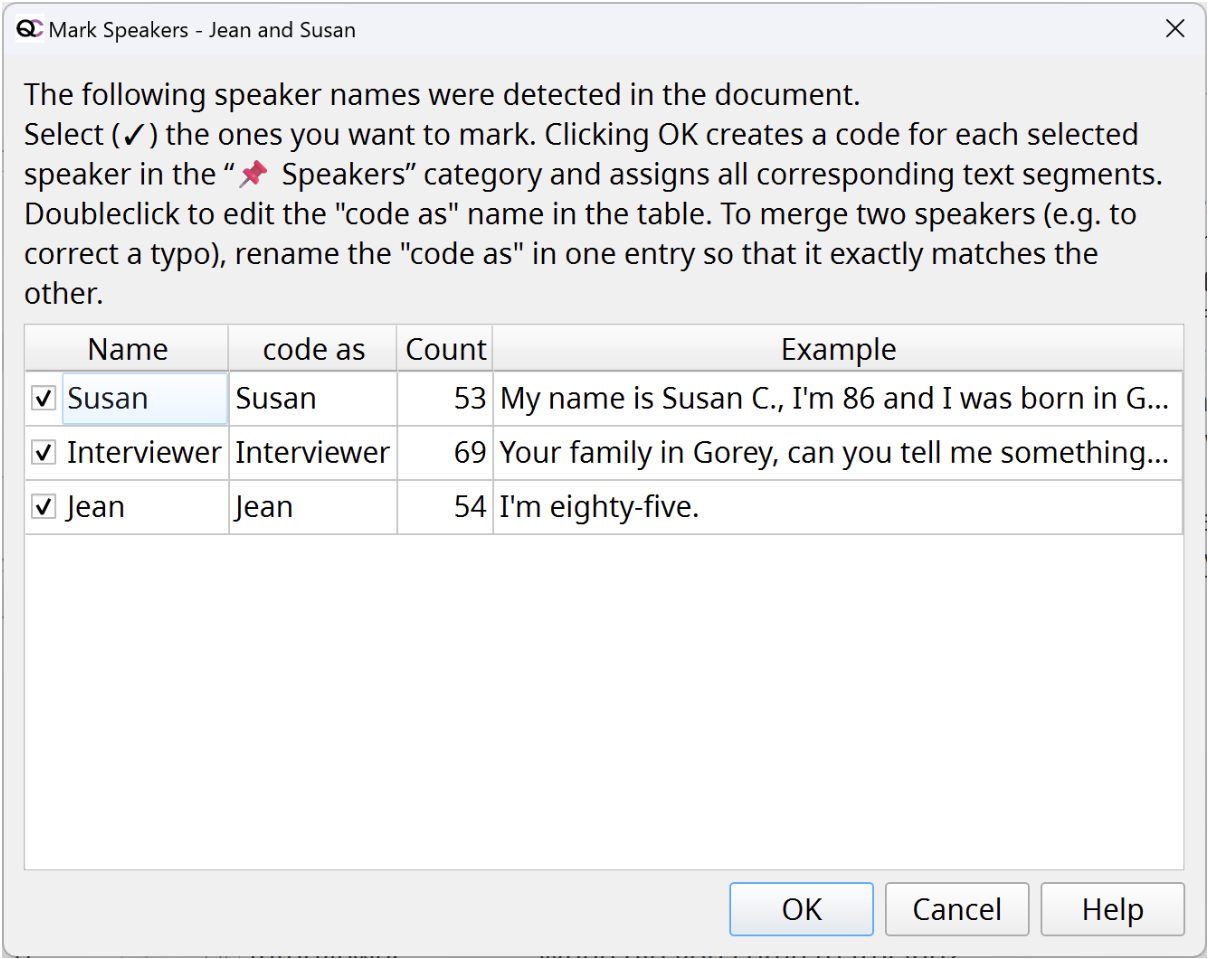
- The speaker name must be at the start of a new line and less than 64 characters long. The following formats are detected: "Name:", "{Name} or "[Name]"
- You can select which names you want to include and even edit the label:
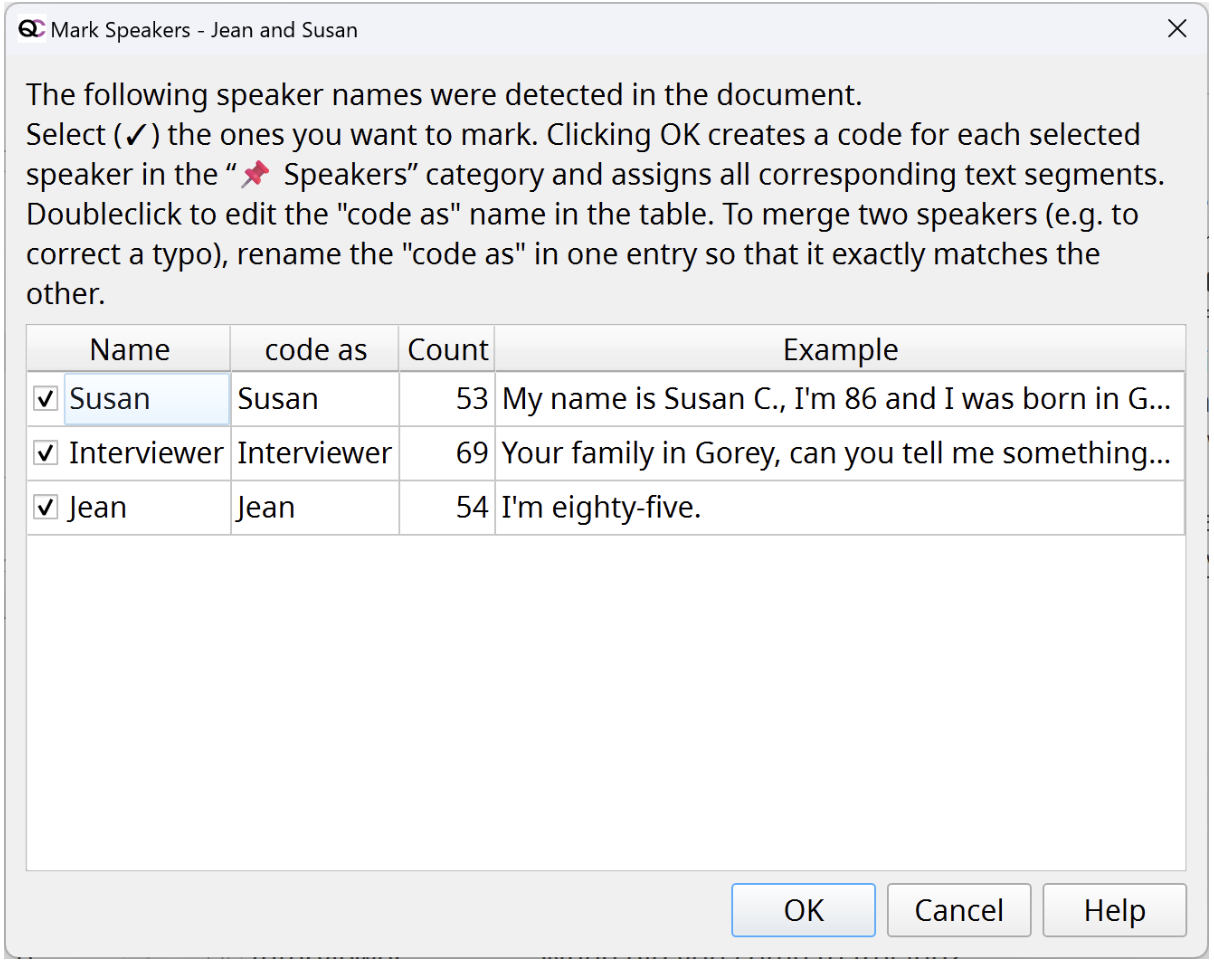
- Each speaker will get its own code in the special category "📌 Speakers" at the very bottom of the code tree. The default colours are from the grey spectrum, to make them less distracting.
- However, you can still choose to hide these codings in the text window, so that they don't distract you in your own analytic coding. To do this, click on the "..." button right next to the coder name in the top left of the toolbar. In the following dialog, select the "📌 Speaker coding" entry and set the visibility to "hidden".
- The function "mark speakers" is also available in the "manage files"workspace.
Maximise screen area
To hide the top control panel, click in the text area and press the 'H' key. To show the top panel, press 'H' again.
Convenience methods for loading text files in the files list pane.
Some projects may have many text files and the view file dialog may present too many files to open. Right-click on the files in the file tree button to go to the next file, go to the bookmarked file or go to the file with the latest codings:
-
The next file alphabetically,
-
Select the file which was most recently coded,
- Go to a bookmarked location in a file. To create a bookmark, right click in some text when coding and select the bookmark option. The bookmark works for only one project at a time, so if you opened a different project, the bookmark would be incorrect or might not work at all.
Convenience buttons underneath the files list
- Load the next file
- Load the file with the latest coding
- Go to the currently bookmarked file
- Open the file memo of the selected file
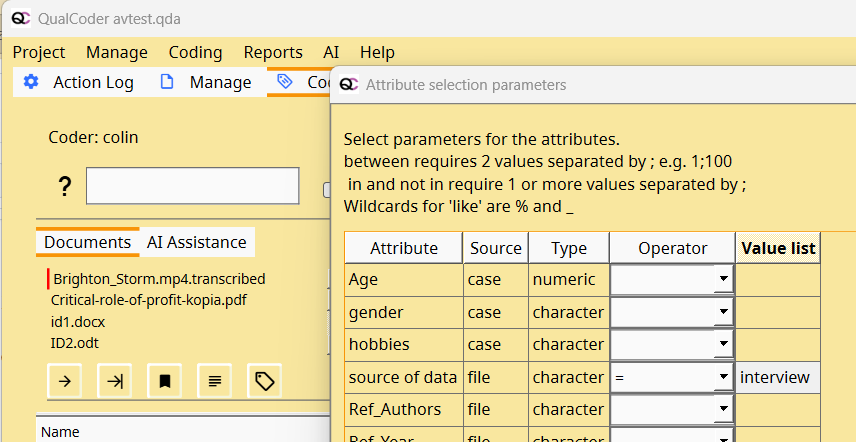
- Use a filter function show only those files that meet certain criteria. These can be from file attributes, or if files are associated with certain cases. (Image below)
Modifying code positions
Right click on a code and select Resize. Handles at each end of the coded segment can be repositioned.

Alteernatively, click on a code with the mouse (Note the code must not be overlapping with another code at that position). Press the following key combinations to extend or shrink the coded text segment.
- Shift + left arrow Extends coded text to the left
- Shift + right arrow Extends coded text to the right
- Alt + left arrow Shrinks coded text from the right hand side towards the left
- Alt + right arrow Shrinks coded text from the left hand side towards the right
It is always best to save a copy of the project before editing the text, to avoid the need to edit coding positions, in case after editing text the coding positions are shifted incorrectly. The key strokes below may help to recover the correct positions.
- Hash symbol # Displays clicked character position.
- Dollar symbol $ Shift code positions, after the clicked character position. May be needed after the text is edited (added or deleted) to shift subsequent coding segments by a number of characters.
Other shortcut keys for text coding
-
A. Annotate selected text
-
B. Bookmark the current location in the current text file. Shift+B to go to bookmark.
-
C. In text area. Create a category.
-
Ctrl+E to enter and exit Edit mode.
-
H. Hide and show the top section of controls on the screen. This provides a bigger area to view the text and to code.
-
I. On a coded section to mark that code as important. Useful for identifying exemplars. Important marks can be removed by right-click and selecting Remove important mark. Important marked codes are bolded.
-
L. 'Show codes Like', to show a shortlist in the codes tree.
-
M. Memo a code. (Must click over a coded text segment)
-
N. In text area. Create new code.
-
O. Cycle through overlapping codes in situ. (Must click over an overlapping codes segment - denoted with an overline).
-
Q. Quick code with the most recent code. (Must have a text selection)
-
Ctrl+R. Reverse text direction. May be needed for Arabic or other Right to left languages.
-
S. Search text.
-
R. Opens Recently used codes for marking text (must have text selected).
-
U. Unmark one or more codes at a clicked text position. (QC Release 3.4)
-
V. Code selected text with a new code made from the selected text. Also called in vivo coding.
-
Ctrl+Z. Restores the last coding that was unmarked.
Search text
The coding text dialogue contains a search for text function at the top middle, with tick boxes for searching case sensitive and for searching through all text files. When in the text area, selecting some text and pressing the shortcut key ‘s’ will fill the search text box and focus on the ‘next’ arrow button for quickly looking through the document for the selected text. The search requires a minimum of 3 characters as a default. Right-click to change the default to 5 characters, or to search only after Enter is pressed. The Case sensitive check box will limit to case sensitive searching. The All files check box will continue the search through other text files.
The search uses Regex functions.
- A dot ‘.’ is used as a wild card, e.g. ‘.ears’ will match ‘bears’ and ‘years’.
- A ‘?’ after a character will match one or none times that character, e.g. ‘bears?’ will match ‘bear’ and ‘bears’
- A ‘*’ after a character will match zero or more times.
- ‘. will match the dot symbol, ‘\?’ will match the question mark. ‘\n’ will match the line ending symbol. This Regex cheatsheet might assist.
- \b word boundary, ‘\bbound\b’ will search for the full word ‘bound’, but not ‘boundary’
Moving through the text for one selected code
Underneath the codes tree are the buttons: forward, back and a grid icon button (to exit the function).
Select a code and then click on the forward and back arrows. These now traverse through the text document showing the selected coded text. All other coded text is hidden. To restore and show all the codes, click on the now coloured grid button.
Note
In the 4.0 version, the entire text file is dispayed. In the previous versions e.g. 3.8.2 there was an option to load a text file in chunks of 50,000 characters. If you need to load text in chunks, then we recommend you use the previous QualCoder version 3.8.2. However note that PDF text loading changed from 3.8.2 to 4.0 which may cause inaccuracy with coding segment positions when opening a newer project (e.g. 4.0+) in the older release (3.8.2 or earlier).
Show only important coded text
Under the codes tree is a button with a star symbol. This button toggles between showing all coded text and the coded text flagged as Important.
Export reports
Export in odt format - compatible with LibreOffice and Microsoft Word. Either ewith code highlights, or comments on the side. Odt report contains details of codes used, frequencies, annotations, memos and coded text. Other options include plain text, html, and a codebook export.
Right-hand pane
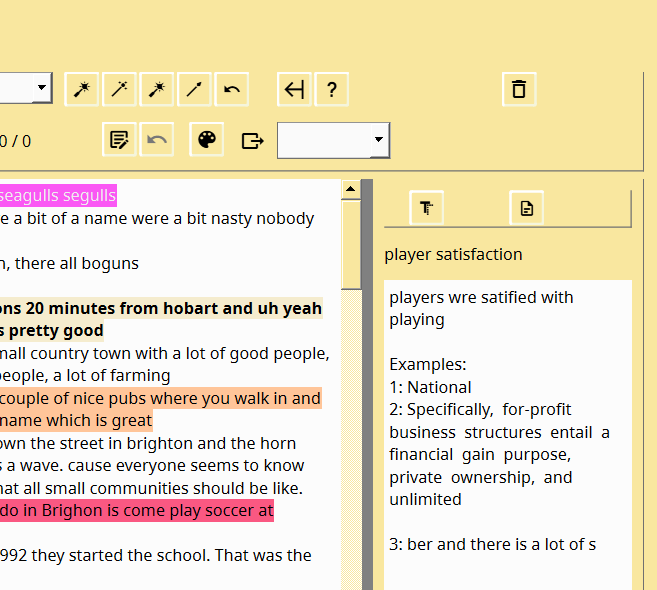
The right-hand side of the coding text pane has another pane tucked away. To open click and drag from the right-hand side of the window, or press the button next to the Help button. This pane contains options useful when coding. One button shows, when clicking on a code, the code name, code rule (memo) and random coded text examples from the project are displayed. The other button displays the project memo.
Editing text when in Coding - Code text
Text can be edited even after the text is coded or annotated or assigned (fully or partially) to a case. Sections of the text file or audio/video transcribed file will have sections of text underlined in green (case assigned), yellow (annotation) or red (coded) by ALL coders.
Note
BEST PRACTICE: Save a copy of the project before editing an already coded text file. This is just in case the code positions are re-positioned incorrectly.
When entering the edit mode, the entire file is loaded for editing. Other functions such as the codes tree and file list are deactivated.
You can select text that is not underlined and copy/replace without problems. You can click on a position (without selecting text) to then type, delete, or paste text. This can occur in underlined (coded, annotated, case-assigned) or not underlined (not coded/annotated/case-assigned) text locations. You will see the underlines shift as text is added or removed.
There are some limitations: It is best to avoid selecting sections of text to delete (or to type or paste over). This is particularly an issue if any of those sections have been underlined (coded, annotated, case-assigned). A possible reason is that positions of the underlying codes/annotations/case-assigned may not correctly match as intended.
If you have made a change that you think has affected these coded/annotated/case-assigned positions badly, exit the text editing window. Then before anything else is done press the undo button (Back arrow) next to the Edit text button.
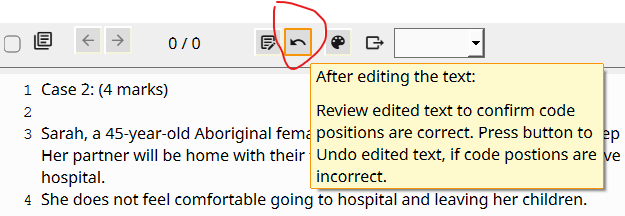
Note
Important note: The edits occur within the database stored text. The original text file is NOT changed.
Below is how the edit text screen looks.
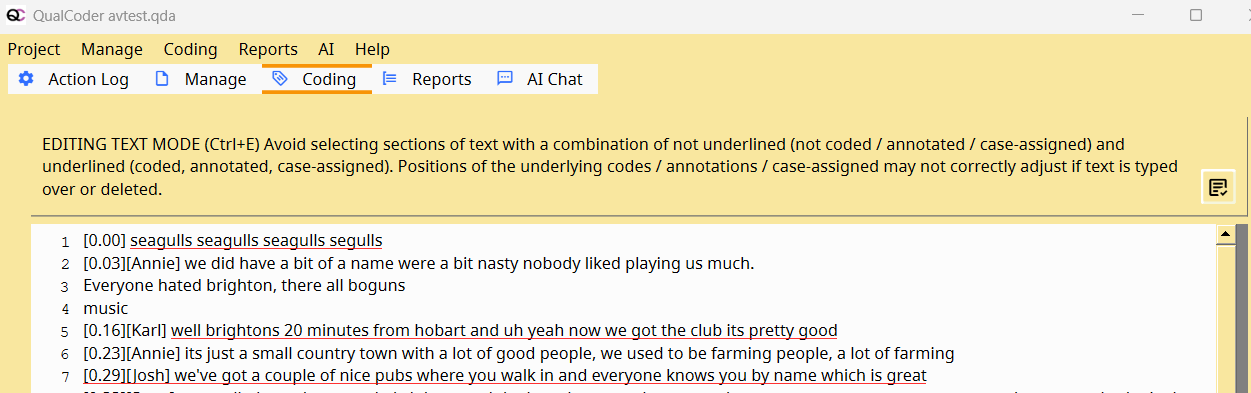
Categories and codes
AI Assisted Coding
Introduction
QualCoder’s built-in AI features (version 3.6 and up) can assist the coding process in various ways:
- AI Search: Leverage the AI's ability to quickly analyse large amounts of text to find and explore specific topics or concepts within your corpus.
- Search for concepts, not keywords: QualCoder uses a combination of semantic search technologies and Large Language Models like GPT-4. As a result, you don’t need to enter exact keywords but can also search for much more abstract concepts, e.g., "changing gender roles" or "recognition in the workplace".
- Interpret your data interactively with the AI: The AI not only suggests relevant data but also provides interpretation, offering a different perspective that can enrich your understanding of the data.
- Adapt it to your methodology: Direct the AI’s analysis by choosing from several predefined prompts or creating your own.
- Assisted, not automated coding: Unlike the keyword-based auto coding, this is not an automated process. You must review the AI's suggestions.
Note that "AI Assisted Coding" is not a method in its own right; it's a set of techniques that can be adapted to many methods working with codes, from grounded theory to content or thematic analysis. See this video tutorial for a practical example.
Preconditions
- The AI must be enabled, fully loaded, and ready for new queries (see the status bar for current state).
- It is highly recommended to use the project memo (Menu "AI > Project Memo") to include a short description of your project's research topics, questions, objectives, and the empirical data collected. This information will accompany every prompt sent to the AI, resulting in much more targeted results.
Start AI-Assisted Coding
AI-assisted coding is integrated into the text coding workspace. Start it by clicking on "Coding > AI-assisted coding" or, if you are already in the text coding workspace, select the "AI Assistance" tab on the left. Then click on "Start AI Search."
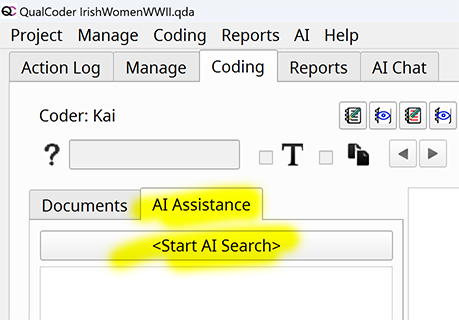
In the next window, you have to (1) define the object of your search (code or free topic), (2) instruct the AI how to analyse your data, and, if needed, (3) define filters for your data:
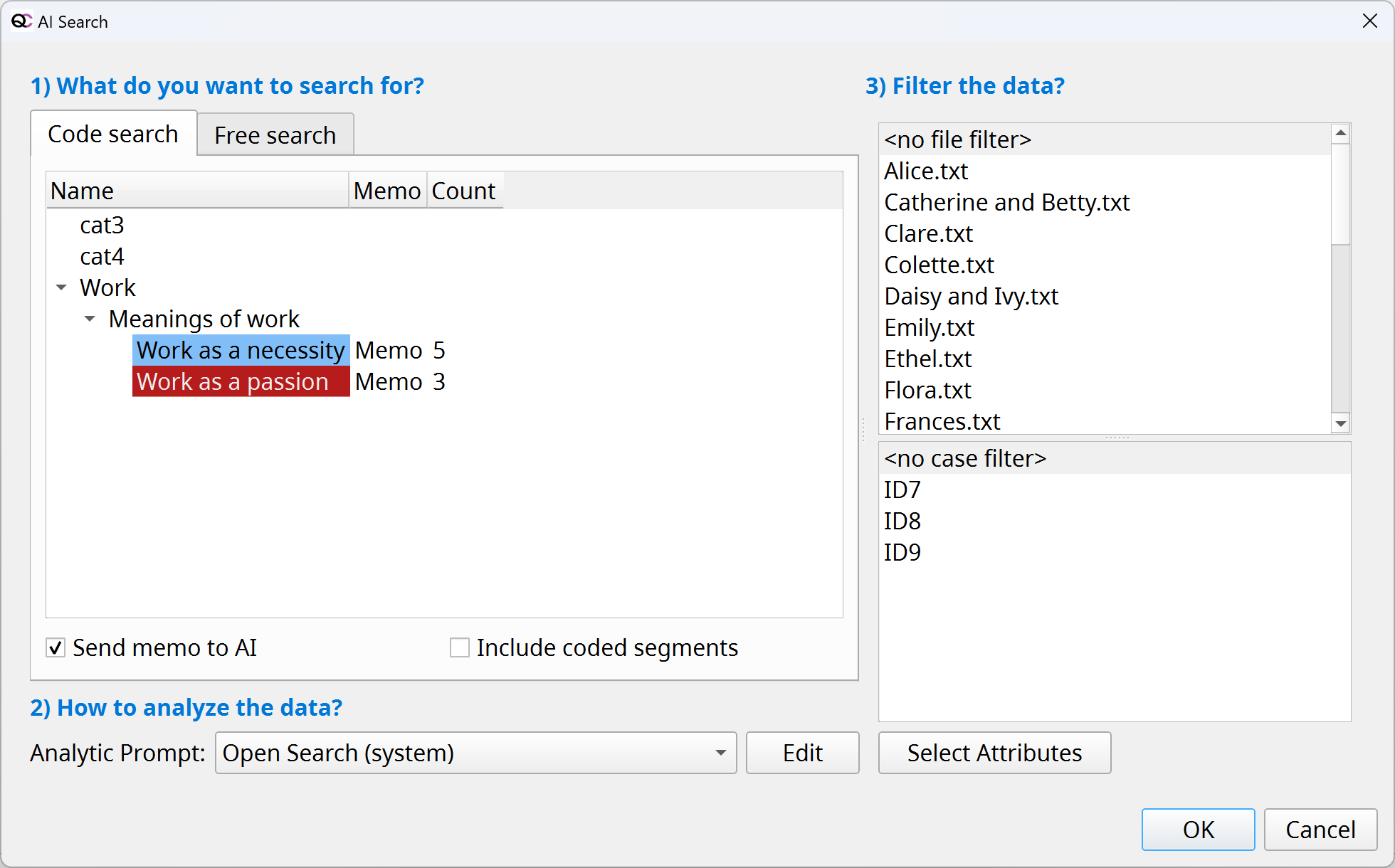
1) What to Search For: Code vs. Free Topic Search
Code Search
Use this to dive deeper into a particular aspect and add more data from your entire corpus to an already existing code.
Options:
- Select a code or a category: QualCoder will send not only the code name to the AI but the complete hierarchy path in the code tree, e.g., "Work > Meanings of work > Work as a necessity" in the example shown above.
- Send memo to AI: If selected, the code memo will also be shared with the AI. Use this to describe or define your code and help the AI generate better results. If you also want to add personal notes to the code memo, you can do so by inserting "#####" into the text. Anything below this mark will not be sent to the AI.
- Include coded segments: Defaulted to off, meaning the AI search will return only new data not yet coded with this particular code. Activate this option to include previously coded data also.
Free Topic Search
Search for any topic, phenomenon, or concept in your entire corpus of data without a predefined code. Enter a name and a description to communicate to the AI what you are looking for.
2) How to Analyse the Data: The Analytic Prompt for the AI
The analytic prompt instructs the AI how to examine your data. Select it in the bottom left of the window.

QualCoder offers a range of analytic prompts for different approaches. These allow, for instance, to modify the AI search to be either very open, interpretative, and inclusive ("Open search" prompt) or to be more focused, adhering to predefined coding rules outlined in the code’s memo ("content analysis" prompt).
Explore these prompts by hovering your mouse over the items in the drop-down list. Click on "Edit" to edit the analytic prompts or define your own (advanced option).
3) Filter: Narrow Your Search Down
By default, the complete corpus of textual data in the current project is explored. If you want to limit the search to certain documents or cases, you can select them on the right side of the window (Ctrl + Click to select multiple). You can also define a filter based on selected attribute variables.
The Process of AI-Assisted Coding
First, perform the AI Search. This is a two-step process:
Step 1: The AI queries its local database for potentially relevant data in your corpus.
Step 2: This data is then sent to the large language model for a detailed analysis based on the selected prompt.
Please be patient as it might take some time for the initial results to appear. Clicking on a result loads the document in the main window and highlights the relevant quote. Also make sure to look at the text surrounding the quote to understand its context.
Working through the Results
You can code the selected text as you would any other text in the code-text workspace. Expand or modify the selection as needed.
You can also view the AI's interpretation by hovering your mouse over a result in the list on the left, which will display a tooltip window. If you choose to code the text, you can add the AI's interpretation as a memo to the code.
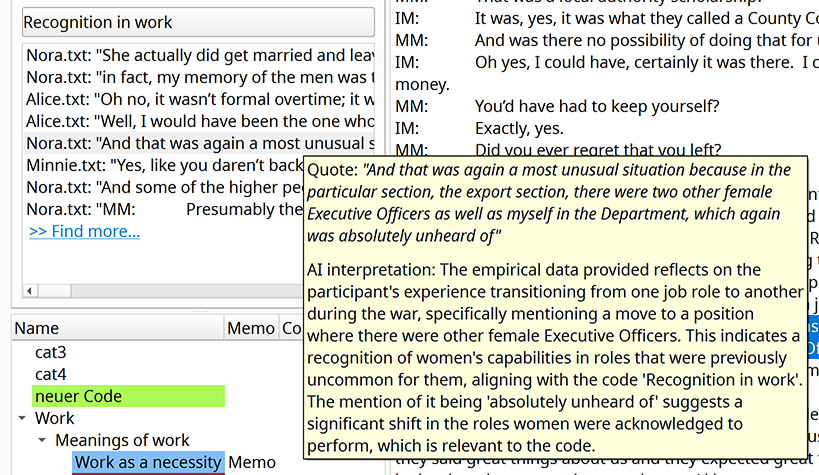
When you reach the end of the list, you'll often see a "find more" link, which means that more data from the first step of the search is available for closer inspection. Click on this link to examine the next 10 pieces of data.
QualCoder uses a ranking algorithm to display the most relevant results at the top of the list. Note that this algorithm is not perfect; you may still find interesting data further down the list.
Over time, however, the results returned by the AI will begin to diverge from the original topic and become less and less relevant. This is the point where you should stop the investigation and move on to the next topic or code. You don't need to click "find more" until there is absolutely no data left to analyse from step one of the search. Compare this to a Google search: There's no need to click through every single page of results if you already understand what you want to know.
What to Do If You Get No Results
1) If step one does not return any potentially relevant data: Remember that by default, the code search only extracts new data. If you have already thoroughly coded your documents, there may simply be nothing new to explore on a particular topic. Also, think about your search query, especially the name of the code or search topic: Is it too specific or not clear enough? 2) If step two does not yield any results: Click on "find more" (if available) to analyse more data. If this does not produce any results either, you may want to start a new search with a more open, inclusive prompt (e.g., "open search").
In general, getting no, very few, or mostly irrelevant results is a strong indication that a particular topic is not very prominent in your data. However, we cannot guarantee that the AI will find every single piece of data related to your code or free search without missing anything.
Coding PDFs
The text and image areas on the PDF can be coded.
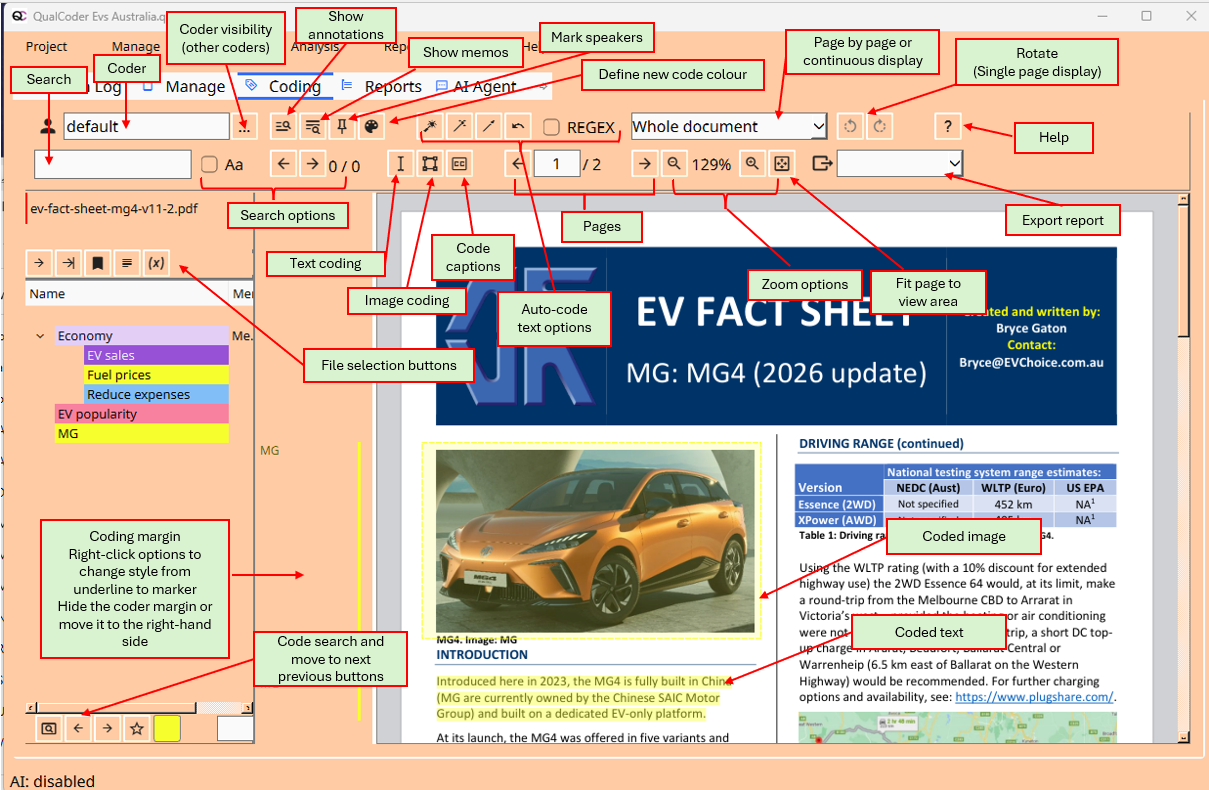
Key presses
- H Show or hide the top sections of the screen.
- Ctrl F jumps to the text search box.
- Ctrl Z undoes the last unmarked code.
- Ctrl 1 Go to next file.
- Ctrl 2 Go to the latest coded file.
- Ctrl 4 View and edit file memo.
- Ctrl 5 Get files list from attributes.
- Ctrl 9 Show important coded segments. Toggles on and off.
- Ctrl 0 Show Help page in browser.
In the PDF display area:
You can zoom in and out by clicking on the shown PDF and pressing the + or - keys. Press Q to quickly mark selection with the recent code. Press R to quickly mark selection with a choice of recently used codes.
In the plain text area:
- A annotate - for current selection - text edit only
- Q Quick Mark with code - for current selection
- I Tag important
- M memo code - at clicked position
- O Shortcut to cycle through overlapping codes - at the clicked position
- R opens a context menu for recently used codes for marking text
- U Unmark at the selected location
- V assign 'in vivo' code to selected text
Export reports
Export in odt format - compatible with LibreOffice and Microsoft Word. Or as a PDF with highlighting applied.
Older versions 3.8.2 and earlier
The screen is split into 3 adjustable panes. The left-hand side pane contains the file list and code tree. The middle pane shows the PDF representation. The right-hand pane shows the plain text extracted from the PDF. The original fonts for the text are not used. Instead, the standard font within QualCoder is used in the displayed PDF text boxes. There is a Font size adjuster to shrink the font size, to try to avoid text overlapping. It is set at -2, and -3 may be quite good also.
The right-hand side pane shows the plain text in the same way the text would be displayed in Code text. You can mark, unmark, memo the coded text, mark the coding as important, and annotate text here.
To code, left-click and drag the mouse to select PDF text boxes. This can be tricky depending on the size and positions of the boxes. Then click a code to assign the selection to it. Further adjustments can be made on the right-hand plain-text pane using the shift left or right arrows to extend, or the alt left and right arrows to shrink the coded text section.
Categories and codes
Coding images
Images can be coded in a similar way to text coding. Select a code. Left-click and drag to highlight the area you want to assign to the code. Right-click will open a menu where you can remove the coding or add a memo. At the bottom of the screen, there is a slider control to resize the image. Coded rectangles are coloured to match the code colour. Right-click the image to open rotation options.
The top right of the dialogue shows some details of a clicked on coded area - by showing the code name, pixel positions, and percentage area of the entire image. Hovering the mouse over this space will show any memo for the coded area.
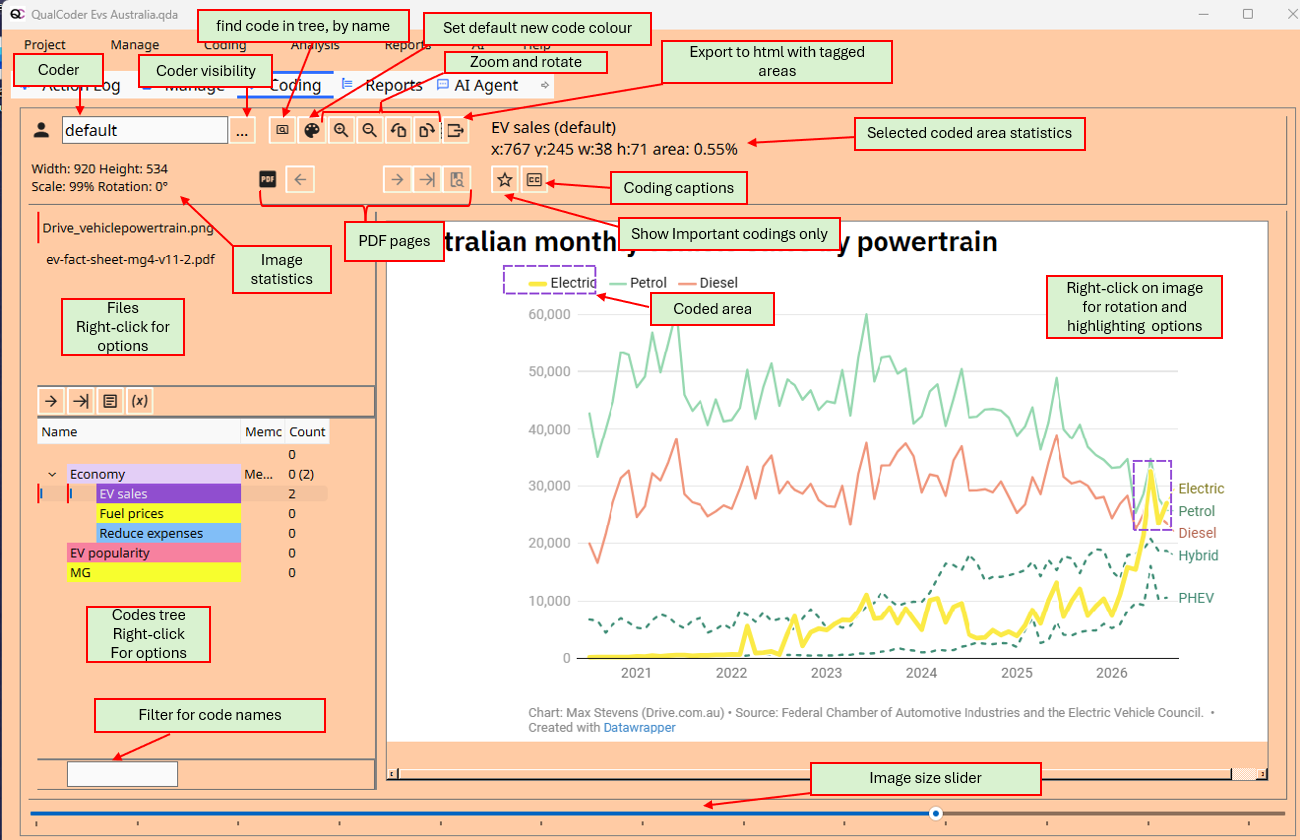
PDF image coding
PDFs can be image coded here or in the Code PDF section.
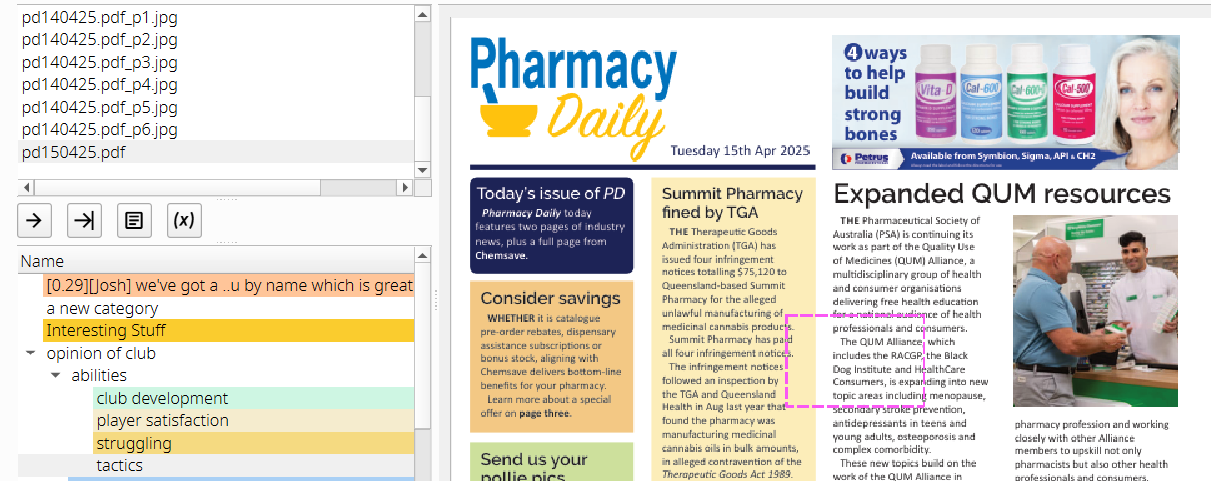
PDF navigation buttons:

Important coded areas
Important coded areas, such as exemplars for a report, can be flagged as Important by using the right-click menu when on the coded areas and selecting Important. At the top of the screen is a button with a star symbol. This button toggles between showing all coded areas and the coded areas flagged as Important.
Shortcuts
- Shortcut H. Press h when on the image to hide and unhide the top controls section of the screen.
- Shortcut L. Press L to 'Show codes like', to show a shortlist in the codes tree.
- Press + or - buttons to enlarge or shrink the image.
- Ctrl Z to restore the last unmarked coding area.
Convenience buttons underneath the files list
- Load the next file
- Load the file with the latest coding
- Open the file memo of the selected file
- Use a filter function show only those files that meet certain criteria. These can be from file attributes or if files are associated with certain cases. (Button that displays a tag)
Right-click on the image area for more options
Options include rotation and highlighting a specific code or coded area. These highlight options are: greyed out, blur, solarise, and they open in your default image viewing program to view and save.
The captions button will add a caption to each coded section chosen: Press once to add the code name. Press again to add any memos. Press again to turn off captions.
Highlight coded areas example, with captions:
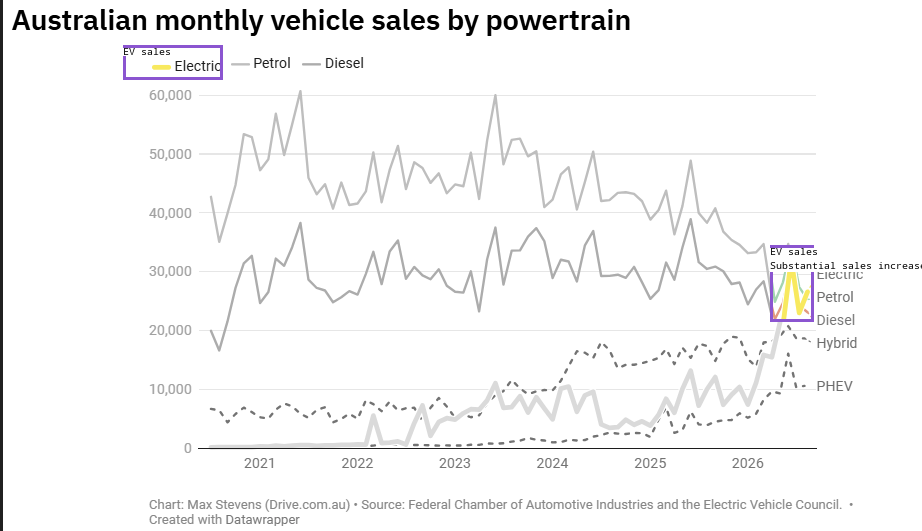
Export
The image with coded areas can be exported to an HTML file. After opening the file in a browser, mouse hovering over the coded areas shows the code name and memos.
Categories and codes
Coding audio and video
When coding video, two screens are displayed, as shown below. One screen has the video playing. The other main screen has the controls and a button to begin and end a coded segment. The controls window shows the codes in the bottom left pane and the .transcribed file text is shown in the bottom right pane. When coding audio, only the main screen is shown.
The transcription text can also be coded and annotated in this window. Right-clicking on a timestamp in the transcription will give you a menu option to go to that section of the video. If a video has multiple audio tracks, you can change the audio track too. Checking the scroll checkbox allows the transcript to scroll in time with the video, based on detected timestamps; however, you need to uncheck the scroll to be able to code the transcript.
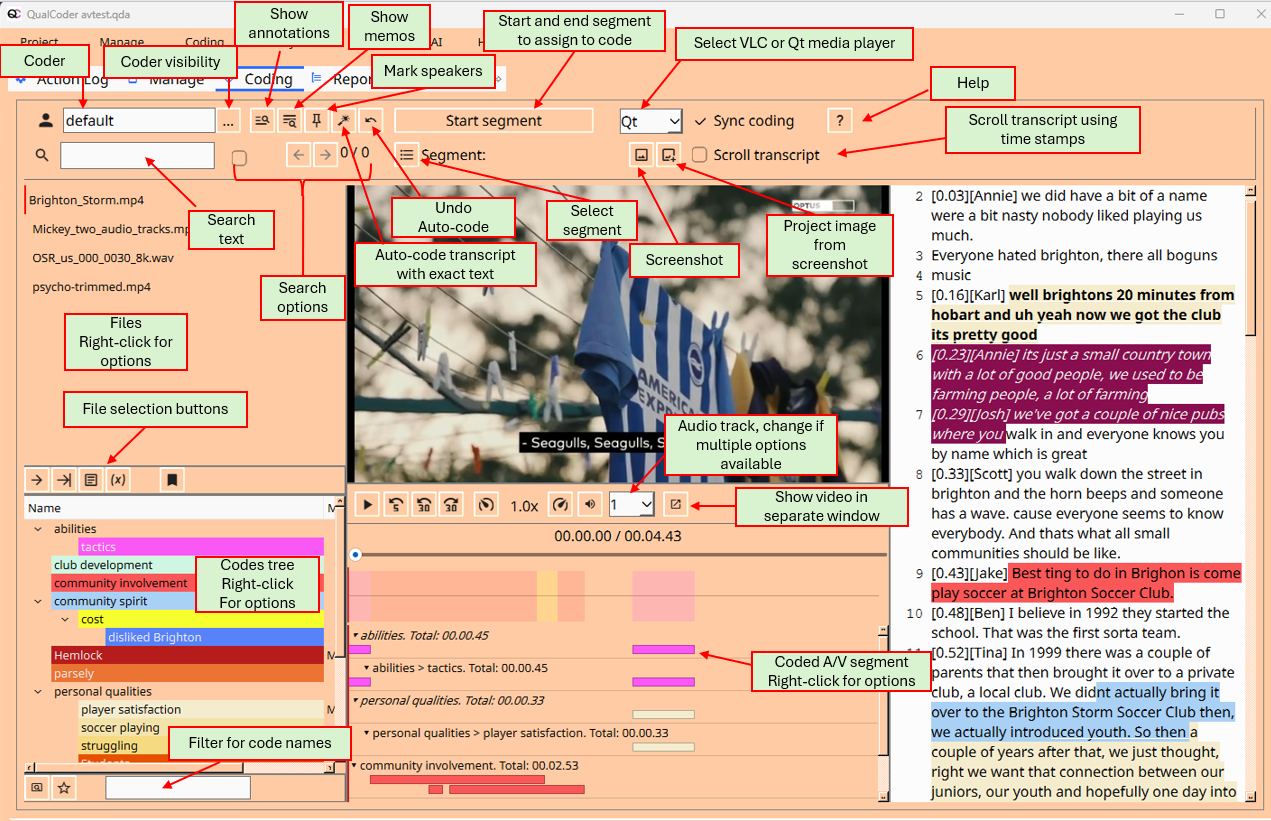
Keyboard shortcuts
- Ctrl R Rewind 5 seconds
- Alt R or Alt Minus Rewind 30 seconds
- Alt F or Alt Plus Forward 30 seconds
- Ctrl P or Ctrl D will stop/start (play/pause). When resuming the audio/video rewinds one second.
- Ctrl S will start/end A/V segment creation.
- Ctrl Shift < will slow the play rate down to a minimum of 0.1
- Ctrl Shift > will increase the play rate up to two times.
- Ctrl Z Restores the last unmarked coding.
(These options are also available through the toolbar icons.)
When the text area has focus:
- Press A to Annotate selected text
- Press L to 'Show codes like', to show a shortlist in the codes tree.
- Press M to memo a code. (Must click over a coded text segment)
- Press O to cycle through overlapping codes in situ. (Must click over an overlapping codes segment - denoted with an overline).
- Press Q to Quick code with the most recent code. (Must have a text selection)
- Press R to select Recent codes. (Must have a text selection)
Audio Video segments
Once a segment is made using the Start segment/Stop segment button, this can be assigned to a code by right-clicking on the relevant code and assigning the segment.
Coding stripes for the coded segments are shown in the lower area. Hovering the mouse over each stripe shows the code name, time segment, and any memo attached to that coded segment. Right-clicking on a coded segment stripe shows a menu that can be used to edit the memo, flag as an Important segment, or delete the coded segment.
The transcript text can also be coded and annotated in this dialog. However, when the Scroll transcript check box is checked, this cannot be performed. Playing the video when this is checked will scroll the transcript using the timestamps in time with the video.
Important coded text and segments
Important coded texts, such as exemplars for a report, can be flagged Important by using the right-click menu when on the coded text and selecting Important. Similarly, code segments can be flagged Important. At the top of the screen is a button with a star symbol. This toggles between showing all coded text and segments or Important coded text and segments.
Linking text to coded segments
Select text (it can be coded or preferably uncoded), then assign it to a segment. First, select the text. Then right-click the segment stripe to open the menu. Choose Link text to segment, to assign the text.
Modifying code positions in the text area
When in the text area, click on a code with the mouse (Note: the code must not overlap with another code at that position). Press the following key combinations to extend or shrink the coded text segment.
- Shift + left arrow Extends coded text to the left
- Shift + right arrow Extends coded text to the right
- Alt + left arrow Shrinks coded text from the right-hand side towards the left
- Alt + right arrow Shrinks coded text from the left-hand side towards the right
You can also right-click on a code and select change start position or change end position using the handles.
You can also export a screenshot. The screenshot will be saved as Frame_yyyymmdd_hh_mm_ss.jpg. You can save a screenshot for image coding within the project.
Convenience buttons underneath the files list
- Load the next file
- Load the file with the latest coding
- Open the file memo of the selected file
- Use a filter function show only those files that meet certain criteria. These can be from file attributes or if files are associated with certain cases.
Audio and video problems on some operating systems
Fedora does not work with the audio and video.
Categories and Codes
Code Organiser
The code organiser allows you to change the structure of the coding tree.
When you first open, you will be asked to back up your project before making or applying any changes. Changes made here cannot be undone.
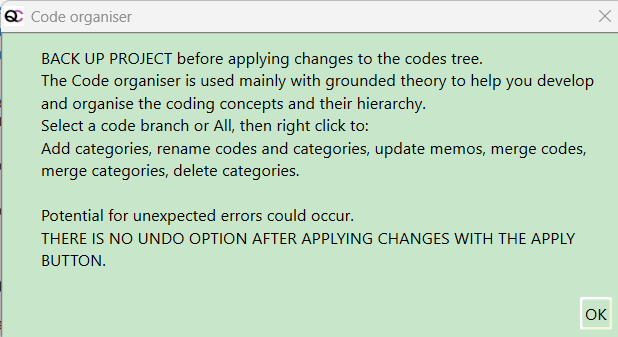
Using the left-most button, select all code branches in your project, or a specific code branch only.
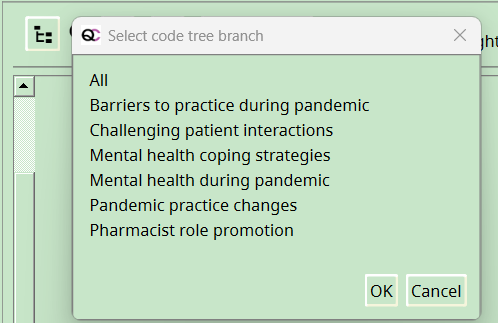
All the sub-categories and codes from your selection will be displayed.
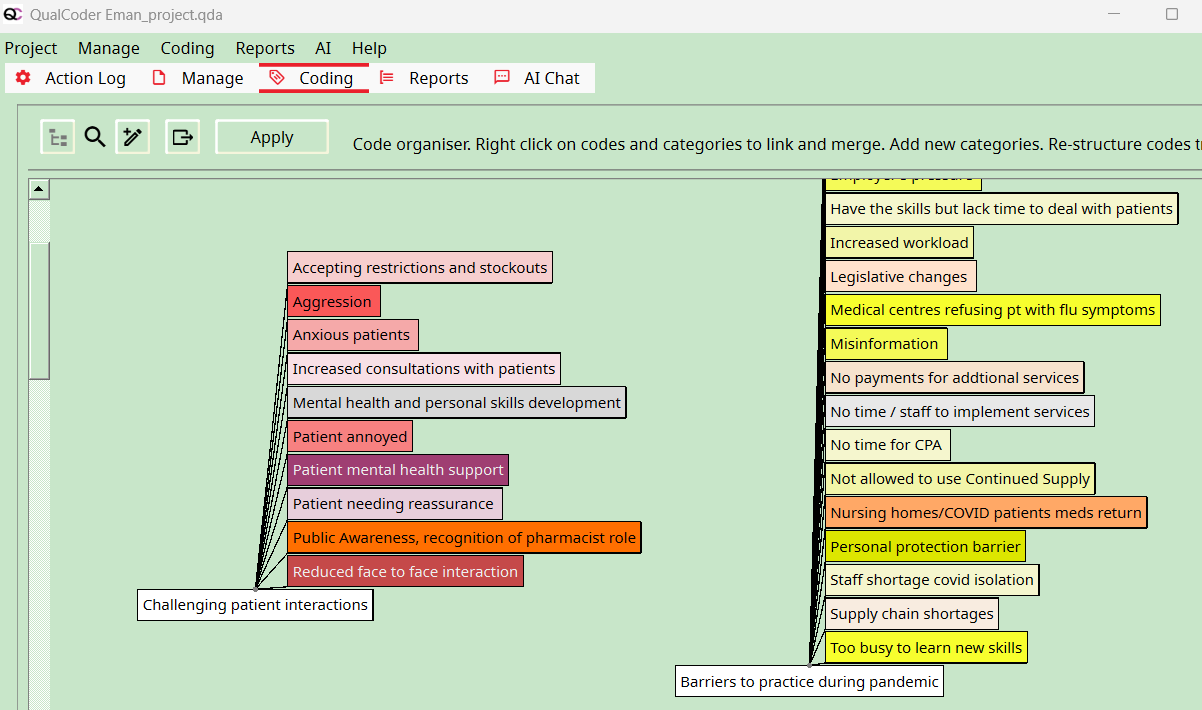
Codes:
Right-click on a code to get options of: Removing from category, moving to another category, merging into another code, view/edit the memo, renaming, viewing the coded media, displaying the memo under the code name.
Categories:
There is a button at the top of the screen to add a new category.
Right-click on a category to: merge a category into another category, move a category under another category, remove a category from under another category, rename a category, view and edit memo, or just display the memo under the category name.
Displaying the memo under the category name
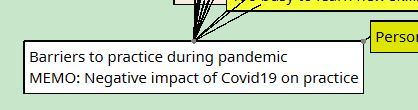
There is a button to export the image as a PNG file.
The Apply button makes the changes to the coding tree structure. If not pressed, the changes are not enacted.
Categories and codes
Categories are used to organise codes. Categories are organised hierarchically in a tree structure. You can move codes into categories and move categories into larger categories. You can move categories and codes out of their current position. A code can have sub-codes (new in version 4.0). Codes and categories can be merged by dropping a code onto a code or a category onto a category. Right-click on a category or code to rename. Right click on a code to change the colour.
Categories and codes can be assigned memos. Memos can contain symbols such as those shown here. See the how-to link to insert them - Laptop num lock on, hold the Alt key down then enter the number using the number keypad on the right.
Note
The ability to assign a single code to multiple categories is a frequently requested feature. However, we have decided against implementing this functionality, as it would be overly complicated. This is due to QualCoder’s use of a tree structure, while the requested feature requires a graph data structure. As an alternative, you can use codes with similar names across your different categories.
Reducing the amount of codes displayed in the codes tree
To reduce the number of codes shown in the code tree. In the coding windows (code text, code, a/v or code image), right-click on the code tree and select Show codes like from the menu, or when the codes tree is in focus key press F9.. Then enter text in the text box. This will then only show codes that contain that text. To show all the codes again, enter nothing into the text box and press OK to show all the codes.
A second option is to Show codes of colour. Key press F10 when codes tree is in focus.
Another button under the code tree - with a search icon - on clicking will search for the first code that contains matching text that you enter.
Codes tree menu options
In the codes tree on the left, right clicking on a code opens a context menu for various options. Sub-menus include modifying a code or category, filtering and sorting.
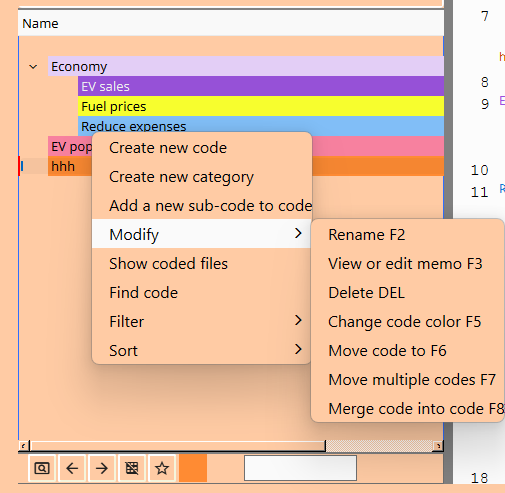
Show coded files
One option is Show coded files - this shows everywhere you have coded with the selected code. Clicking on a particular coded section will open that code in the original context for further insight.
With show coded files, you can right-click on the coloured header section for more options such as adding more codes, removing the code, and export the entire set of coded segments to a text file.
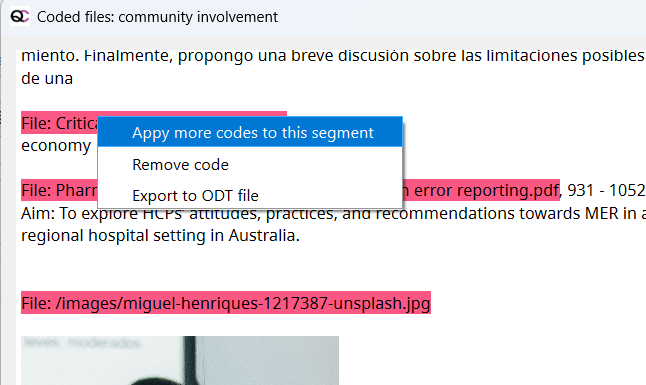
Sort the codes tree acending (key F11 when codes tree in focus), or descending (key F12 when tree in focus).
Accessibility and code colours
In the Coding menu there is an option called Colour scheme.
You can apply a range of colours to a range of selected codes, rather than rely on the random generated colours or a one at a time change of colours for each code. In this area you can also view how the code colours may appear to someone who has a variety of colour blindness: red-weak, red blind, green-weak or green blind.
Analysing data with the AI agent
Core principles of AI integration
1) Choice of AI models
The AI agent in QualCoder is not tied to a particular model. You decide which AI language model to use, whether it is one of the large commercial models, a medium-sized model on an academic AI platform, or a local language model on your own computer. For more information, see AI Setup.
2) Methodological flexibility
The AI agent in QualCoder does not define a method of its own. Instead, it provides a methodologically flexible platform for experimentation. Your research question, the insights you seek, and your methodological approach set the direction. Once an approach has proved useful, you can save it and reuse it later (see the AI Prompt Library).
3) Transparency
The prompts that guide the AI agent's work are accessible and can, in principle, be adapted. While working, the agent also keeps you informed about its steps and provides detailed source references. This allows you to see which data it draws on and examine passages in their original context.
4) Collaboration rather than automation
The focus is on working with AI through dialogue: developing additional perspectives, questioning your own interpretations, and gaining a better understanding of the material. On request, the agent can also carry out longer tasks semi-autonomously. Large-scale automation, however, has never been the primary goal.
Working with the AI agent
- The AI agent has its own tab in QualCoder. You can also move it into a sidebar (see below), alongside your data, by clicking the small arrow button.
- In the chat window, describe in your own words what you would like to investigate or work on.
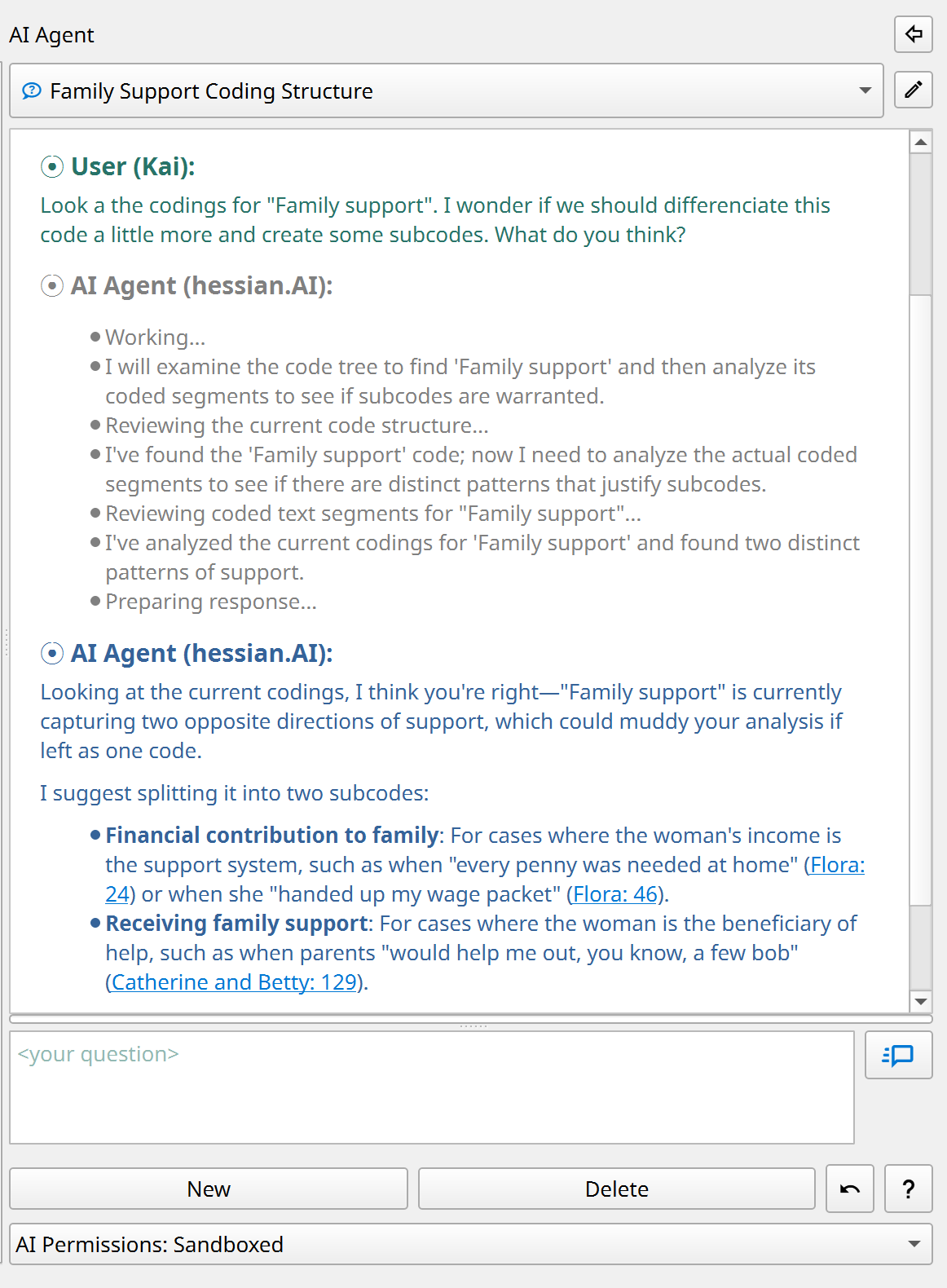
Note
The AI must be fully loaded and ready for new queries before you can start a chat (status bar: "AI: ready").
What is the AI agent for?
- The AI agent helps you explore your empirical material, develop interpretations and analyses, code data, and write memos.
- You can discuss individual passages with the AI or search the project's entire corpus for themes or contrasting cases.
- You can develop your code system, brainstorm ideas and analytic strategies, and check them directly against the empirical data.
- Unlike generic chatbots, the AI agent in QualCoder picks up exactly where your analysis has left off: it examines the current code system, can read memos and coded passages, incorporate cases and their characteristics (attributes) into the analysis, and more. This gives you feedback tailored to the current stage of your research.
What can the AI agent do?
- Even with only read access to the project, the AI agent is already a powerful brainstorming tool.
- On request, it can also actively advance the analysis. With the appropriate permissions (see below), it can create new codes or reorganise existing ones, find and code new text passages, revise memos, or create new case attributes.
- In conversation with the agent, you can review suggestions, ask follow-up questions, and decide how to proceed.
What are its limitations?
- Currently, the AI agent can only work with text data, not with images, audio, or video. QualCoder's journals are also excluded for now.
- You can choose between three permission levels:
| Permission level | Description |
|---|---|
| Read-only | The AI agent only has read access to codes, memos, and empirical data. |
| Sandboxed (default) | Limited write access: the agent can create its own codes and codings, but cannot modify existing ones. |
| Full access | The agent can do almost everything a human user can, including making changes to the code system, cases, memos, and attributes. |
- One strict limit always applies: the empirical documents form the "ground truth" of the entire analysis. Under no circumstances can the AI modify them.
- The AI agent also has no access to external information, such as information from the internet. It can therefore only work with data you have deliberately included in the project.
How can I see which changes the AI makes?
- The agent documents its steps in the chat, provides source references, and asks before making major changes.
-
You can easily undo the AI agent's latest changes using the corresponding button in the chat window:
-
All new items the agent creates (codes, codings, etc.) are labelled with the special coder name "AI Agent".
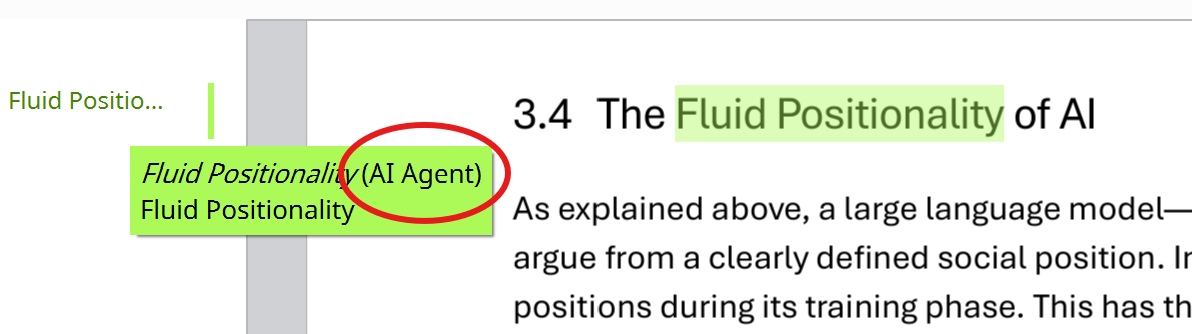
-
To show or hide AI-generated codes, click the three dots ("...") at the top left of the coding dialog, next to the current coder's name, and adjust the visibility for "AI Agent".

How should I prepare my project?
-
A good project memo is very important (menu: "Project > Project memo"). It should contain:
- The research question and project aims
- The type of empirical material (e.g. narrative interviews) and the sampling approach
- The methodological approach to the analysis
- Any other details the AI agent should take into account.
The project memo is provided to the agent as background information for every conversation.
-
Besides, document names should be meaningful (e.g. "Interview Alice").
- In interview transcripts, interviewers and interviewees should be clearly identified so that their roles are recognisable even in short excerpts.
- Good code memos also help the AI understand what you mean.
Note
Check project AI readiness: With this command in the "AI" menu, the agent automatically analyses the project and suggests ways to improve its readability.
Note
Personal notes in memos: If you also want to use memos for personal notes, write them after the separator #####. Everything after it is inaccessible to the AI.
How does the AI agent work?
- The AI agent only acts when you give it a task, not on its own initiative.
-
The agent works through a task in a ReAct loop (Reflect + Act, Shunyu et al. 2022):
- It creates a plan for carrying out the task.
- It performs the planned actions (e.g. searching data or reading codes).
- It analyses the results and decides whether further actions are needed (e.g. reading more data). If so, it returns to step 2.
Depending on the complexity of the task, this loop may repeat many times. The individual steps are displayed in grey in the chat window. Once the result is satisfactory (e.g. enough data have been found), the agent formulates a final answer and waits for further instructions.
-
The agent has powerful tools at its disposal: for example, it can perform a semantic similarity search across the entire corpus, search using regular expressions or a BM25 keyword index, and call tools to create or modify codes if it has write permissions.
What happens to my data?
- All data are kept locally on your computer in the current QualCoder project. The search operations mentioned above also run locally.
- The AI model only sees the portion of the data (e.g. search results or individual passages) specifically needed for the current analysis. These data fragments are sent to the AI model along with the relevant task.
- In its answers, the AI agent documents in detail the data on which its analyses are based. QualCoder turns these references into source links with line numbers. Clicking a reference opens the passage in its original context.
Four ways to start a conversation with the agent
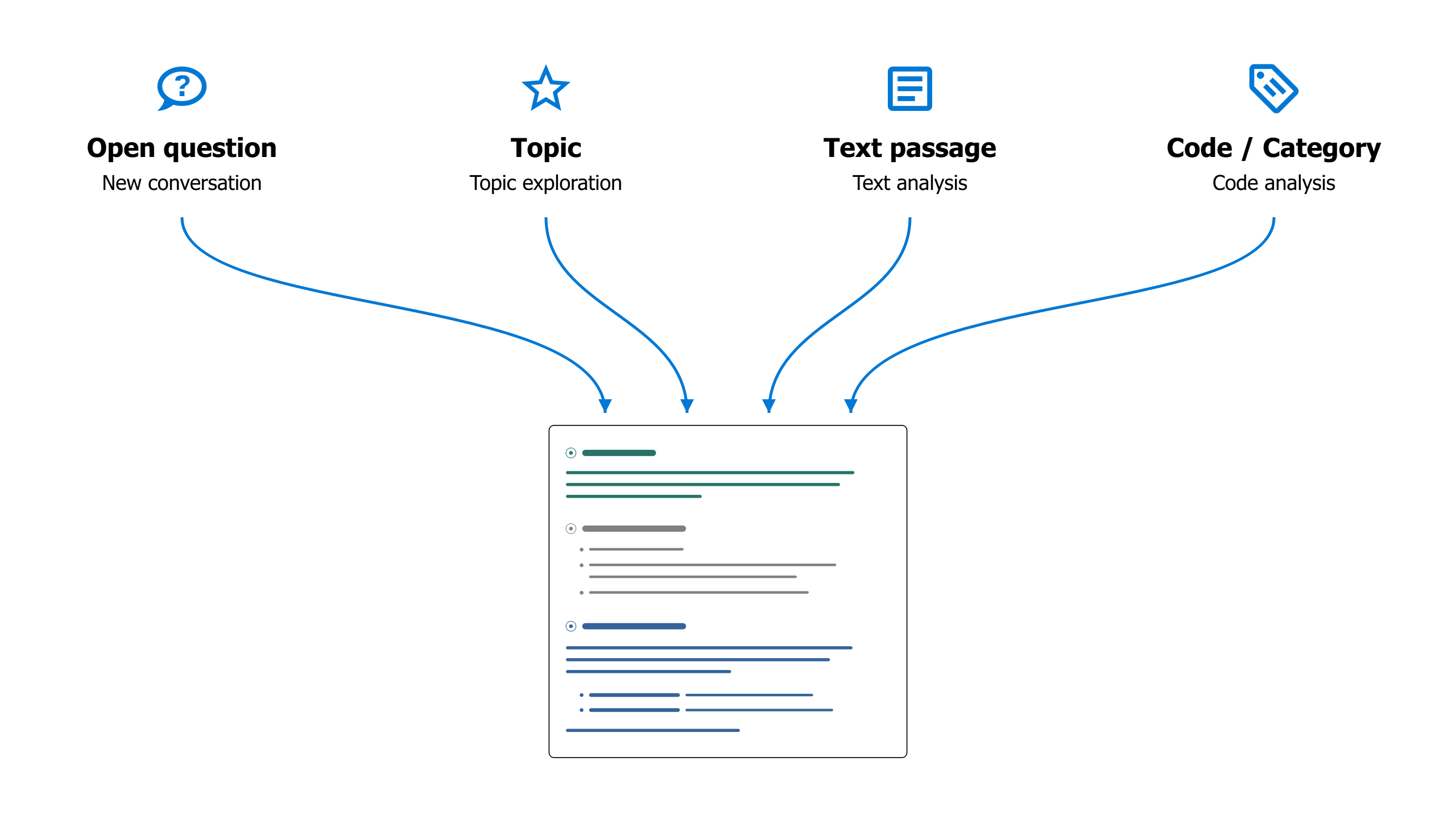
At the bottom left of the AI agent's window, you can start a new analysis in one of four ways:
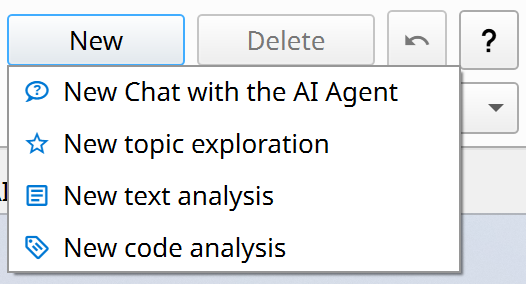
These options simply provide different starting points for the analysis. You can then take the conversation in any direction you choose, using the full toolset available to the agent.
1) New, open chat
This is the most flexible way to start a new analysis with the agent. Begin with an idea or an open question, or name the codes or passages you would like to investigate.
Example: Finding comparable cases
"From line 127 onwards, Sarah talks about her childhood in England and how her father was her main caregiver there. Are there similar cases in the material where men play such a central role in childcare?"
Example: Consolidating codes
"I have the impression that the codes 'Personal responsibility' and 'Independence' often overlap. Look at the memos and coded passages. How could we distinguish the codes more clearly? Or would it be better to merge them?"
Then: "OK, merge both codes under the new name 'Taking responsibility for oneself' and update the code memo accordingly."
Example: Information retrieval
Examine all interviews to identify each interviewee's position on restrictions on social media use by children and/or adolescents. Assign each interviewee to exactly one category:
pro = explicitly in favour of restrictions;
contra = explicitly against restrictions;
undecided = relevant statements that are ambivalent, contradictory, or cannot be clearly assigned;
unknown = no sufficiently relevant statement.
Only consider positions that can clearly be attributed to the interviewee, and check the context of the passages you find. First, show me the proposed category for each person, a brief explanation, and the key passages with source references. Explicitly identify contradictions and uncertain assignments.
Only after I confirm, create the attribute "social_media_restriction" for the interview transcripts with the allowed values "pro", "contra", "undecided", and "unknown", and save the assignments.
To incorporate predefined prompts or your own prompts from the AI Prompt Library into the conversation, use 'slash notation': for example, "/in-vivo-coding" would insert the corresponding prompt you previously created in the Prompt Library into the current conversation.
2) Topic exploration
This type of analysis is particularly useful for gaining an initial overview of how a particular topic is discussed in the empirical material. For straightforward research questions with clearly defined topics, you can also use this function to produce summary analyses that can be developed directly into a report.
- This option opens a dialog where you can define and describe the topic and select the data to include in the analysis.
- You can also choose between different analytic prompts, such as a simple summary (topic-summary) or a comparative case analysis (analyze-differences). You can create templates for your own analyses with detailed instructions in the AI Prompt Library and then use them here.
- Topic exploration first performs a multi-step search through the material and then presents an initial report.
Example: Exploratory case comparison
Topic: "Raising children during wartime"
Description: "How does war affect the decision to have children? How does care work change during wartime? How do parents try to make childhood possible under wartime conditions?"
Analysis prompt: "analyze-differences"
Filter: Only the cases "Ethel" and "Flora" selected.Result: A comparative analysis of Ethel and Flora on the topic "Raising children during wartime", structured around the three subquestions.
3) Text analysis
- Enables close analysis of a selected passage with the AI agent.
- Develop new readings and code suggestions together, or discuss ambiguities, uncertainties, and unresolved questions of interpretation.
This analysis first switches to the text coding workspace. Open a document there, select the passage you want to analyse, and choose "AI Text Analysis" from the right-click menu. A submenu opens where you can choose between different types of text analysis:
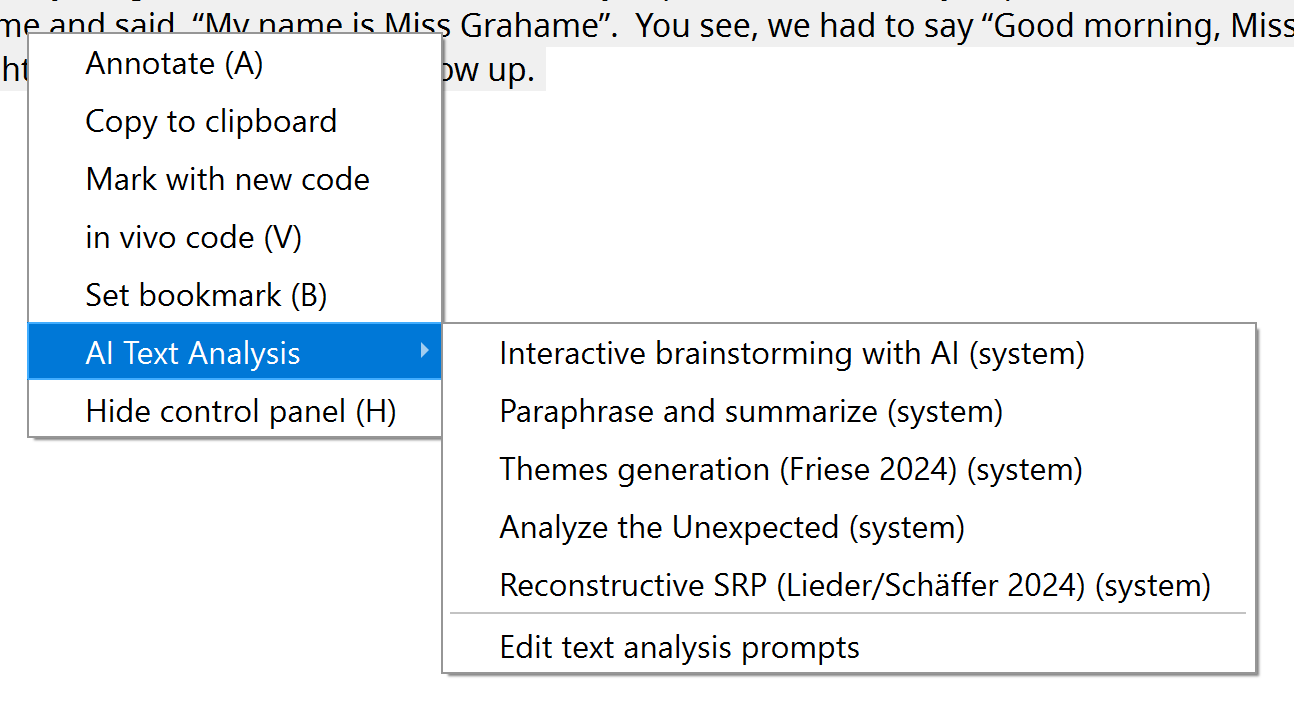
Hover over an entry briefly to see a tooltip with further information. You can also save your own text analysis instructions in the AI Prompt Library. They will then appear as options in this submenu too.
Example: Brainstorming in the early stages of close reading
a) Select a particularly rich interview passage in the "Code text" tab.
b) Right-click, then choose "AI Text Analysis" > "interactive-brainstorming-with-ai".
c) The workspace switches to the "AI Agent" tab. There, the agent first asks about the analytical perspective or the topic you would like to explore in more depth.
d) A conversation about the material then begins, in which you explore and discuss different possible interpretations together.
e) Save the results: When you have finished, instruct the AI agent to save a summary of the results as a text annotation.
4) Code analysis
- Analyses all data collected under a particular code or category, including subcodes.
- Discuss your codings with the AI agent, compare different codes, create subcodes, or produce reports.
- You can also select multiple codes and/or categories for a comparative or summary analysis.
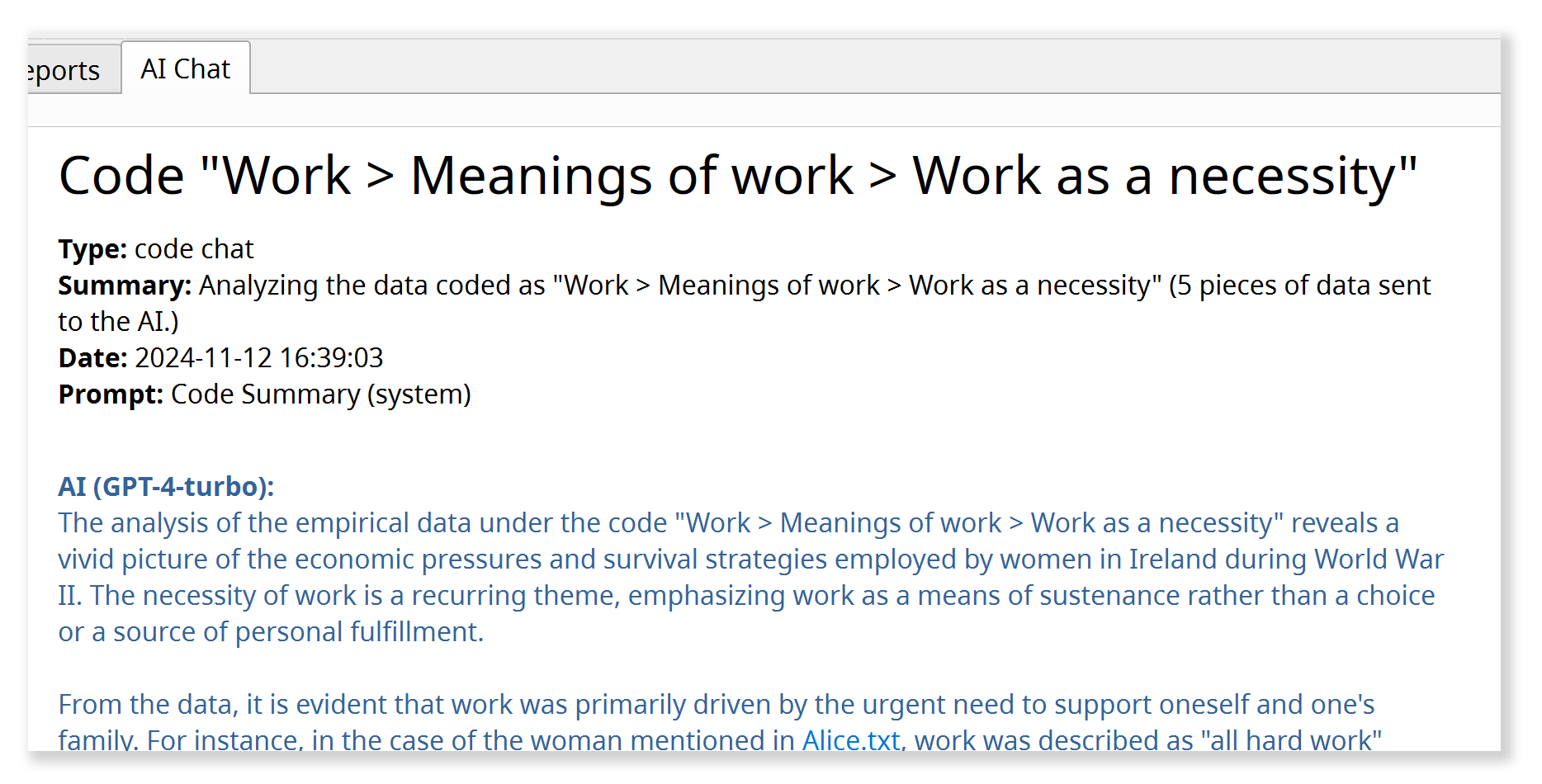
A new code analysis also begins by opening a dialog where you can select the code(s) or categories to analyse, filter the data to include, and choose an analytic prompt. You can create your own prompts for this function in the AI Prompt Library as well.
Example:
Code: "Neighbourhood solidarity"
Analysis prompt: "theoretical-saturation-check"
Filter: No filter (= all documents are included).Result: A detailed report on the "theoretical saturation" of the current code or selected category in the sense of grounded theory. The AI agent actively searches the material for yet uncoded variations of the phenomenon captured by the code, for borderline cases, and counterexamples, to assess the code's empirical and conceptual/theoretical saturation and to identify gaps. The code memo is also taken into account.
A final reflection on anthropomorphism
We deliberately decided against giving the AI agent in QualCoder a name, such as Anthropic's "Claude". Nevertheless, QualCoder's approach to AI integration through dialogue stages a kind of pseudo-interaction that in many respects follows patterns of human interaction, for example within a research team. In its core system prompt, the AI agent in QualCoder is assigned precisely this role as a kind of team member. Are we therefore anthropomorphising a machine by interacting with it as if it were a human researcher?
To some extent, we are. But it seems to me most useful to view these interactions as a kind of "role play", as proposed by Shanahan, McDonell & Reynolds 2023. Today's AI language models are trained on human linguistic interactions. They therefore work best when incorporated into such interaction settings. Nevertheless, a methodologically reflective approach to AI in qualitative social research requires us to remember that we are engaging in technologically induced role play, rather than interacting with a human counterpart.
Further functions
- In the AI Prompt Library, you can save successful analytic strategies and methodological approaches as reusable instructions for later.
- AI Assisted Coding in the 'Code text' workspace uses an AI-based search to help you find passages relevant to a particular code across the entire corpus.
- If you have questions about using QualCoder, the AI agent can help with these too, providing answers based on the QualCoder documentation. Select Help > Ask the AI agent from the main menu.
Journals
You can record your thoughts when coding your data in journals. Use these to develop ideas and themes. Journals can be exported as a single journal, or all journal text can be collated and exported as a single file. Journals can be deleted. Journals can have attributes.
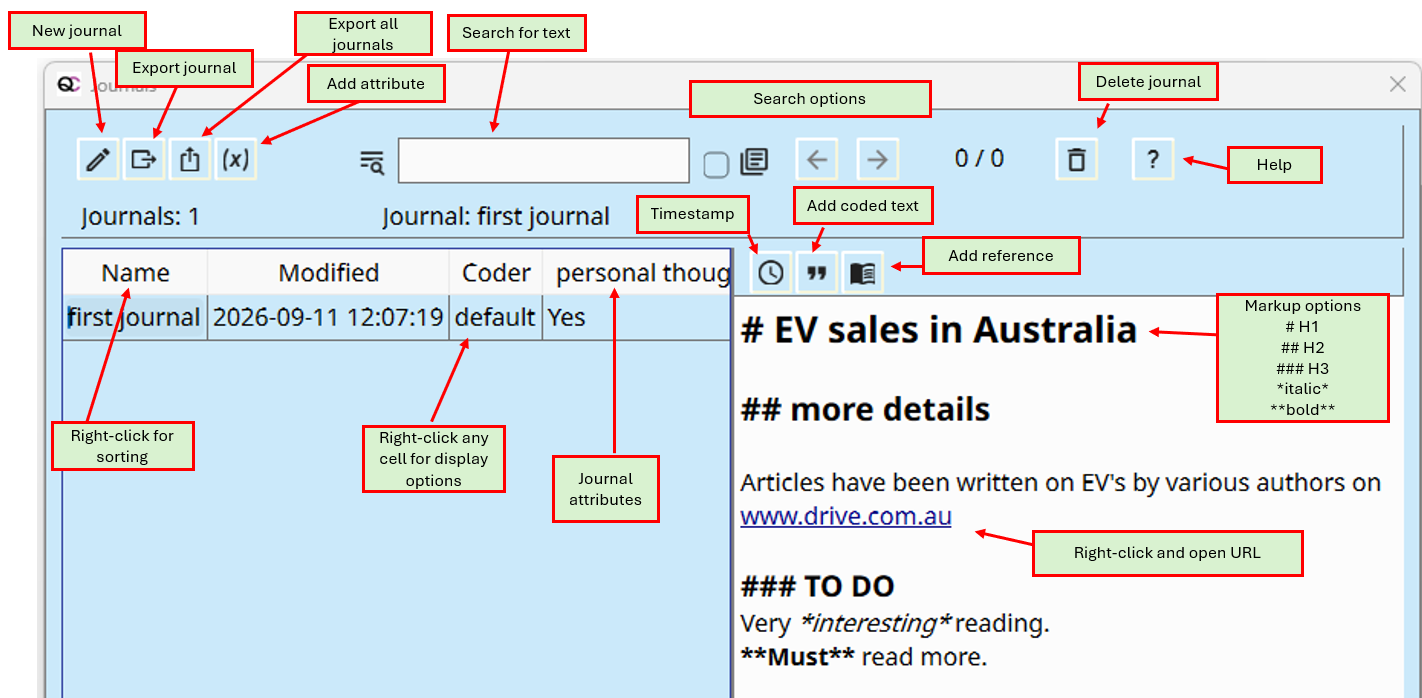
There is a search option for searching the journal text. The search uses regular expression (regex) symbols for greater flexibility.
- A dot '.' is used as a wild card, e.g., '.ears' will match ‘bears’ and 'years'
- A '?' after a character will match one or none times that character, e.g., 'bears?' will match 'bear' and 'bears'
- A '*' after a character will match zero or more times.
- '.' will match the dot symbol, '\?' will match the question mark. '\n' will match the line ending symbol.
Tip
You can sort journals by name or date. You can add attributes to journals. You can show rows of journals with a matching text name, coder or attribute value, using the right-click menu function.
The journal window will be free-floating, so that you can enter notes while coding or generating reports.
Highlight journal text using markdown
Some markdown is available to highlight wording in a journal. Use one to three hash symbols for heading levels. Single asterisk surrounding words for italic text. Double asterix surround text for bold text.
URLs are identfied and can be opened with right click menu.
Analysis menu options
- Coding retrieval - the main reporting function.
- Code Co-occurrence - for text files. Shows counts where a code abuts/overlaps/exact-matches another code.
- Code relations - for text files. Shows proximity, exact match, overlaps, distance between selected codes.
- Code text exact matches - for text files. Shows counts of exact matches between codes.
- Codes by text segments - Shows table of file names, coded text, and assigned codes.
- Graph. Create a mind-map, of objects and their linkages.
- AI assisted analysis - by topic, by text, by code.
Code Retrieval
This report gives a list, or matrix, of coded data based on your selections. One or more codes need to be selected. If a category is selected, all codes in that category are also selected. Multiple categories can be selected using the mouse and the ‘ctrl’ button.
The Search button (Play Button) will present the results.
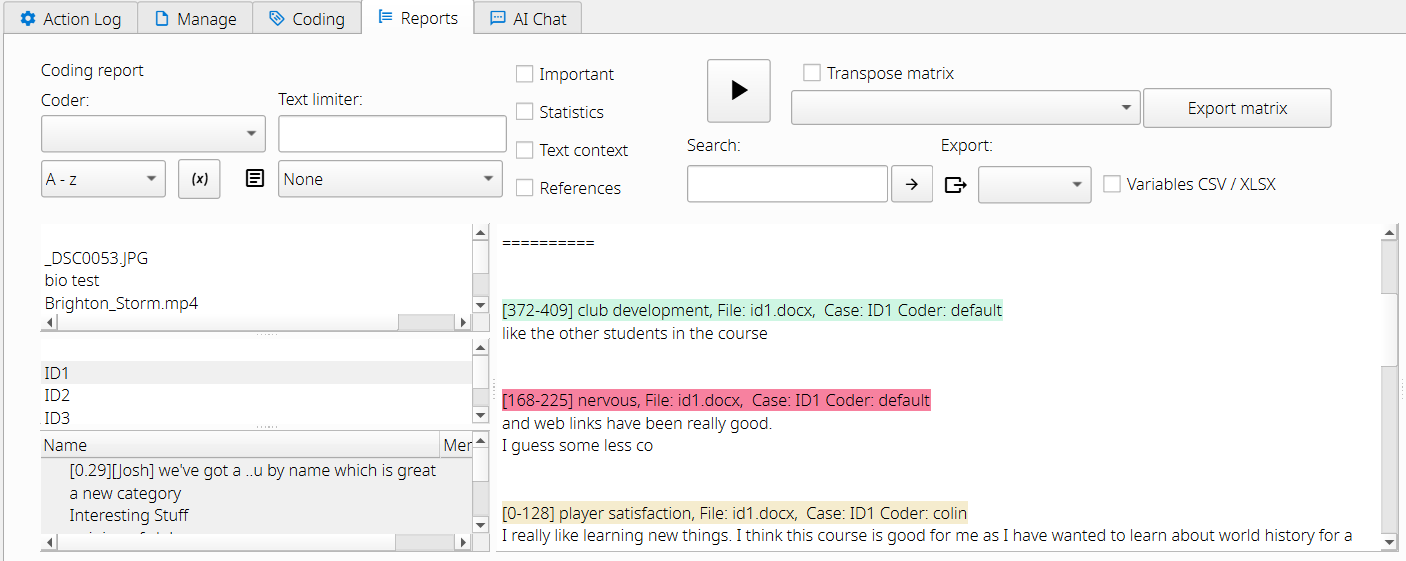
Coding results can be narrowed down by using the File selection, Case selection or Attribute selection buttons. Only codings within the selected files or cases will be presented. When case selections are used, file selections are ignored. Also when file selections are used, case selections are ignored.
If text is entered into the Search text field, only codings that contain the matching text will be presented. The search text also looks for matching text in memos for coded image areas and coded audio/video segments. The search text function must be used in combination with File selection, Case selection or Attribute selection.
Important coded text, images, segments
There is a tick box to select only the Important codings. This is useful for quickly finding those important exemplars that you may use in a written report.
Attribute selection in reports
The Attribute selection button opens a window where you can select attributes for files and cases, for example: only interview files for people aged > 60. Additionally, attribute settings can be saved, loaded and deleted.
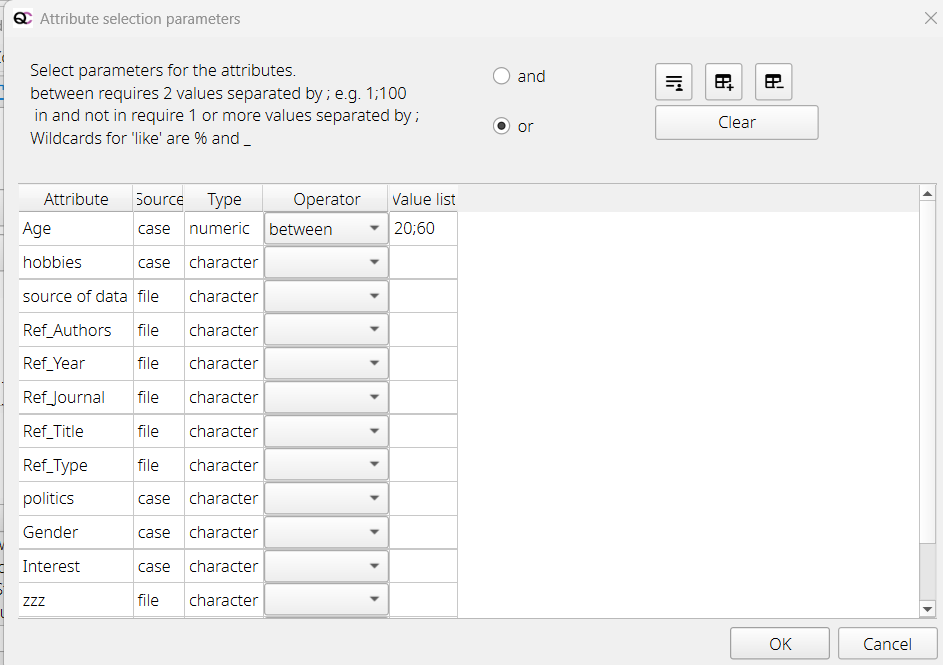
Coding matrix
If you are creating a report and selecting one of the matrix options, then the results pane will be split into two panes. The left pane shows the coded data in a list, and the right pane shows a matrix of rows and columns. The column types can be codes, categories, or top-level categories.
Matrix options: have codes/categories by file or by case. The matrix can be transposed, using the check box.
The panes can be widened or narrowed by dragging with the mouse on the bar that splits each section.
Reports can be exported to text, OpenDocument (ODT), HTML, or csv files.
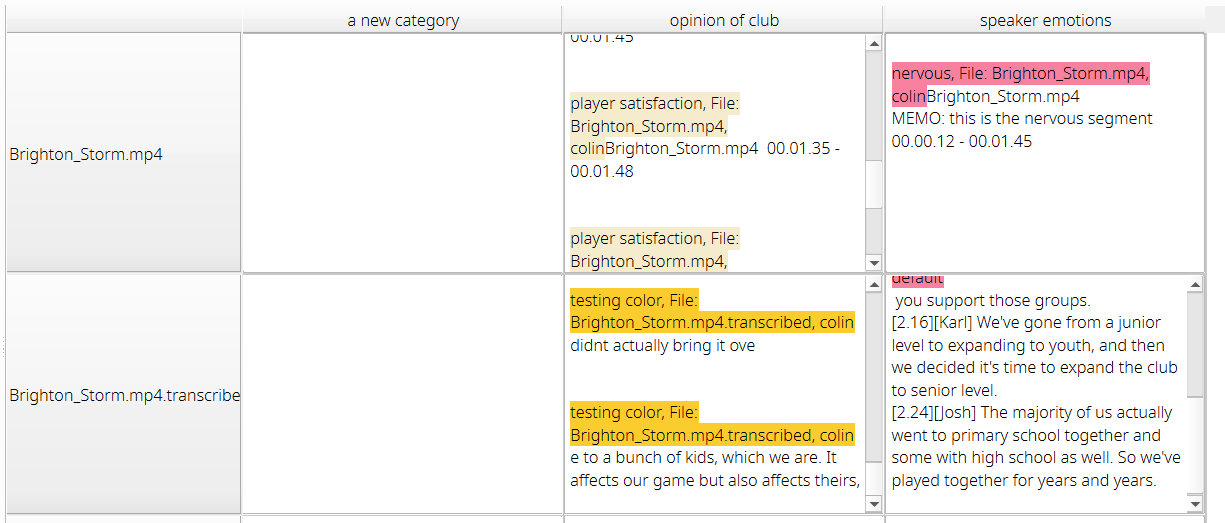
When cases are selected, another pane is displayed showing a table of cases (in rows) and categories or codes in columns
Check boxes
- Check box to show only coded segments that have been marked important.
- Check box to add summary statistics to the report.
- Check box for text context for coded text segments. This shows the surrounding 100 to 300 characters of text (set in Settings) to help put the coded section in context in the results. The coded text segment is shown in bold.
- Check box to add a reference to the coded result. This is if a reference has been imported and linked to the specific file.
Other functions
- Shortcut H. Pressing h will hide and unhide the top controls section of the window.
Memos
- Memo display. A drop-down box gives options to include no memos, various memo options, or to display text file annotations for selected text files.
Right-click on a code heading in the generated report for more menu options: View in context, unmark, and change the code.
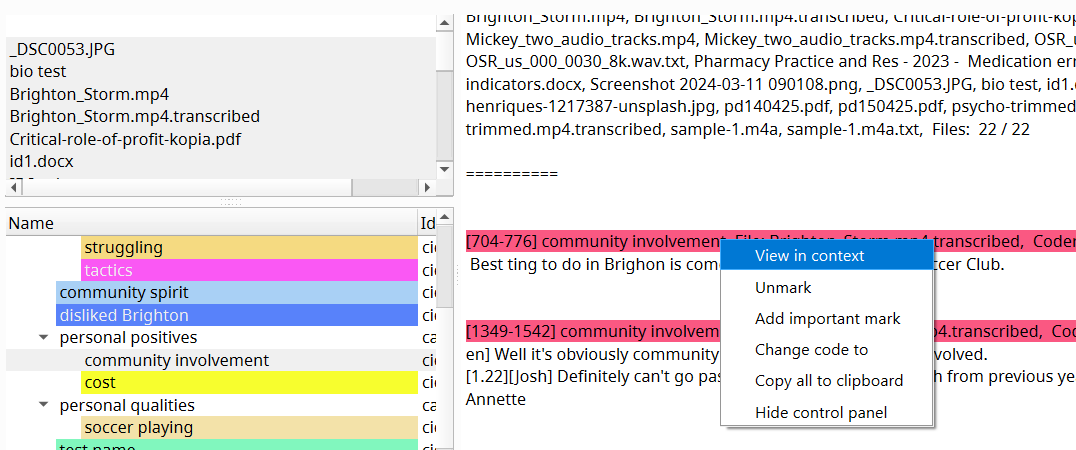
Exporting reports
Reports can be exported as html, odt, txt, csv, xlsx, (in 3.8+) iramuteq.
txt is a plain text file
csv is a plain text spreadsheet format
xlsx is a Microsoft Word spreadsheet, containing only text.
odt is Open Document Text. This is a format that can be opened with Microsoft Word or LibreOffice Writer. It will contain text, colours and images. For example, if you have images coded.
iramuteq is an export option for text. This allows the text to be imported into the Iramuteq software.
html is a web browser format. For plain text there will only be an html file, e.g. coding_report.html. If your coding contains images, audio or video, there will be a supplementary folder, e.g. coding_report folder. This folder contains the audio, video and image files needed for html display. To transfer the html to another person, or relocating within your folder structure, you must move BOTH the html and the associated folder, shown below.
Code co-occurrence Report
This report shows a table of code names along the x and y axes. The table cells show the count of coding co-occurrences. This is where two codes overlap or are directly abutting. Click on the cell to show the text coding details.
Options include: selecting specific text files, selecting files by attributes. Selecting specific codes, or selecting categories. There is an export-to-Excel option.
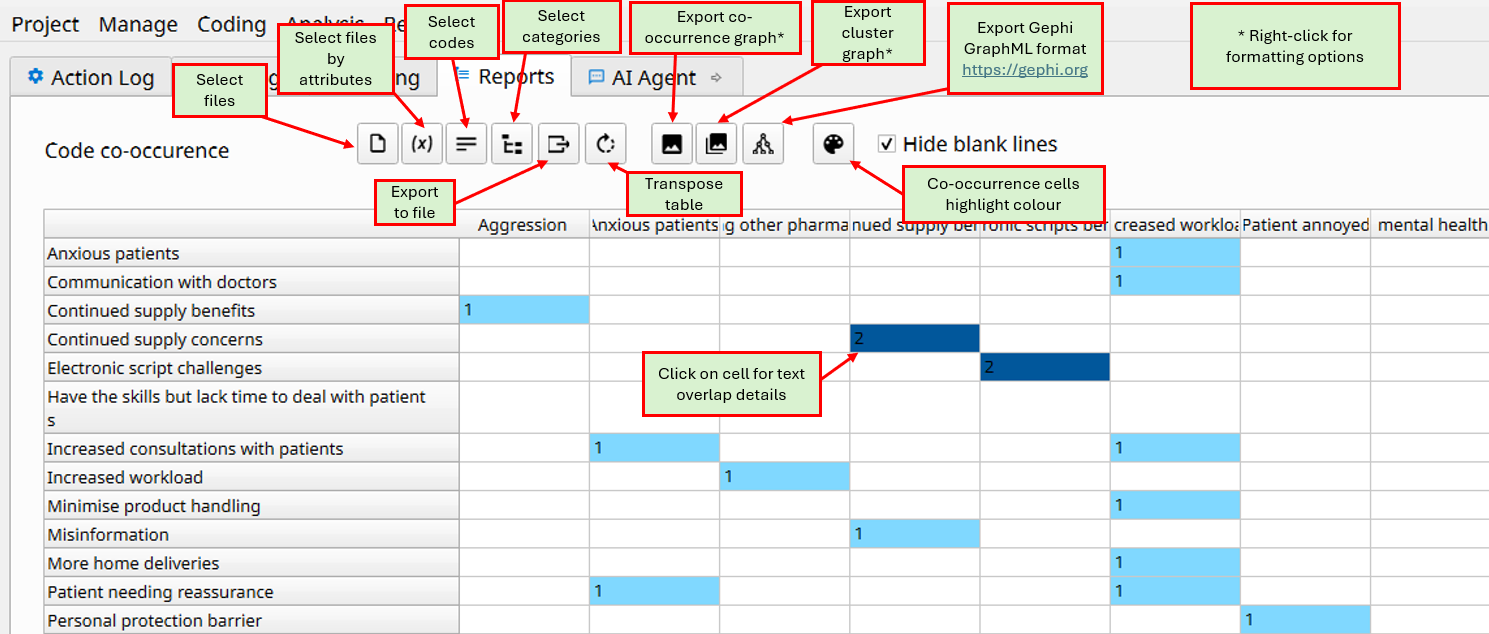
Clicking on a cell shows the text details.
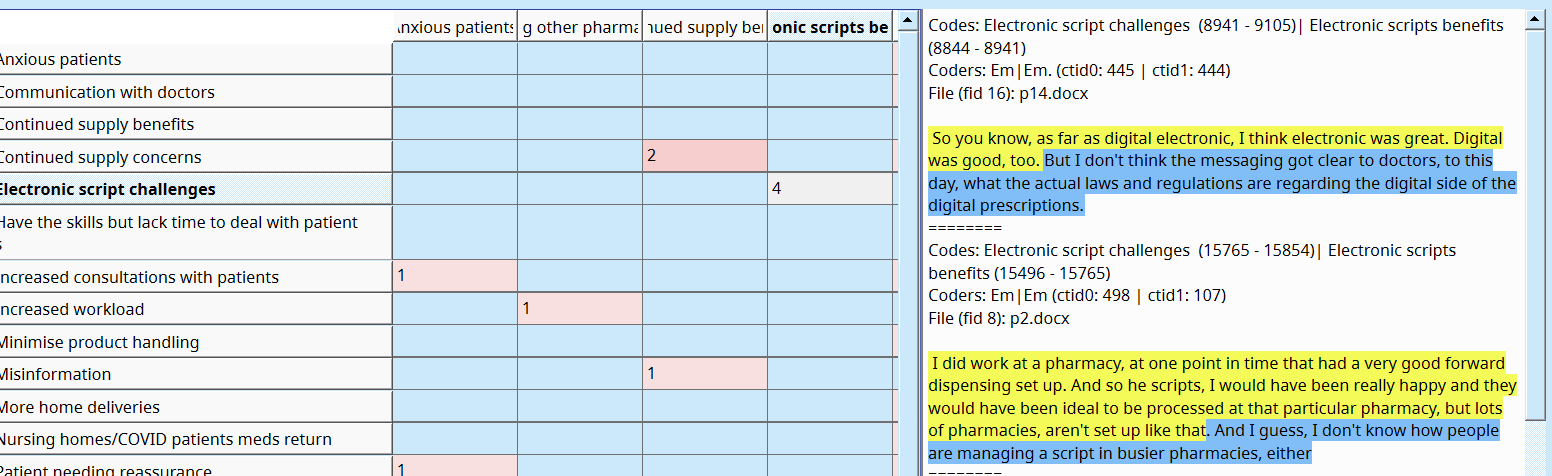
You can right-click on a cell containing co-occurrence coded text to make a new merged code that combines the two overlapping codes.
Examples of co-occurrence graph and cluster graph.
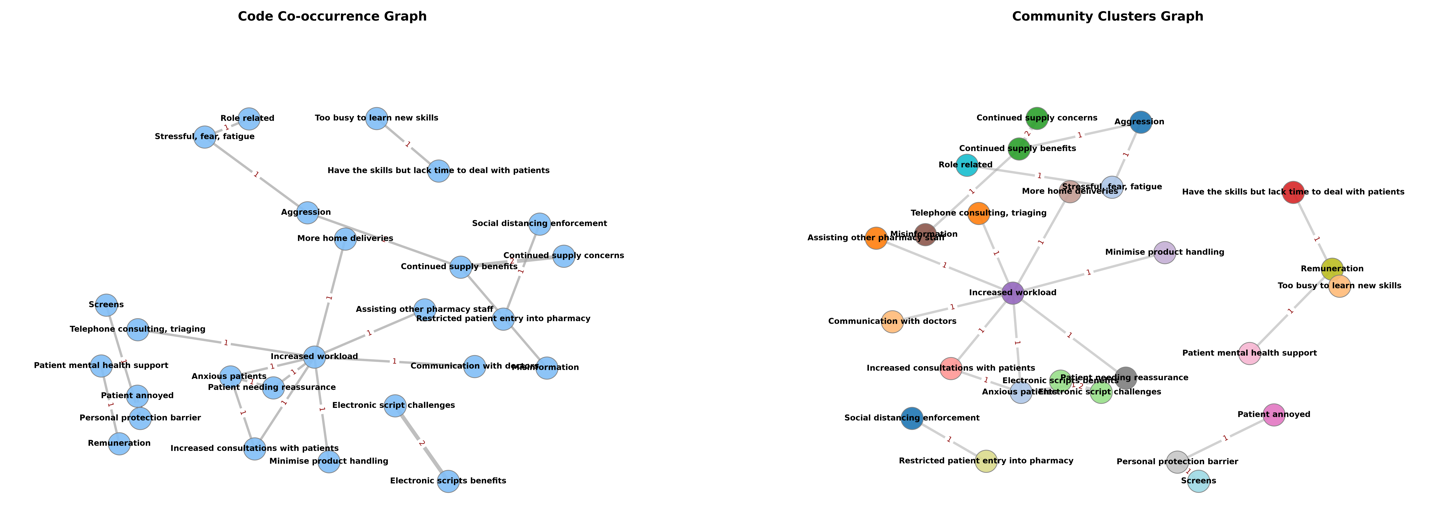
Code relations Report
This dialog shows the relations between two or more codes. This can only be applied to text files. Select two or more codes, and press the Calculate button. This report may be useful to show proximity or overlaps between codes. Note, other reports such as Code Co-occurrence and Code Text Exact Matches also do this. This report gives a lot of fine details, such as the coding character positions for each code. A csv file can be exported.
The relations are:
- Proximity – Two codes do not overlap. The distance in number of characters is shown.
- Overlap – Two codes partially overlap. The lowest and highest character positions of the combination are shown. The union of the overlapping sections is shown in character positions.
- Inclusion – One code is included within another code. The lowest and highest character positions of the combination are shown. The union of the overlapping sections is shown in character positions.
- Exact – Both codes match in their start and end positions. The lowest and highest character positions of the combination are shown. The union of the overlapping sections is shown in character positions.
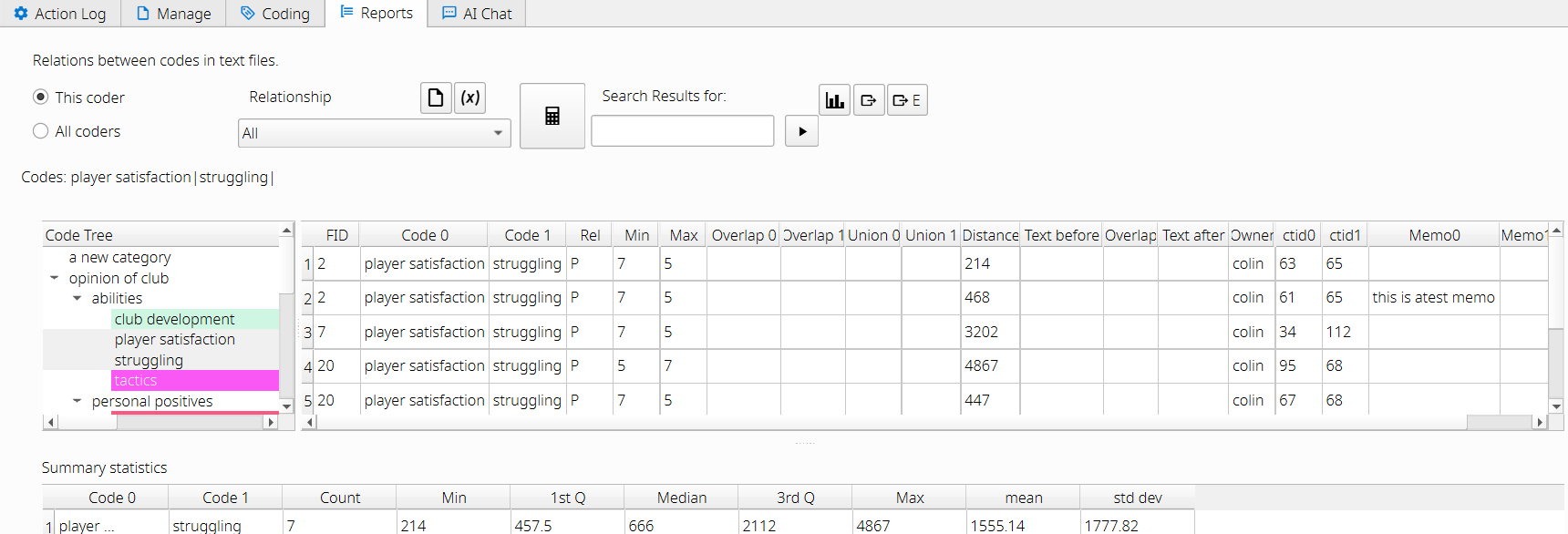
Summary statistics and box plots can be produced.
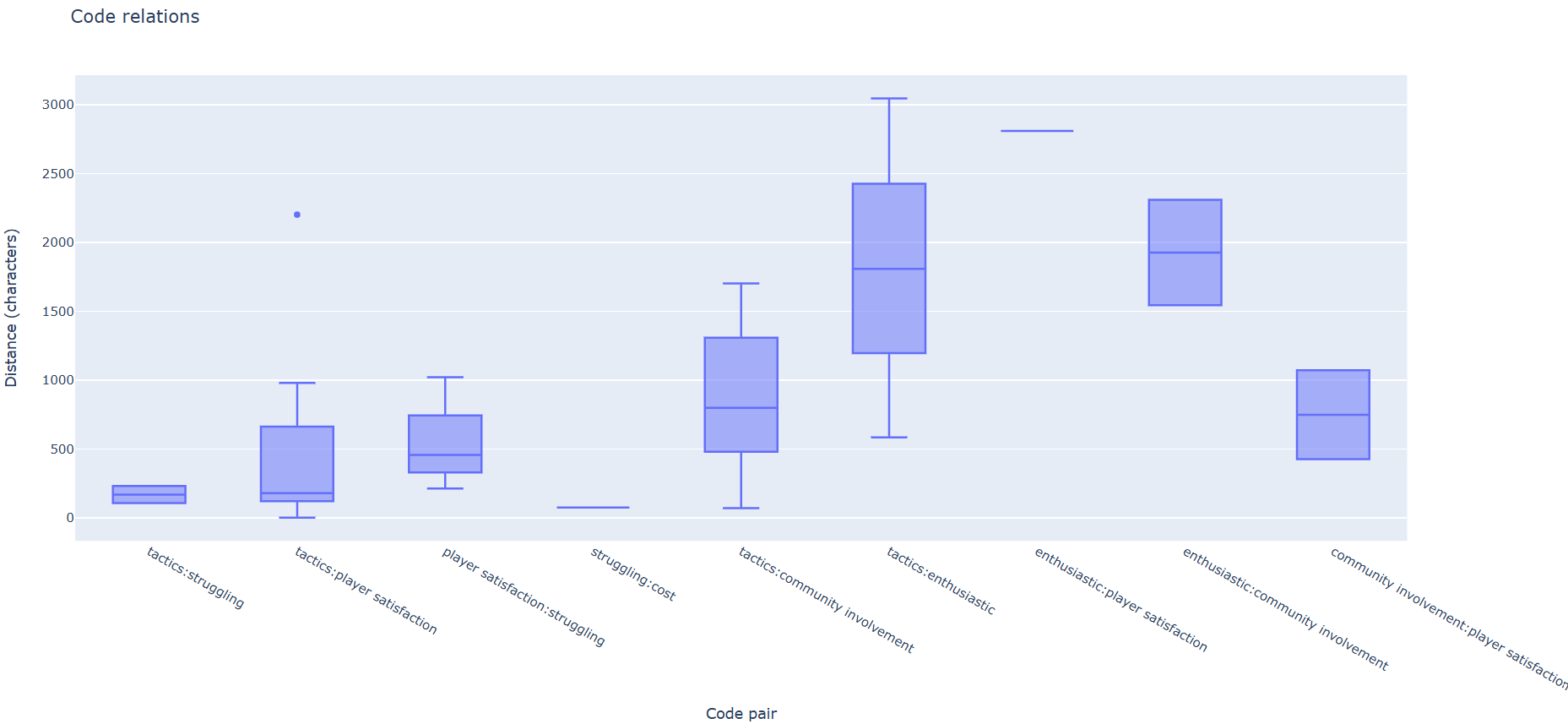
Code text by exact matches Report
This report details all the exact matching coded text segments, where different codes are applied to the exact same text. Select text documents and two or more codes.
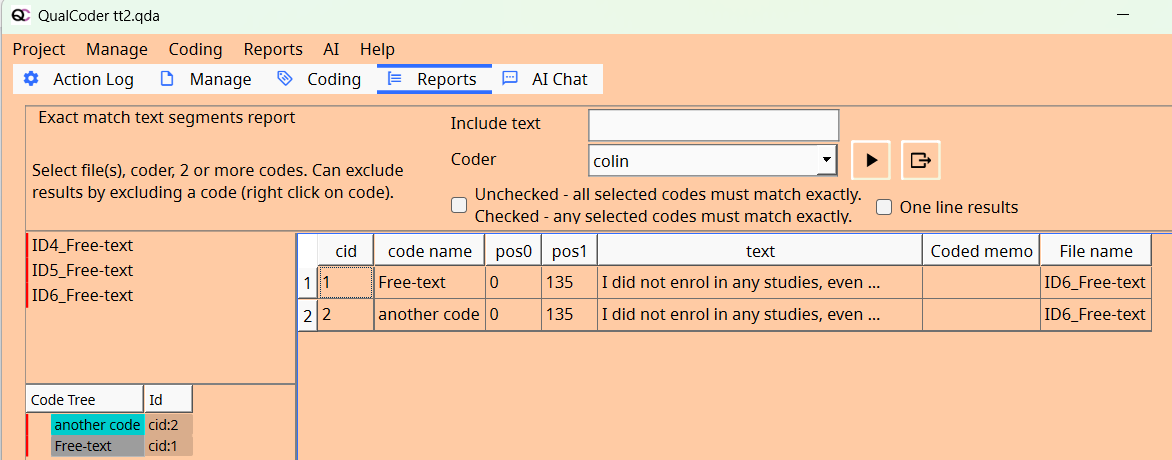
Codes by text segments Report
This report shows rows of coded text segments and columns of which code has been applied. For some users, e.g., legal area, it is convenient to see which codes have been applied to the same text segment. An Excel file can be exported.
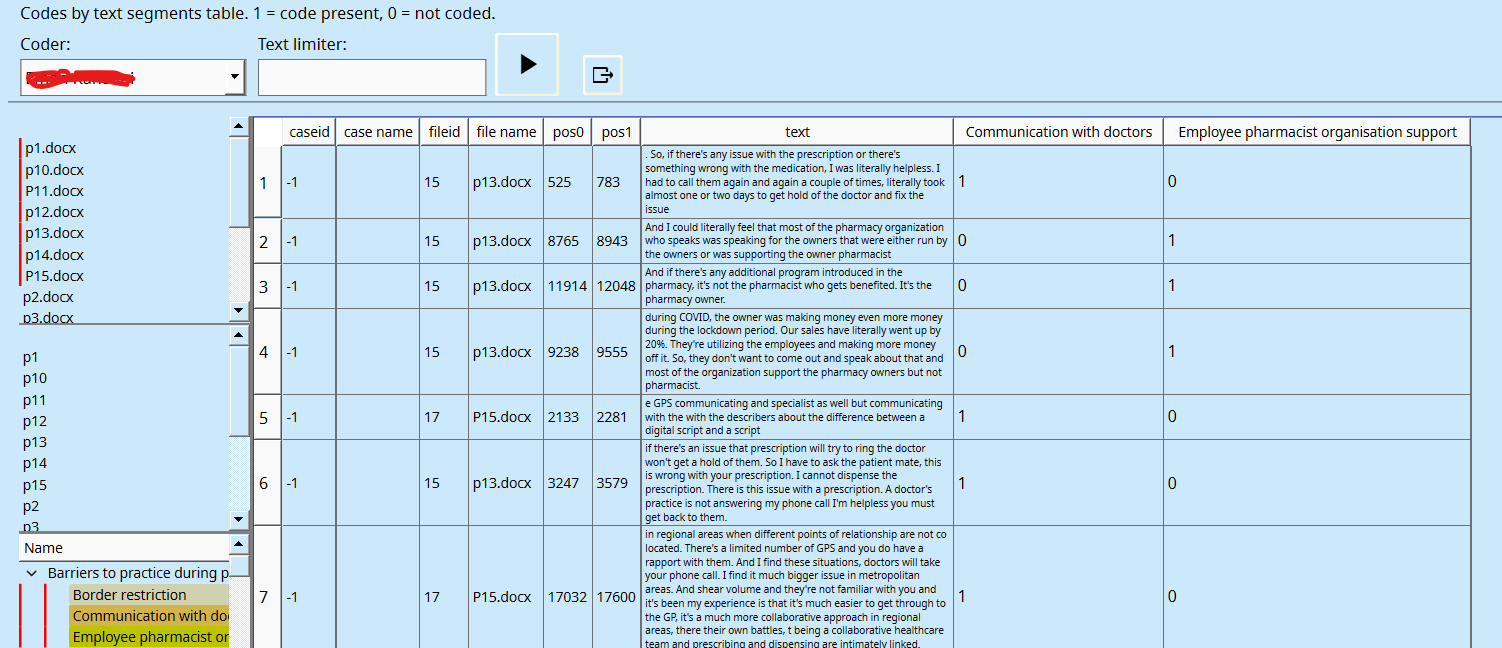
Graph (Mind-map)
AI assisted analysis
Reports menu options
- Coding comparison - for text files (compares 2 coders)
- Coding comparison by file - for text files (compares 2 coders)
- Code counts by file/case
- Code frequencies (totals of applied codes)
- File summary (details of a file and its coded segments)
- Code summary (details of a code and associated files)
- Charts (Display statistical and other charts in a web browser)
- Database Queries (Database querying, including default queries)
Coding Comparison Report
This option shows the overall similarities and differences between two coders across all text files. Select two coders and click the run comparisons button. The statistics created here are only for coded text, not coded image nor media files.
For each code:
- Agreement % shows agreement for a combination of coded and non-coded text characters.
- A and B % shows agreement for only the coded text characters divided by the total characters in the text.
- Not A and Not B % shows the total of the uncoded text divided by the total characters in the text.
- Disagree % shows the percentage of all the coded and non-coded text that did not match between coders. It is the same as 100 – the Agree %.
- Agree coded only % shows the percentage of all the dual-coded text divided by single plus dual-coded text.
- Cohen’s Kappa is calculated based on the information in Wikipédia.
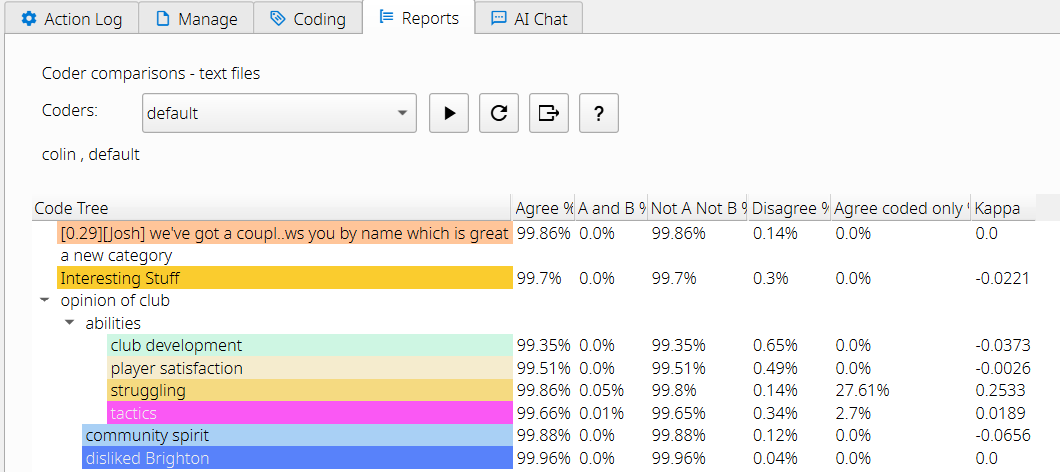
Buttons to run the comparisons, to clear the coders selected, to export to Excel, and to open a statistics help window.
Right-click on a code for more options:
Coding Comparison by file Report
This option shows the overall similarities and differences between two coders in ONE selected file. Select one file, one code, and two coders. Then click the run comparisons button. The statistics and comparisons for audio/video coded segments are in development. Overall agreement, disagreement, and Cohen's Kappa are calculated for text and images. An image file is displayed in a separate window, showing the two coders' selections in yellow or blue-boxed areas. Green text indicates where both coders coded the same section of text. Mouse hover provides additional information.
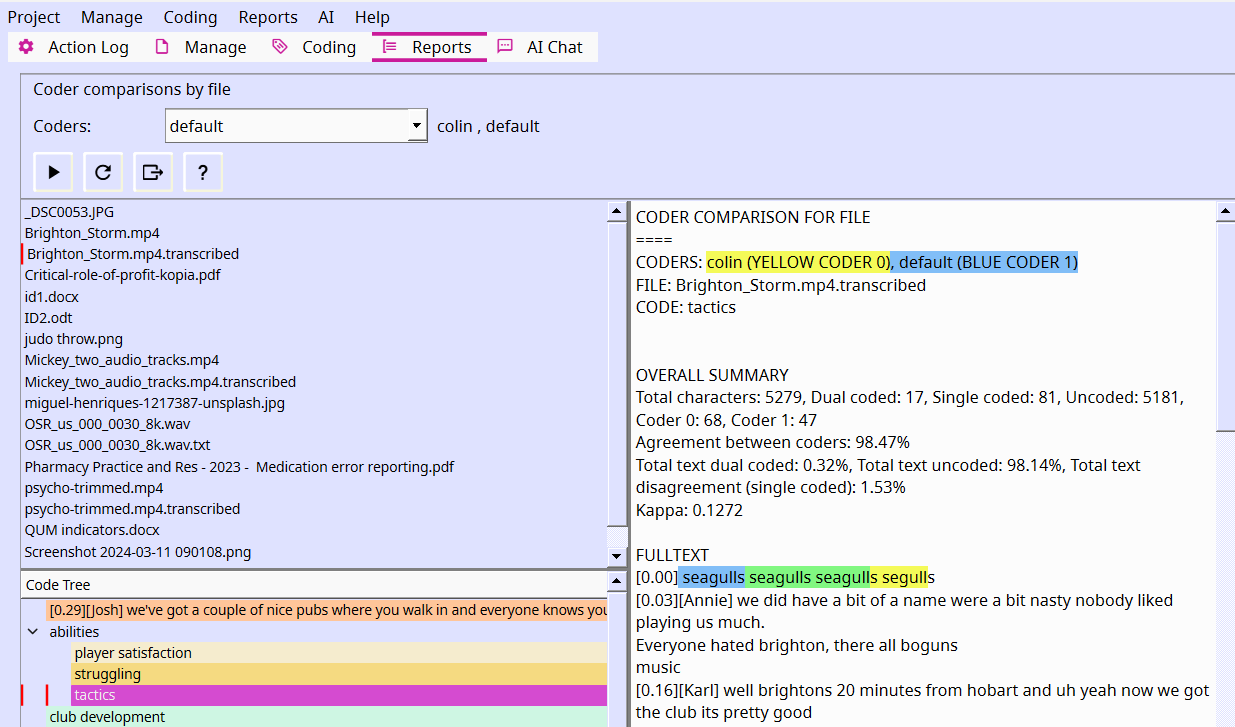
Code frequencies Report
This window shows all the codes and categories and the frequency of use for each coder. Code frequencies can be selected for specific files.
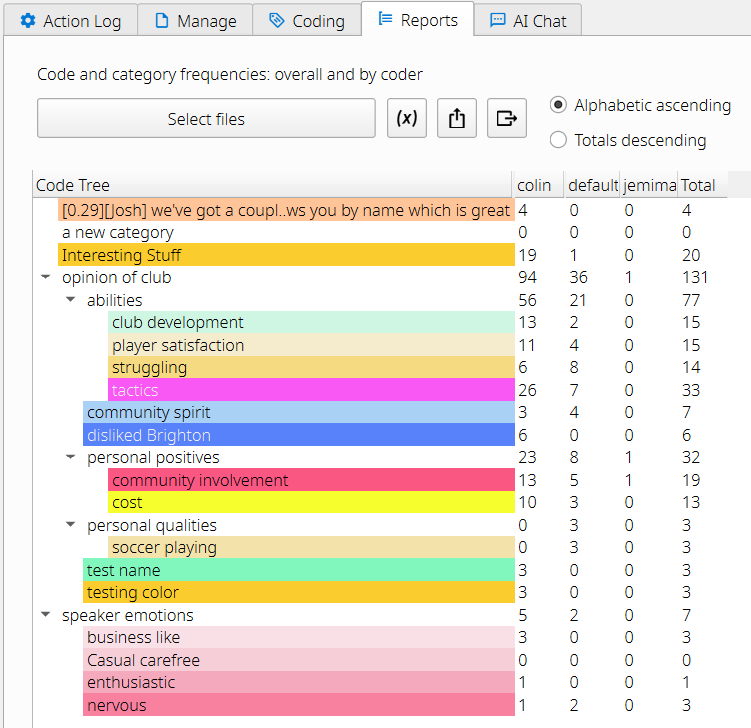
Right-click on a code for more options:
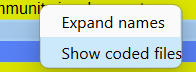
File Summary Report
Click on a file to get a summary of that file. It describes media metadata, characters and word frequency. Attributes. It summarises the count of codes for that file. The text codings summarise the average text length. For image codings it summarises the average pixel area. For audio/video codings it summarises the average segment length.
The top 100 words have stopwords applied - so common filler words such as 'a ', 'the', etc. are excluded. See the list in the Examples folder. You can override this list by providing your own stopwords text file and placing this in the .qualcoder folder.
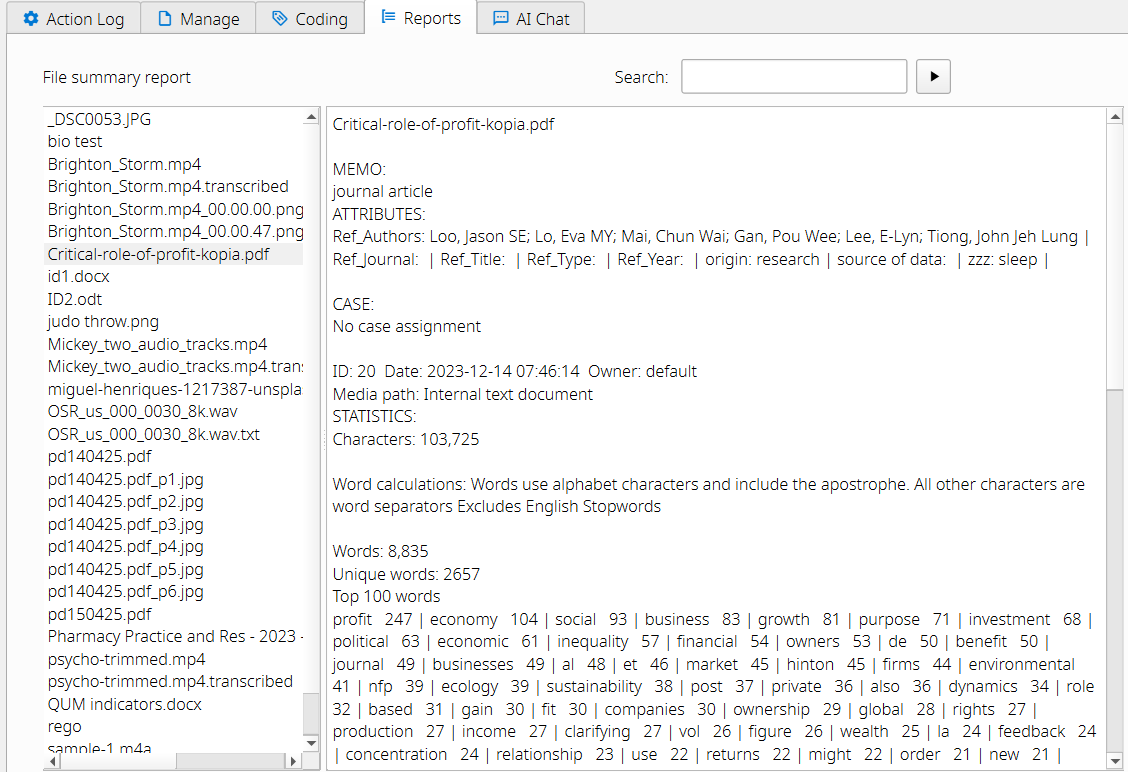
Right-click on the files for more options:
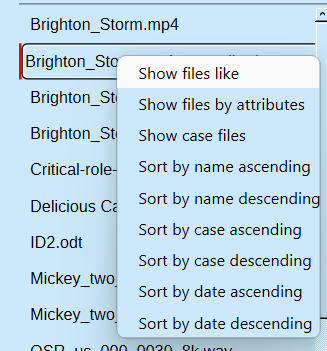
Code Summary Report
Click on a code to get a summary of that code. The coders who have used the code. The number of codings in text, image and audio/video media. The text codings summarise the average text length and the most common words. For image codings it summarises the average pixel area. For audio/video codings it summarises the average segment length.
The top 100 words have stopwords applied - so common filler words such as 'a ', 'the', etc. are excluded. See the list in the Examples folder. You can override this list by providing your own stopwords text file and placing this in the .qualcoder folder.
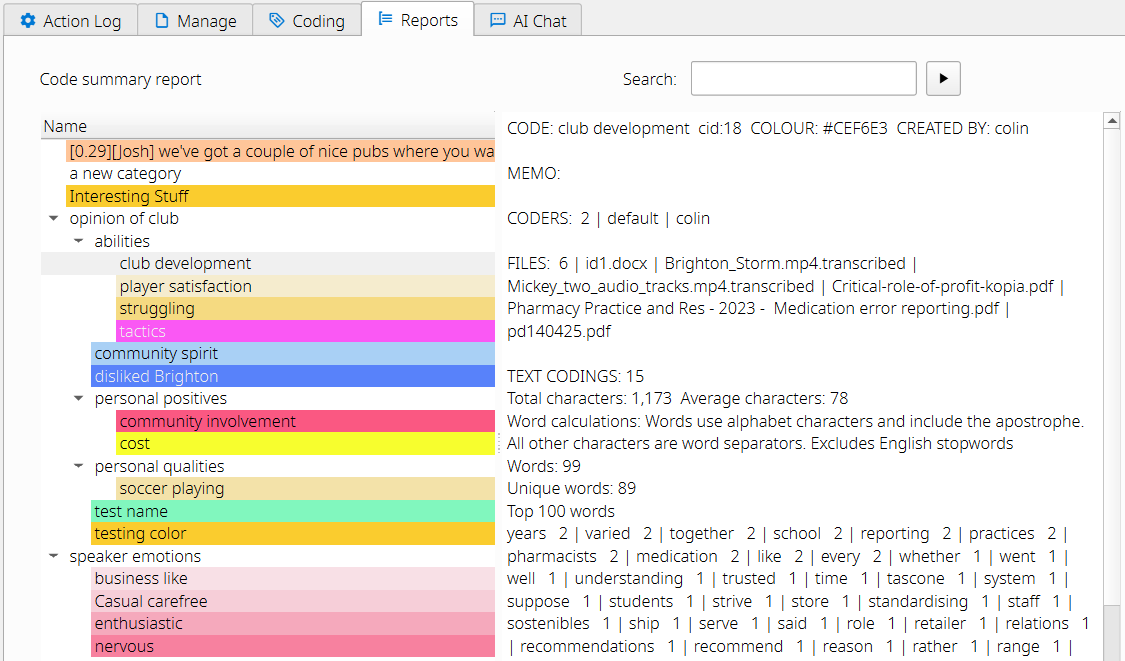
Right-click on a code for more options:
Charts
Various chart types and filter options are available.
Most charts are displayed in the default web browser. If the browser is not displaying your chart, first change your default web browser to another recent browser, e.g. Firefox or Chrome or Edge or Safari. If you have javascript switched off the charts will not display. Checking the Export html file box will make all charts be exported to the Default export folder as an html file.
Heatmaps of files or cases against codes can be created. These are limited to 40 rows and columns for quicker rendering and better visibility.
Chart selections
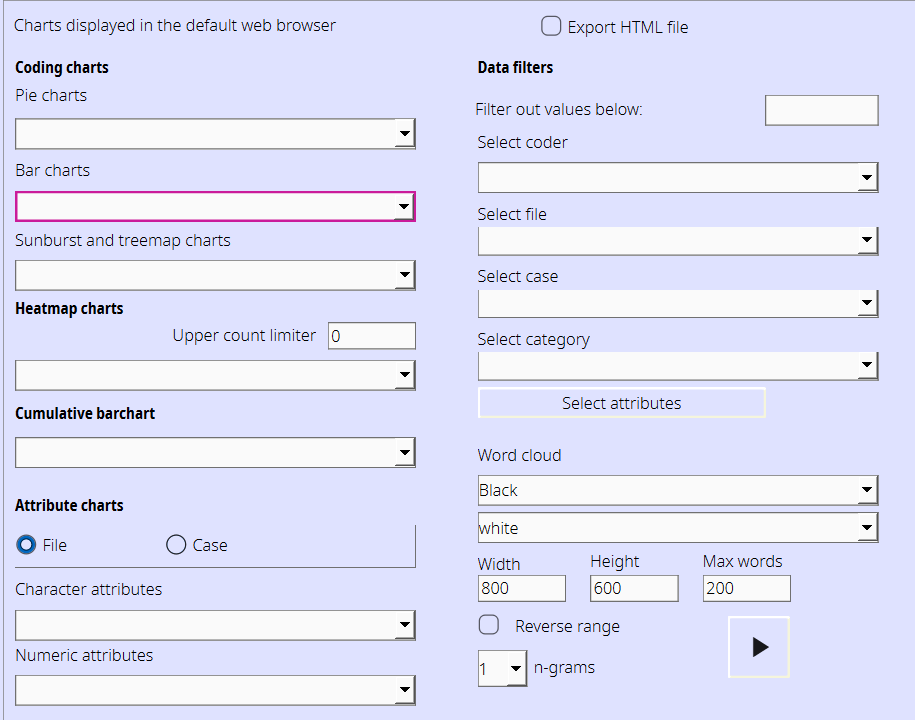
Bar chart
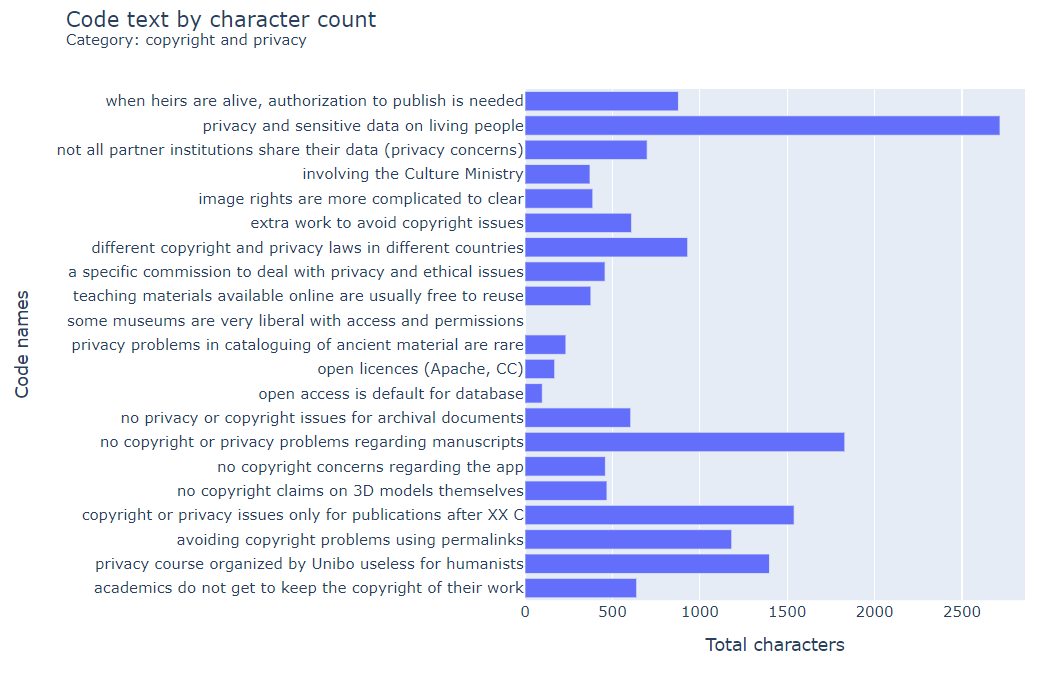
Sunburst chart
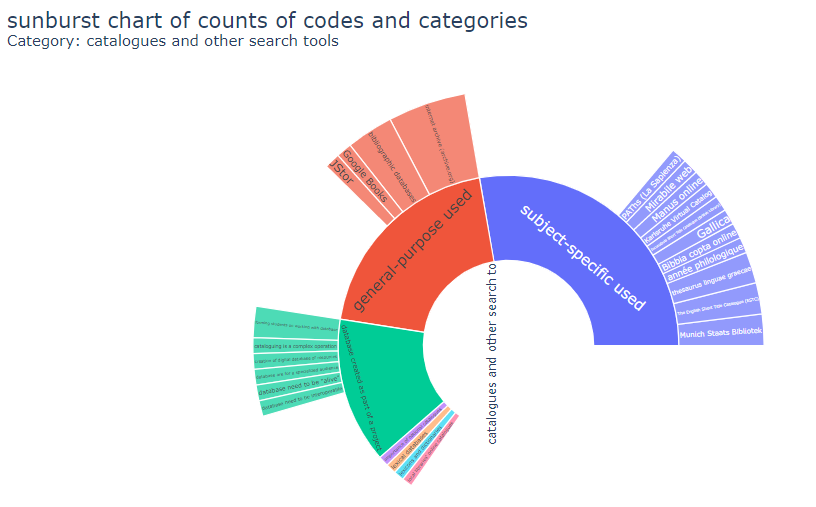
Heatmap
Files or cases by codes, and shows code frequency heat.
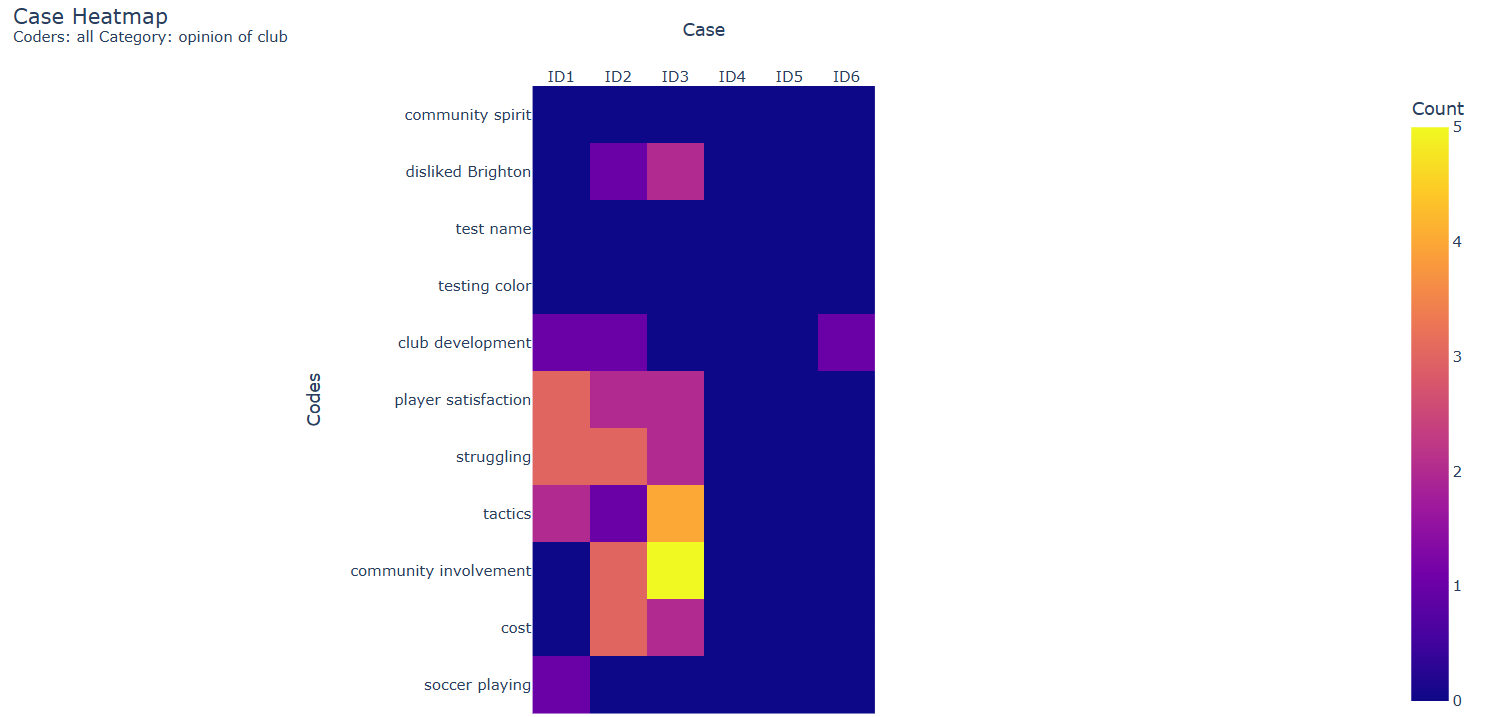
Stacked bar charts
Files or cases by codes, and shows code frequency as a stacked bar chart.
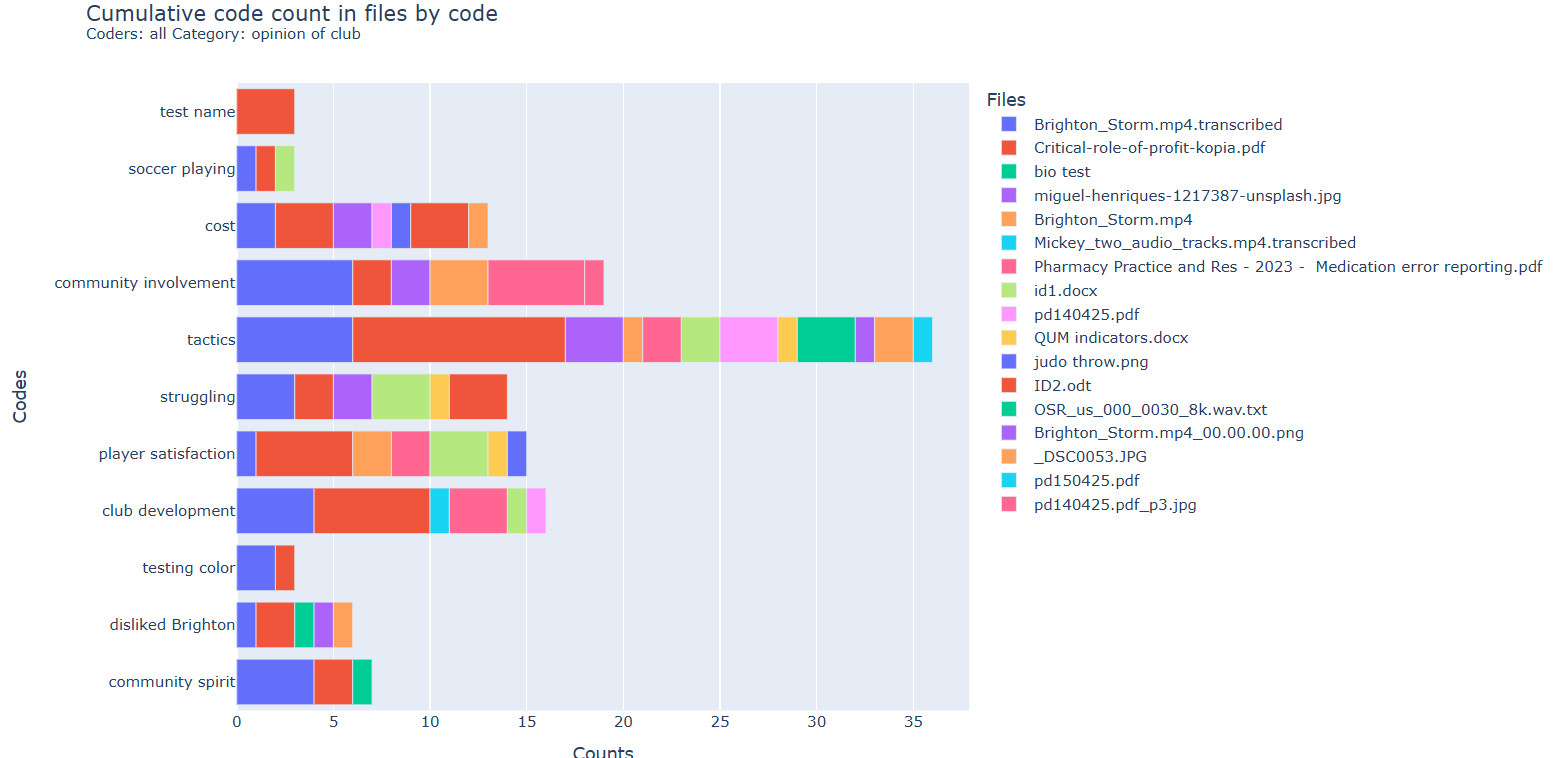
Word cloud
A word cloud is available with different options for background colour, foreground colour or colour range, rectangle size, number of words (n-grams) from 1 to 4, and maximum number of words to include. The maximum words is determined by the most frequent to the least frequent and changing this option will change how crowded or sparse the word cloud appears.
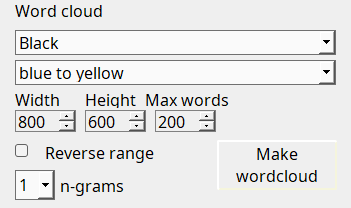
There are a list of stop words that are used to exclude common words from the word cloud display (e.g. an, a, the). This can be overridden by creating your own stopwords.txt file with one word on each line. This file should be put inside the .qualcoder folder. e.g. on Windows:
"C:\Users\yourname.qualcoder"
The stopwords currently used are in stopwords.txt in the Examples folder. Alternatively, in 3.8+, you can use the button in the Wordcloud section to temporarily link to another stopwords file of your choosing.

Database queries
Apply SQL Statements to query the database. This window contains three panes. The top pane is where SQL statements are entered and the bottom pane contains the results of queries. The left pane contains tables and field names. Double-clicking on a field name adds it to the SQL statement. Results can be exported to a delimited file. If you are not familiar with SQL take care as you will be able to update and delete the data as well as select data. Note: Some Unicode symbols are not converted to plain text and are ignored.
There are several prepared statements listed:
- Case text
- Coded text using a case attribute selection (v3.6+)
- Codes fileid and coded text
- Get coding table - an implementation of an RQDA function that returns the code name, table, text length and text start and end positions.
- Coded text with each case
Most table fields are text. The following fields are integer: anid, avid, attrid, caseid,catid, cid, fid, id, imid, jid, pos0,pos1, x1, y1, width, height.
Right-click in the results table for filtering options.
Right-clicking in the SQL window gives you various options such as select all, copy, and paste.
At the bottom of the left-hand side list, you can see: stored sql and Default queries
Stored sql are your own created and stored sql statements. To store a sql statement, right-click on the sql and choose 'save query'.
Default queries, such as the one shown in the image, are ready-made SQL queries to perform additional extracts from your data. They are commented '-- a comment' to describe what each statement does.
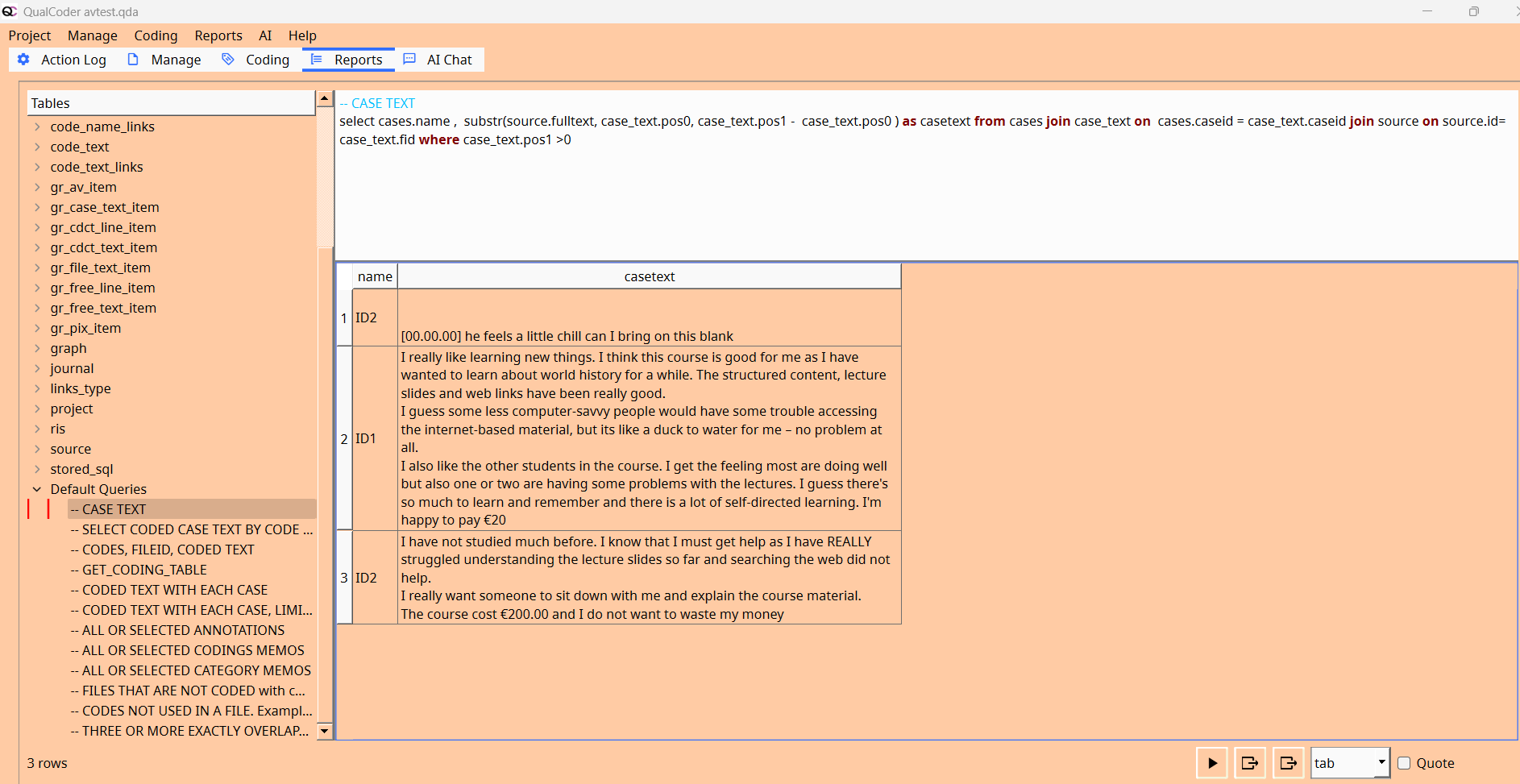
As you are able to perform any database queries, including updating data and deleting tables, keep backup copies otherwise it is possible to irreparably destroy the database.
Graph
A graph of categories and codes is displayed. There are options to limit the codes and categories shown – such as All or Selected categories. Click on the image area, and + or – will zoom in and out.
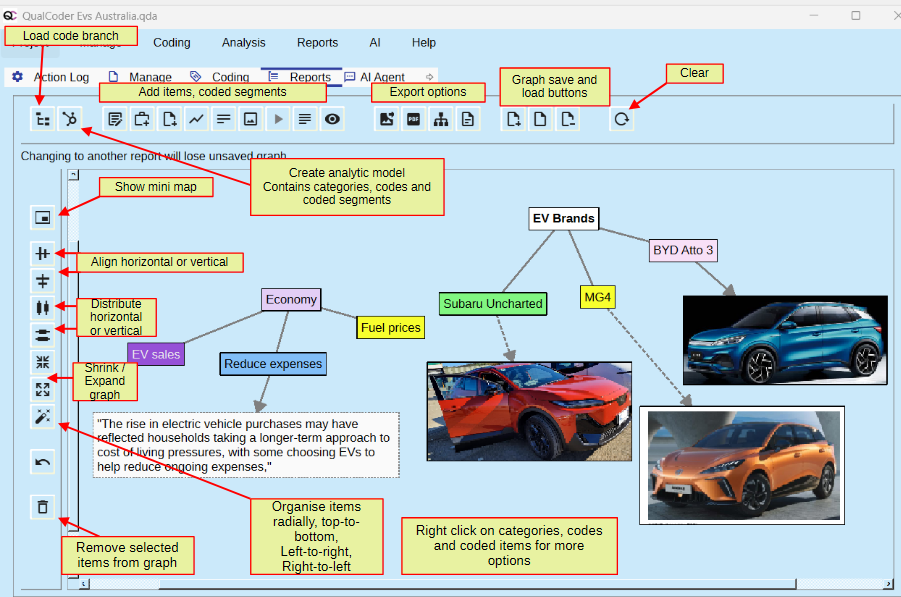
The buttons across the top add items to the graph. And load, save and export created graphs.
The buttons on the lower left-hand side are used to navigate and reposition the graph items. The Distribute buttons distribute 3 or more selected items evenly spaced horizontally or vertically. The Shrink/Expand Graph buttons, pull items closer together or spread them further apart (this is different from zooming in or out).
Each code or category can be moved by clicking near the edge of the box and dragging it. Clicking the text lets you temporarily change the code or category wording. Right-clicking in a code gives a menu of options such as displaying the memo, or displaying all the case or file text that has been coded with the selected code.
Right-clicking on a line allows you to change the thickness, change to dotted line style or change the line colour. This might be useful for emphasis. Right-clicking on empty space allows you to add free text boxes, files text boxes, and case text boxes, and also to insert extra lines between components.
Coded text, coded images and coded A/V segments can be shown. Memos of coded text, coded image and coded A/V segments can be shown in text boxes. Each of these has tooltips to give more information. You cannot display the same coded segment multiple times in the graph.
Right-click on items for more options
Image:
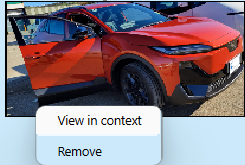
Coded text segment:
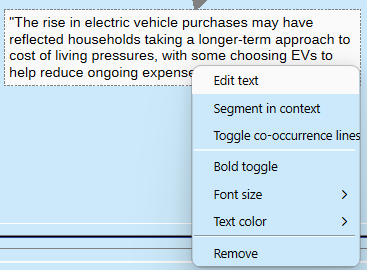
Code item:
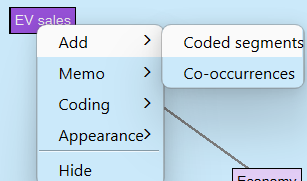
Line style:
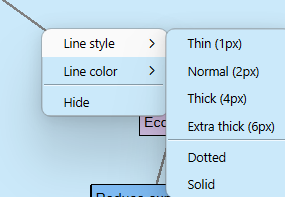
Export options
Graphs can be saved, loaded and deleted. Graphs can be exported as: PNG, PDF, ODT (for LibreOffice and MS Office), Draw.io.
Imports and exports
Project Menu contains most imports and exports.
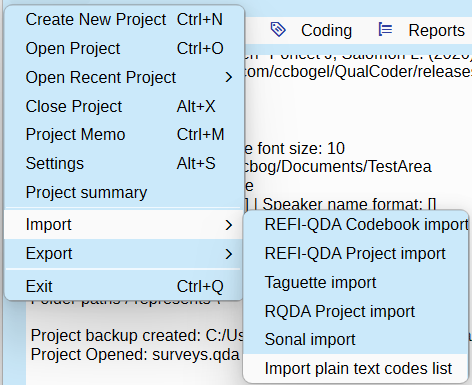
Projects and codebooks can be exported using the REFI-QDA standard. Codebooks can be exported to ODT or plain text.
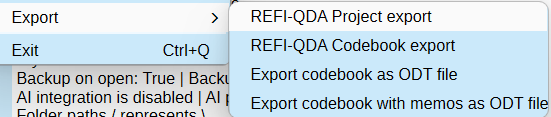
Surveys are imported via a button in the Manage Files window. See Survey Imports
Codebook export
This is an option under the Project Menu > Exports.
A codebook is a list of your codes. Each code memo should detail the reasons for the purpose of each code. The codebook can be exported to a text file. The codebook also shows the frequency of the codes used (from all coders). As codes and categories are put in a tree like structure the double minus ‘–‘ indicates the subordinate codes and categories within a category.
Codebook import
Import a codebook as a plain text (.txt) file or as a .csv file. Use two greater than symbols to separate category and code. Use three greater than symbols to define a code under a code.
Codebook - Plain text import
Create a plain text (.txt) file. Use the tab to then add a memo.
Codebook - CSV file
Create a CSV file in LibreOffice Calc or MicrosoftOffice Excel. The categories and codes are in the first column, and set up in the same way as for a plain text file. Any code memos are in the second column.
REFI-QDA
Rotterdam Exchange Format Initiative (REFI) is an open standard for exporting and importing codebooks and projects from and to different computer-aided qualitative data analysis software.
Currently, QualCoder is able to import a codebook provided it is using the "urn:QDA-XML:codebook:1.0" version. QualCoder exports in this version also.
Exportation of a project and importation of a project are functional. We do not guarantee Qualcoder meets the full REFI-QDA standard. Some experimentation has been performed with Nvivo, Atlas.ti, Quirkos and MAXQDA REFI_QDA project files. Importation into MAXQDA seems to require an additional line ending character regarding text coding - this is an option in the REFI-QDA project export from QualCoder. Import into Atlas.ti shifted codings by a character after each line ending, and has not yet been resolved. Importation of attributes from QualCoder does not work for Atlas.ti, MAXQDA, case attributes were not imported into Quirkos.
Features such as sets and graphs cannot be imported as this functionality is not within QualCoder. Other data formats are not preserved, for example date or boolean would be converted to text data.
For audio and video, importation of transcriptions and syncpoints is untested. Importation/linking of relative linked files has not been tested.
To import, close any currently opened project first. Then choose a new QualCoder project name, then select the qdpx import file.
If no coded data is visible, you may need to change the current coder's name in Settings. Try the drop-down coder name box.
This is now old (Feb 2021), but a user tested the importation of a REFI-QDA project file generated by QualCoder and imported into MAXQDA, Quirkos, Atlas.ti. Only text and Images were tested. A PDF of the test results is here: Testing importation of REFI-QDA Project files into Atlas, MAXQDA, Quirkos PDF
Taguette import
Projects created with Taguette can be imported from the sqlite file. All your core coding data will be transferred.
Close any open project. Then, in the Main Menu under Project, click on Taguette Project import. You will be asked to create a new project, so enter a name. Then, you will be prompted to select the Taguette project file (usually with a .sqlite3 extension). QualCoder will then proceed to import the data.
If you do not see any coded data, you may need to change the current coder's name in the Settings. Try using the coder name drop-down box.
Sonal π (Sonal Pi) import
Projects created with Sonal Pi a French developed qualitative Data Analysis Software can be imported.
RQDA import
Projects made with RQDA can be directly imported. All data except for file categories are imported.
Close any opened project. Then in the Main Menu under Project click on RQDA Project import. You will be asked to create a new project- so enter a name. Then you will be asked to select the RQDA project file. QualCoder will then import the data.
If no coded data is visible, you may need to change the current coder's name in Settings. Try the drop down coder name box.
Survey import
See page Survey Imports
Bibliography import
See page Managing Data - References
Help - Special Functions
Dynamic update text content
This is useful for updating text files, such as blog post extracts, that change over time. Update a text file while attempting to keep the existing coded text segments. Select the text file that needs to be replaced and select the replacement file. Click the cogs button to run the update. This function works by finding the identical matching text in the replacement file as it parses through the file text. It may produce erroneously coded segments.
Merge Projects
See page: Merge QualCoder projects
Survey Imports
Open the Manage > Files page and press the Import Survey button.
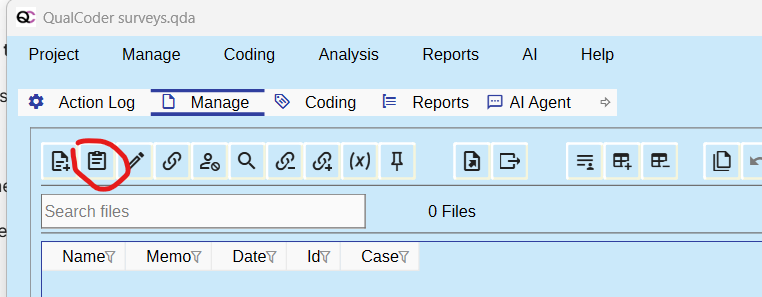
A survey can be imported from a CSV file (comma separated values) or Microsoft Excel file (xlsx). The first row must contain the headings for attributes and for the free text data. The first column must contain the unique identifiers for each survey respondent.
There are some example surveys in the Examples folder. These will be used in a walk-through of importing surveys:
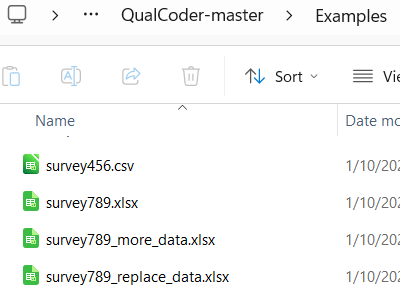
Above is the examples folder, showing several survey files.

Above is the data in survey456.csv
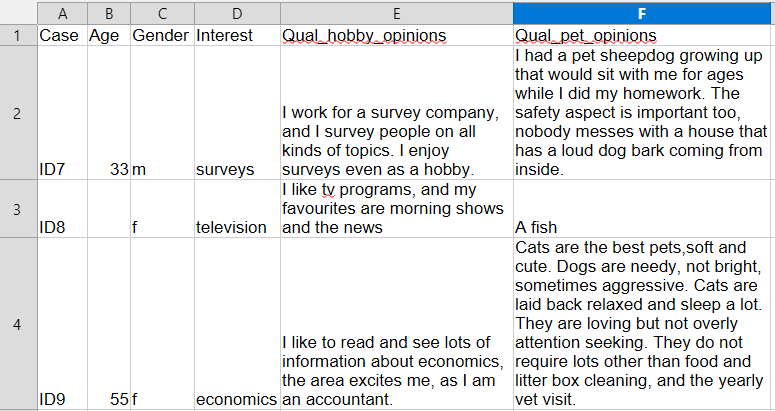
Above is the data in survey789.xlsx
Importing the file survey456.csv
Press the import survey button and select the file from the Examples folder.
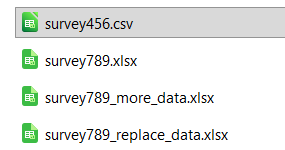
The survey assistant reads the CSV file and shows the column names on the left.
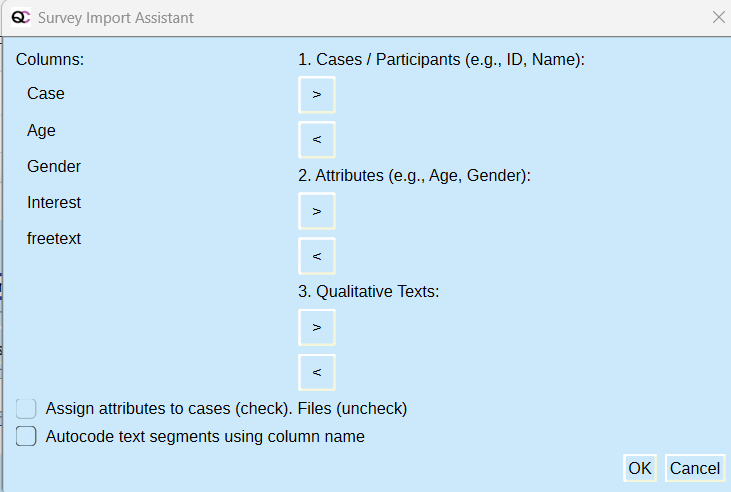
The participant identifier, called Case in this survey, can be assigned to the Cases/Participants section. The Age, Gender and Interests data columns can be assigned to the attributes. The freetext column can be assigned to Qualitative Texts. In this example we will assign the attributes to files, and we will not autcode the qualitative text with the 'freetext' column name. QualCoder will determine if the attribute columns are Numeric or Character. For Numeric columns, every cell must contain a number or be empty, otherwise entries will default to Character.
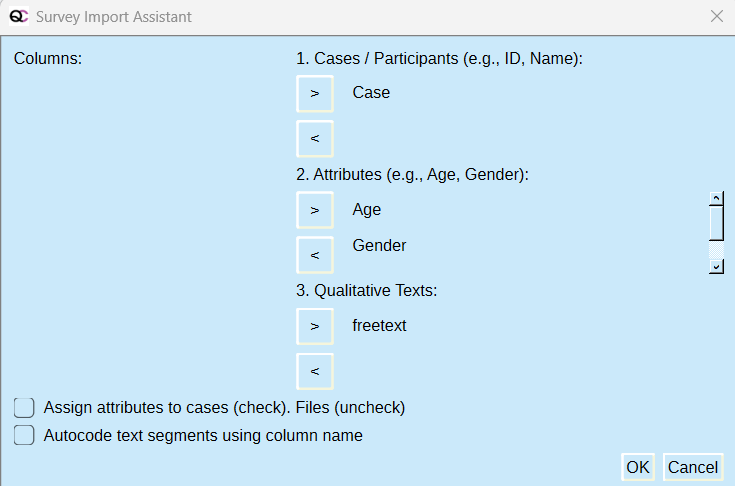
Press OK to enact the import.
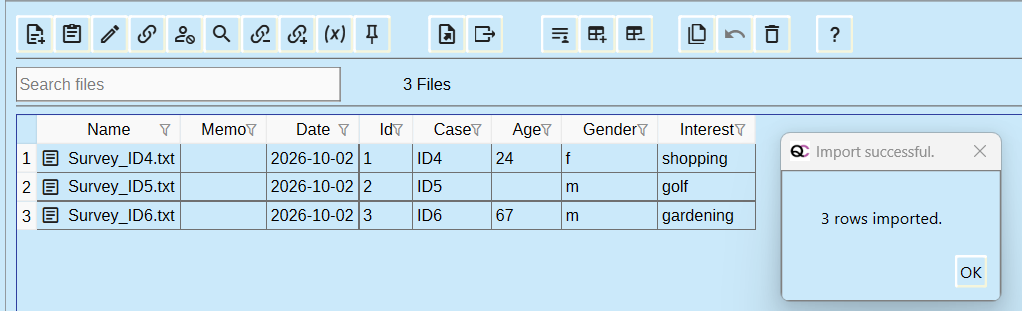
The attributes were assigned to each text file. Opening the text file shows the text detail. The text is underlined in green, this means the entire text is assigned to a matching case. In the image below, Survey_ID4.txt has been assigned to a newly created case called ID4.
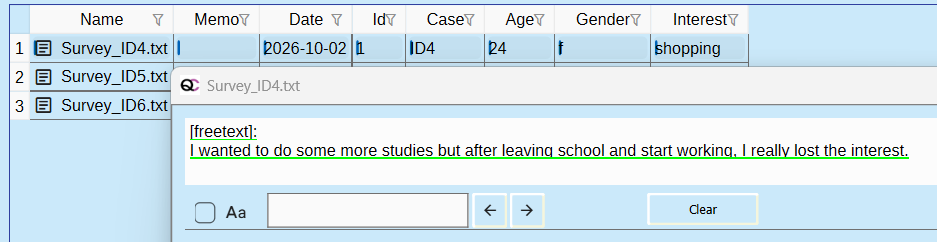
In the Manage > Cases screen it is shown like this, with one text file assigned per case:
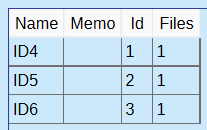
Adding more data
Using the survey import button, select and import the survey789.xlsx file. Leave the checkboxes unchecked.
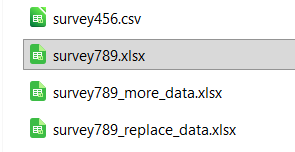
This has two different qualitative columns:
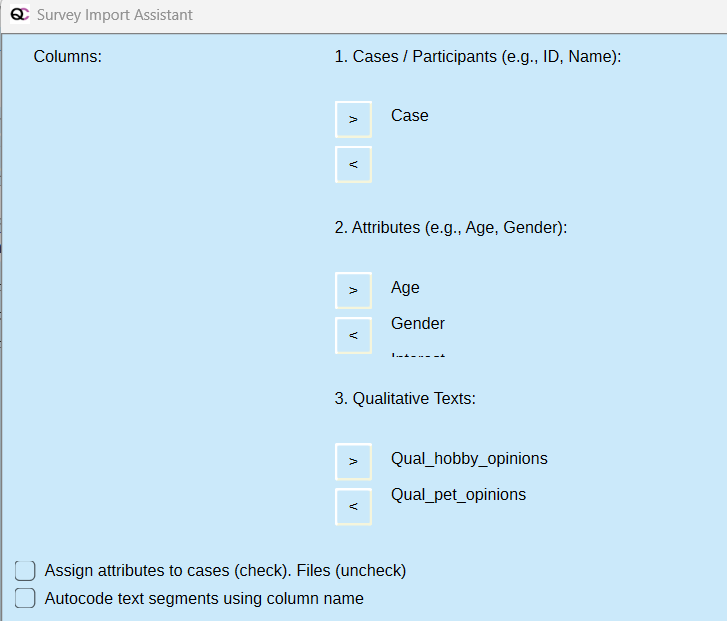
Press OK
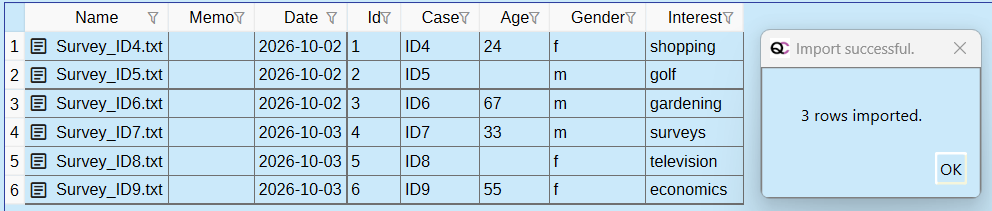
The new qualitative files have been added, and the file attributes are now extended with the three new survey responses. The difference here is that the new files had different qualitative components. Both qualitative response columns have been collated into one text file for each case.
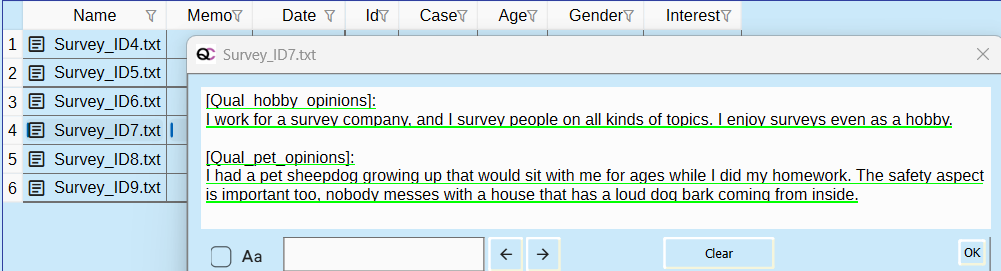
From the Examples folder, import survey789_more_data.xlsx, using the same import parameters as before. This contains more attributes of State, Pet, PetAge, for ID7, ID8 and ID9.
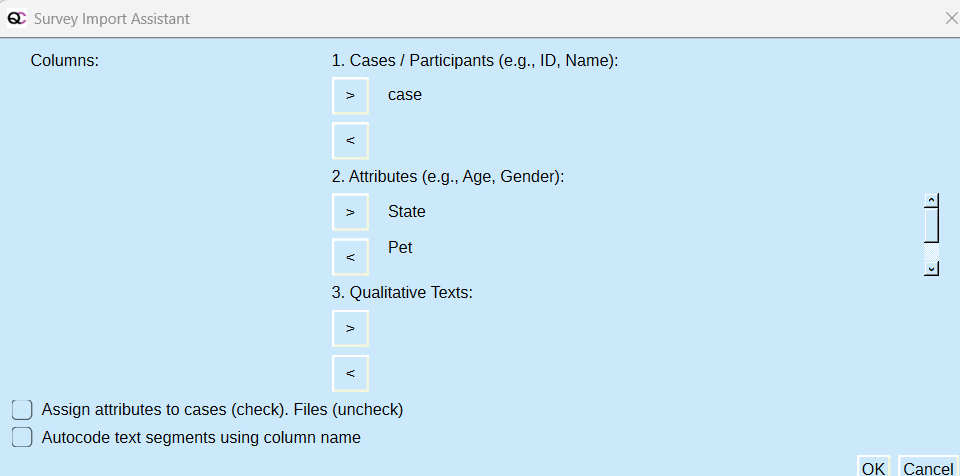
The additional information is imported and added to the correct cases
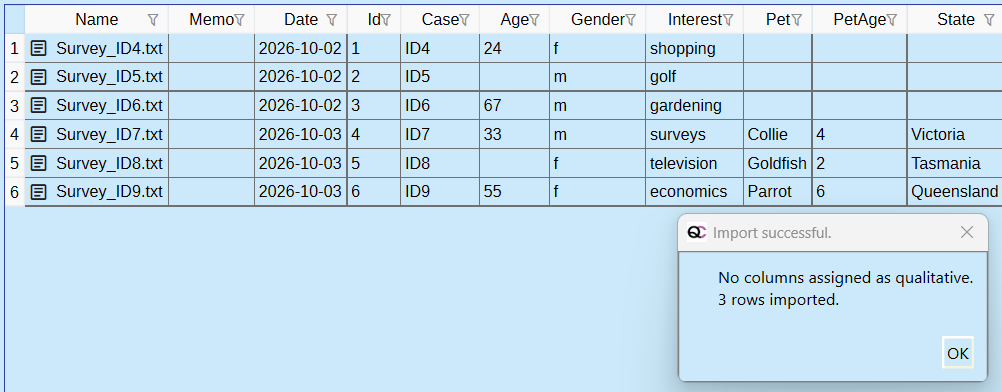
From the Examples folder, import survey789_replace_data.xlsx, using the same import parameters as before. This contains the attributes of Pet, PetAge, for ID7, ID8 and ID9. each of these attributes now contains different data, and will override the original data.
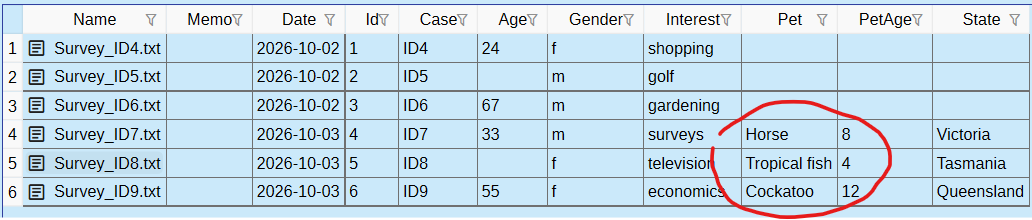
AI Prompt Library
-
Prompts play an important role in any type of qualitative data analysis working with large language models. Prompts tell the AI how to analyse your data and respond to your queries. They are written in natural language and are easy for non-programmers to understand.
-
In QualCoder, the prompts underlying the AI features are accessible in the user interface. They can be customised to fit your methodological approach and research questions.
-
We have already included some interesting prompts from other qualitative researchers that have been published in various places. We hope that the growing use of AI in qualitative research will be accompanied by a culture of developing, sharing, and discussing sophisticated prompts in the scientific community, so that we can all learn from each other and improve the emerging new methods in the field.
The Structure of a Prompt
In a very basic sense, a "prompt" is like the question you type into the web interface of ChatGPT. But even in this case it's a bit more complex. In the background, ChatGPT will accompany your question with an invisible "system prompt" that instructs the AI to be a helpful and supportive assistant, not to give medical or legal advice, etc.
Similarly, the prompts in QualCoder are modular and consist of several different elements, some of which you can change and some of which you cannot.
This is the basic structure:
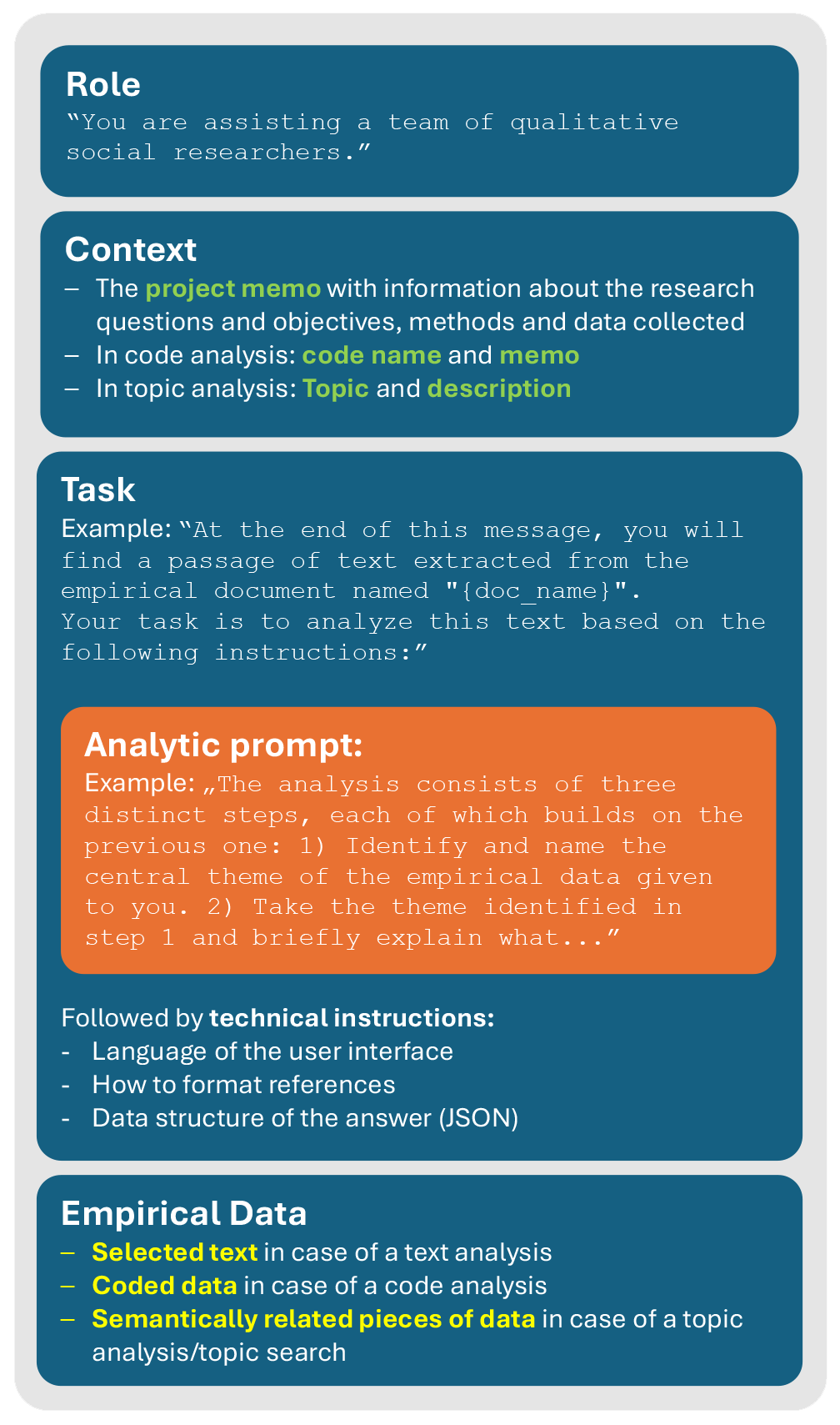
This structure consists of
- fixed elements (shown here in white on blue) that are defined in the source code of the application,
- contextual information (here in green) that you enter at various places in QualCoder's user interface, such as code names and memos, or the project memo with important information about your research,
- empirical data (here in yellow), selected in various ways, and
- the analytic prompt (shown in orange), which you can modify and adapt to your needs.
Analytic prompts
Analytic prompts are the core of QualCoder's AI features. They instruct the AI on how to analyse your data. These instructions can be quite simple, but can also grow into complex guidelines with detailed descriptions of each step the AI should perform during the analysis, including methodological background, etc. (see Lieder & Schäffer, 2024).1
QualCoder comes with a set of predefined analytic prompts. But you can also define your own - either by clicking on the "Edit" button next to the prompt selection or by navigating to the "Prompt library" located in the "AI" menu. This will open the following window:
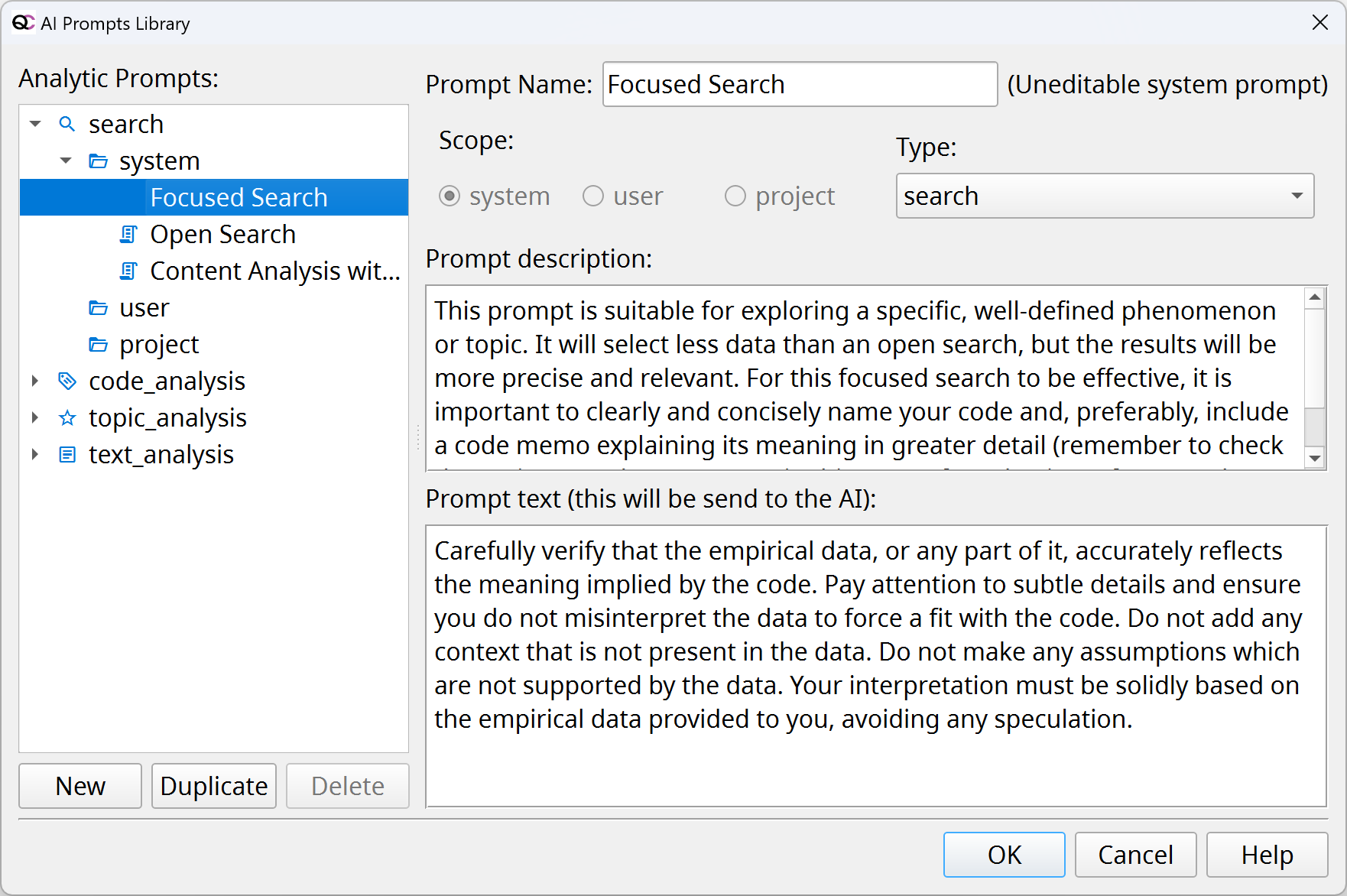
The prompts are divided into several categories:
1) Type - Search prompts are used in the AI assisted coding, - Code, Topic and Text Analysis prompts are used in the AI Chat window.
2) Scope - System prompts are defined on the application level and cannot be altered directly. If you want to change a system prompt, you must duplicate it first. - User prompts are defined by the user and stored on their computer. They are available to any project opened on that computer. - Project specific prompts are stored with the project files. If you or someone else opens the same project on a different computer, these prompts will be available there as well.
3) Prompt name and description: These are displayed in several places in the user interface where you can select an analytic prompt. The names must be unique within each scope.
4) Prompt text: These are the actual instructions that will be sent to the AI (the orange box in the image above). If you want to share your prompt with someone else, this is the most important information you will need to send over.
Note About Languages
All predefined prompts in QualCoder are written in English. However, they can be applied to data in other languages as well. It is also no problem to write analytic prompts in languages other than English and use them with QualCoder. Most large language models are quite flexible when it comes to mixing different languages.
1Lieder, F. R. & Schäffer, B. (2024). Reconstructive Social Research Prompting (RSRP). Distributed Interpretation between AI and Researchers in Qualitative Research. https://doi.org/10.31235/osf.io/d6e9m
Merge QualCoder Projects
Go to the Help menu and select Special Functions:
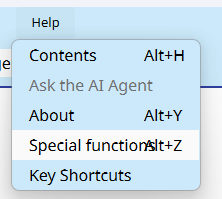
Select a QualCoder project to merge (the source project) into the currently opened project, the destination project.

Then click the Run merge projects, button. 
Before performing the merge, make a backup of the destination project.
Caution: If each project to be merged has the same coder name, e.g., 'default', then these will merge as such, and you will not be able to separate out which coder performed their own coding. This may or may not be an important consideration to your final merged project.
The following occurs:
- Copies unmatched files from source project folders to destination project folders.
- Adds new (unmatched) source categories to destination database.
- Adds new (unmatched) source code names to destination database.
- Adds journals and stored_sql to destination database, only if they have names that do not match existing destination names.
- Adds text codings, text annotations, image codings, A/V codings to destination database.
- Adds cases and case_text (links from cases to text file segments and images and A/V).
- Add attributes for files and cases.
- Adds attribute values. Existing destination attribute values are not over-written, unless they are blank.
Considerations before merging
Ideally, everyone would have the same identical files within the project. Ideally, using the same set of code names - but this could be worked around later if merging or renaming codes occurred in the collated project. Coder names - would need to be unique for each coder. So, when collating the individual coders' work can be identified. Alternatively, coder names could be the same, provided each coder worked on unique files. But that all depends on your end goals, really. If you had a need to collate all under one coder name.
Warnings when merging
The main warning is if the source project and destination project contain the same text file. If the source project text file has been edited, and may be longer or shorter, then the imported text coding positions and annotations will be incorrect. This is because the original destination project text file text stored in the database is not replaced with the edited text file from the source project.
Other Information and Licenses
Currently QualCoder is developed on Windows 11. QualCoder is written in python 3 using Qt6 for the graphical interface.
After the 4.0 version, one area of development will be to review the visual presence, the user interface, of QualCoder. The aim is to make the interface more modern and appealing. Another area of improvement will be to provide more governance documentation, to support QualCoder's use in large institutions.
Operating systems used
QualCoder has been used on Windows 11, macOS, Ubuntu 24, Lubuntu, Fedora, Linux Mint, Arch Linux, Fedora, NixOS and ZorinOS.
- Using audio or video with QualCoder on Fedora crashes QualCoder.
- Debian with Gnome and the tiled window option - shrinks the QualCoder window size. The best option is to turn off window tiling in the Gnome settings.
Acknowledgements
Ronggui Huang, Zhang Gehao - Created RQDA - inspiration for QualCoder. Mike MacCana - Source code for the docx module. Julius Reich - Created the QualCoder logo. Kai Dröge - Programming, artificial intelligence and much more. Justin Missaghieh-Poncet - French translations, programming, setting up the new website and more. Lorenzo Salomón - Programming and Spanish translations. Jofen Kihlstrom for past Swedish translations. Van Tran for providing many useful suggestions and support over the past years. To the many members on GitHub for feedback, ideas and supporting this project.
Citation
Citation: Curtain C, Dröge K, Missaghieh--Poncet J, Salomón L. (2026) QualCoder 4.0 [Computer software]. Retrieved from https://github.com/ccbogel/QualCoder/releases/tag/4.0
Data structures
The qda project folder Contains folders for imported documents and the sqlite database to store coding data. When AI is enabled, there is an ai_data folder containing a chat history sqlite database and a vectorstore. A vector store is a numerical representation of words, phrases and sentences used by the AI language model. The .qualcoder working folder in your home folder. QualCoder creates QualCoder.log and configuration files. Do not put any files inside this folder, as it is used as a working settings and storage area for QualCoder. The .qualcoder_ai folder in the home folder contains configuration details for AI use.
Licenses
LGPL-3.0 License
QualCoder is free software: you can redistribute it and/or modify it under the terms of the GNU Lesser General Public License as published by the Free Software Foundation, either version 3 of the License, or (at your option) any later version. QualCoder is distributed in the hope that it will be useful, but WITHOUT ANY WARRANTY; without even the implied warranty of MERCHANTABILITY or FITNESS FOR A PARTICULAR PURPOSE. See the GNU General Public License for more details. You should have received a copy of the GNU Lesser General Public License along with QualCoder. If not, see https://www.gnu.org/licenses
License for highlighter.py code
Copyright (C) 2013 Riverbank Computing Limited.
Copyright (C) 2010 Nokia Corporation and/or its subsidiary(-ies).
All rights reserved.
This file is part of the examples of PyQt.
LICENSE:BSD
You may use this file under the terms of the BSD license as follows:
Redistribution and use in source and binary forms, with or without modification, are permitted provided that the following conditions are met:
- Redistributions of source code must retain the above copyright notice, this list of conditions and the following disclaimer.
- Redistributions in binary form must reproduce the above copyright notice, this list of conditions and the following disclaimer in the documentation and/or other materials provided with the distribution.
- Neither the name of Nokia Corporation and its Subsidiary(-ies) nor the names of its contributors may be used to endorse or promote products derived from this software without specific prior written permission.
THIS SOFTWARE IS PROVIDED BY THE COPYRIGHT HOLDERS AND CONTRIBUTORS "AS IS" AND ANY EXPRESS OR IMPLIED WARRANTIES, INCLUDING, BUT NOT LIMITED TO, THE IMPLIED WARRANTIES OF MERCHANTABILITY AND FITNESS FOR A PARTICULAR PURPOSE ARE DISCLAIMED. IN NO EVENT SHALL THE COPYRIGHT OWNER OR CONTRIBUTORS BE LIABLE FOR ANY DIRECT, INDIRECT, INCIDENTAL, SPECIAL, EXEMPLARY, OR CONSEQUENTIAL DAMAGES (INCLUDING, BUT NOT LIMITED TO, PROCUREMENT OF SUBSTITUTE GOODS OR SERVICES; LOSS OF USE, DATA, OR PROFITS; OR BUSINESS INTERRUPTION) HOWEVER CAUSED AND ON ANY THEORY OF LIABILITY, WHETHER IN CONTRACT, STRICT LIABILITY, OR TORT (INCLUDING NEGLIGENCE OR OTHERWISE) ARISING IN ANY WAY OUT OF THE USE OF THIS SOFTWARE, EVEN IF ADVISED OF THE POSSIBILITY OF SUCH DAMAGE."
License for docx.py code
Copyright © 2009-2010 Mike MacCana
Permission is hereby granted, free of charge, to any person obtaining a copy of this software and associated documentation files (the "Software"), to deal in the Software without restriction, including without limitation the rights to use, copy, modify, merge, publish, distribute, sublicense, and/or sell copies of the Software, and to permit persons to whom the Software is furnished to do so, subject to the following conditions:
The above copyright notice and this permission notice shall be included in all copies or substantial portions of the Software.
THE SOFTWARE IS PROVIDED "AS IS", WITHOUT WARRANTY OF ANY KIND, EXPRESS OR IMPLIED, INCLUDING BUT NOT LIMITED TO THE WARRANTIES OF MERCHANTABILITY, FITNESS FOR A PARTICULAR PURPOSE AND NONINFRINGEMENT. IN NO EVENT SHALL THE AUTHORS OR COPYRIGHT HOLDERS BE LIABLE FOR ANY CLAIM, DAMAGES OR OTHER LIABILITY, WHETHER IN AN ACTION OF CONTRACT, TORT OR OTHERWISE, ARISING FROM, OUT OF OR IN CONNECTION WITH THE SOFTWARE OR THE USE OR OTHER DEALINGS IN THE SOFTWARE.
Dependency Licenses
Dependencies are extra python modules that Qualcoder needs to run. Dependency licences are found in the QualCoder/docs folder. Last update 8 october 2026.
SQLite Data Structure
The current v8 data structure is described to assist with developing sql queries. This structure is used by QualCoder 3.2. Older database structures are changed when opened to match this format.
Tables are listed alphabetically.
Table: annotation
anid integer A unique auto-number
fid integer Links to the source.id to identify the text file. Annotations are only for text files.
pos0 integer The starting character position in the text file.
pos1 integer The ending character position in the text file.
memo text Contains the annotation text.
owner text The coder who created the entry.
date text The date and time the entry was created, format yyyy-mm-dd hh:mm:ss
Table: attribute
attrid integer A unique auto-number.
name text The name of the attribute. This will match the name in attribute_type.
attr_type text This is either 'case' or 'file'
value text This store the attribute value as text, even if it is meant to be a numeric value. You may need to cast(value as real)
id integer This field represents a source id or a case id.
owner text The coder who created the entry.
date text The date and time the entry was created, format yyyy-mm-dd hh:mm:ss
Table: attribute_type
name text The unique name of the attribute.
owner text The coder who created the entry.
date text The date and time the entry was created, format yyyy-mm-dd hh:mm:ss
memo text Contains a memo about the attribute type.
caseOrFile text This is either 'case' or 'file'
valuetype text This is either 'character' or 'numeric'
Table: case_text
id integer Unique autonumber.
caseid integer Links to the cases.caseid.
fid integer links to the source.id. These are only for text files.
pos0 integer The starting character position in the text file. Null if not a text file.
pos1 integer The ending character position in the text file. Null if not a text file.
memo text Contains the memo text.
owner text The coder who created the entry.
date text The date and time the entry was created, format yyyy-mm-dd hh:mm:ss
Table: cases
caseid integer A unique auto-number.
name text The name of the case.
memo text Contains the memo text.
owner text The coder who created the entry.
date text The date and time the entry was created, format yyyy-mm-dd hh:mm:ss
Table: code_av
avid integer A unique auto-number.
id integer Links to the source.id to identify the source A/V file.
pos0 integer The starting milliseconds position in the A/V file.
pos1 integer The ending milliseconds position in the A/V file.
cid integer The code_name id to identify the code.
memo text Contains the memo text.
owner text The coder who created the entry.
date text The date and time the entry was created, format yyyy-mm-dd hh:mm:ss
important integer If assigned 1 it is an important code.
Table: code_cat
catid integer A unique auto-number.
name text The name of the category.
memo text Contains the memo text.
owner text The coder who created the entry.
date text The date and time the entry was created, format yyyy-mm-dd hh:mm:ss
supercatid integer This represents the parent category of this category. It is Null if it is a top category.
Table: code_image
imgid integer A unique auto-number.
id integer Links to the source.id to identify the source image file.
x1 real The left x position in pixels in the image file. Stored as decimal value.
y1 real The top y position in pixels in the image file. Stored as decimal value.
width real The number of pixels across. Stored as decimal value.
height real The number of pixels down. Stored as decimal value.
cid integer The code_name id to identify the code.
memo text Contains the memo text.
owner text The coder who created the entry.
date text The date and time the entry was created, format yyyy-mm-dd hh:mm:ss
important integer If assigned 1 it is an important code.
pdf_page integer Null or a number representing the page of the pdf
Table: code_name
cid integer A unique auto-number.
catid integer The code_cat.catid if this code is part of a category. Null if not part of a category.
name text The unique name of the code.
memo text Contains the memo text.
owner text The coder who created the entry.
date text The date and time the entry was created, format yyyy-mm-dd hh:mm:ss
color text A hex value ranging from '#000000' to '#FFFFFF' QualCoder recognises 120 colours so can apply light or dark text over the top.
Table: code_text
ctid integer A unique auto-number. (added in v3).
cid integer The code_name id to link the code.
fid integer The file source id to link the text file.
seltext text A copy of the text of this coded text segment.
pos0 integer The starting character position in the text file. Null if not a text file.
pos1 integer The ending character position in the text file. Null if not a text file.
memo text Contains the memo text.
owner text The coder who created the entry.
date text The date and time the entry was created, format yyyy-mm-dd hh:mm:ss
avid integer Link to a coded A/V segment time position. See table code_av.
important integer If assigned 1 it is an important code.
Table: journal
jid integer A unique auto-number.
name text Name of the journal.
jentry text Contains the journal text.
owner text The coder who created the entry.
date text The date and time the entry was created, format yyyy-mm-dd hh:mm:ss
Table: project
Should contain one row.
databaseversion text Currently v1, v2 or v3. QualCoder will update to the most recent version (adds columns to tables).
date text The date and time the entry was created, format yyyy-mm-dd hh:mm:ss
memo text A memo about the overall project.
about text Should describe the current QualCoder version used. e.g. QualCoder 2.5
bookmarkfile integer The id of the source text file. Used for jumping to the bookmark.
bookmarkpos integer The character position in the text file. Used for jumping to the bookmark.
codername text The current coder name.
recently_used_codes text Contained code_ids of recently used text codes, space delimited.
Table: source
id integer A unique auto-number.
name text The name with fileextension of the file. The file extension helps to determine if the file is text, image, or A/V. If the file has '.transcribed' as a suffix, it is associated with the matching A/V file.
fulltext text The fulltext of a text file, in UTF-8 encoding. Null if an image or A/V file.
memo text Contains the memo text.
owner text The coder who created the entry.
date text The date and time the entry was created, format yyyy-mm-dd hh:mm:ss
mediapath text
av_text_id integer A link for an audio/video source to the corresponding text file transcript.
If the mediapath is empty, it is an internally stored text file within the project folder.
If the mediapath begins with 'docs:' it is a link to an external text file. The fulltext will still be loaded into 'fulltext' for use.
If the mediapath begins with: '/images/' , '/audio/', '/video/' the image, audio or video file is stored internally in the project folder.
If the mediapath begins with: 'images:' , 'audio:', 'video:' the image, audio or video file is linked to externally. The full path to the file is stored.
Table: stored_sql
title text The title of the sql.
description text A detailed description of the sql function.
grouper text Potential to organise sql into groups.
ssql text The user generated sql.
Table: ris
Used for RIS bibliography
risid integer Identifier for this bibliography entry.
tag text Short RIS tag.
longtag text Long text RIS tag.
value text text data for the tag.
Graph visualisation tables
Several tables to store details of save graphs then the items within the graphs.
Table: graph
grid integer Unique identifier.
name text Unique graph name.
description text Text description.
date text Creation date.
scene_width integer Used to set scene size on load.
scene_height integer Used to set scene size on load.
Table: gr_av_item
Displays an arrow icon for a playable A/V coded segment.
gr_avid integer primary key
grid integer
avid integer
x integer
y integer
pos0 integer
pos1 integer
filepath text
tooltip text
color text
Table: gr_case_text_item
Displays details of the case, with formatting parameters.
gcaseid integer primary key
grid integer - Links to graph table
x integer
y integer
caseid integer
font_size integer
bold integer
color text
displaytext text
Table: gr_cdct_line_item
Display line linking codes and categories
glineid integer primary key
grid integer
fromcatid integer
fromcid integer
tocatid integer
tocid integer
color text
linewidth real
linetype text
isvisible integer
Table: gr_cdct_text_item
Displays coded text with some formatting parameters.
gtextid integer primary key
grid integer - Links to graph table
x integer
y integer
supercatid integer
catid integer
cid integer
font_size integer
bold integer
isvisible integer
displaytext text
Table: gr_file_text_item
Displays file details with formatting parameters.
gfileid integer primary key
grid integer
x integer
y integer
fid integer - Link to source table
font_size integer
bold integer
color text
displaytext text
Table: gr_free_line_item
Displays user defined line link between objects
glineid integer primary key
grid integer
fromcatid integer
fromcid integer
tocatid integer
tocid integer
color text
linewidth real
linetype text
isvisible integer
Table: gr_free_text_item
Displays free text, or memos with formatting parameters.
gfreeid integer primary key
grid integer
freetextid integer
x integer
y integer
free_text text
font_size integer
bold integer
color text
tooltip text
ctid integer
memo_ctid integer
memo_imid integer
memo_avid integer
Table: gr_pix_item
Displays coded image.
grpixid integer primary key
grid integer
imid integer
x integer
y integer
px integer - x position within original image
py integer - y position within original image
w integer - width in original image
h integer - height within original image
filepath text
tooltip text
pdf_page integer - if an image of a pdf
AI Technical Information
(Will be updated later.)
How to contribute
Contributing to the code
Please read the contribution guidelines
Key rules at a glance
- Pick an issue first. Look for an existing issue or create one, and comment on it before opening a Pull Request. Wait until the issue is assigned to you before starting work.
- One Pull Request, one commit. Squash your work into a single commit with a descriptive message that reflects your changes.
- Naming. Create a dedicated branch named after the issue you are addressing.
- License. By submitting a Pull Request, you license your contribution under the project's LGPLv3 license ("Inbound = Outbound").
AI-assisted contributions
You may use AI tools to assist your contributions, but you remain fully responsible for everything you submit.
- Understand it: you must be able to explain every line of your code.
- Test it: AI-generated code must pass all tests and security checks.
- Disclose it: pick an AI assistance level (0–5) in the Pull Request template.
- Own it: you are the author. If a reviewer asks "why?", you answer — not the AI.
AI tools must not be used to fix issues labelled good first issue. These exist for human learning.
Contribute to the translation
Translate the documentation
You can translate the documentation by creating/modifying the markdown files in docs/doc in the website repository.
Translate the software
QualCoder supports multilingual functionality using two types of translation files:
- Gettext files (.po or .mo), which contain the software translation;
- QT language files (.ts or .qm) corresponding to the user interface.
To translate:
- Create a language file (if one does not already exist) using this command:
python rebuild_lang.py --create --lang LANGUAGE_CODEPlease note that the names of your language files must comply with the ISO 639-1 format. - If a language file already exists, you can update the translations using
python rebuild_lang.py --update --lang LANGUAGE_CODE. - You can edit the translations of the .po and .ts files in the src/i18n folder using the Poedit software.
- Once the work is complete, compile to machine format using this command:
python rebuild_lang.py --compile --lang LANGUAGE_CODE.