Coding PDFs
The text and image areas on the PDF can be coded.
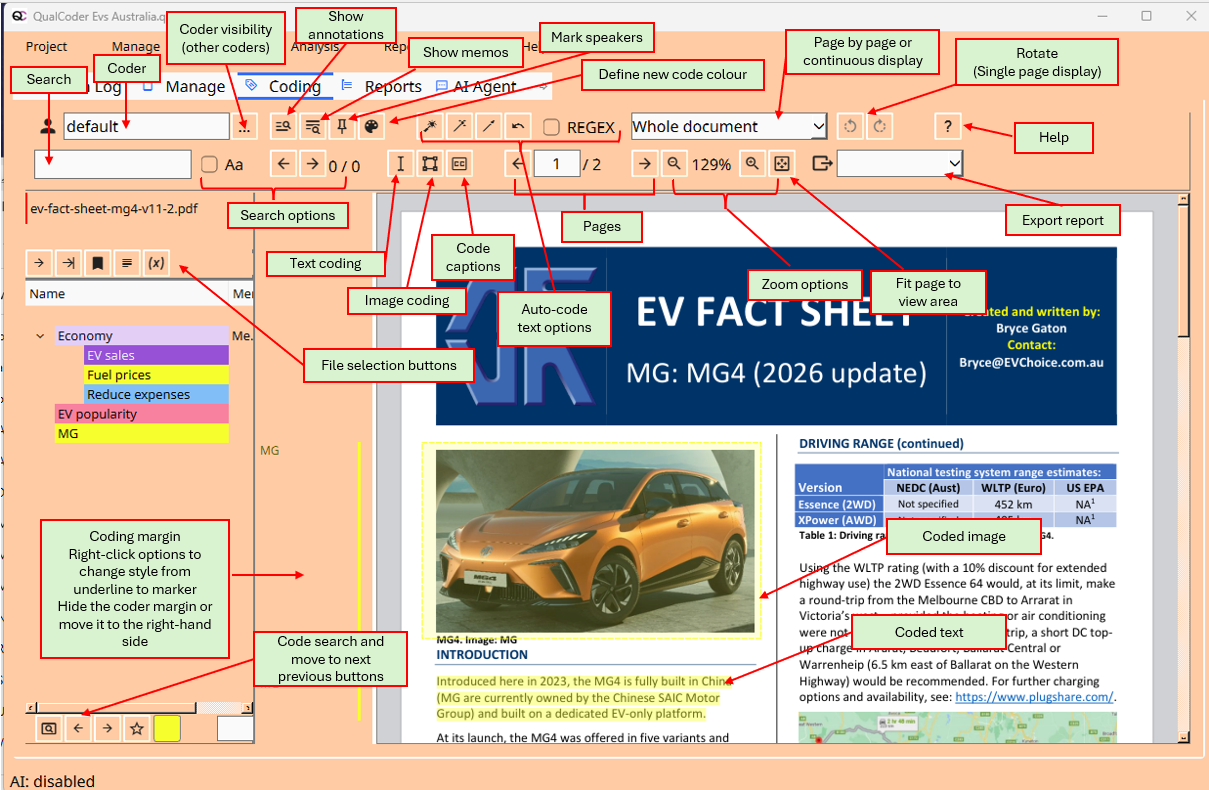
Key presses
- H Show or hide the top sections of the screen.
- Ctrl F jumps to the text search box.
- Ctrl Z undoes the last unmarked code.
- Ctrl 1 Go to next file.
- Ctrl 2 Go to the latest coded file.
- Ctrl 4 View and edit file memo.
- Ctrl 5 Get files list from attributes.
- Ctrl 9 Show important coded segments. Toggles on and off.
- Ctrl 0 Show Help page in browser.
In the PDF display area:
You can zoom in and out by clicking on the shown PDF and pressing the + or - keys. Press Q to quickly mark selection with the recent code. Press R to quickly mark selection with a choice of recently used codes.
In the plain text area:
- A annotate - for current selection - text edit only
- Q Quick Mark with code - for current selection
- I Tag important
- M memo code - at clicked position
- O Shortcut to cycle through overlapping codes - at the clicked position
- R opens a context menu for recently used codes for marking text
- U Unmark at the selected location
- V assign 'in vivo' code to selected text
Export reports
Export in odt format - compatible with LibreOffice and Microsoft Word. Or as a PDF with highlighting applied.
Older versions 3.8.2 and earlier
The screen is split into 3 adjustable panes. The left-hand side pane contains the file list and code tree. The middle pane shows the PDF representation. The right-hand pane shows the plain text extracted from the PDF. The original fonts for the text are not used. Instead, the standard font within QualCoder is used in the displayed PDF text boxes. There is a Font size adjuster to shrink the font size, to try to avoid text overlapping. It is set at -2, and -3 may be quite good also.
The right-hand side pane shows the plain text in the same way the text would be displayed in Code text. You can mark, unmark, memo the coded text, mark the coding as important, and annotate text here.
To code, left-click and drag the mouse to select PDF text boxes. This can be tricky depending on the size and positions of the boxes. Then click a code to assign the selection to it. Further adjustments can be made on the right-hand plain-text pane using the shift left or right arrows to extend, or the alt left and right arrows to shrink the coded text section.