Categories and codes
Categories are used to organise codes. Categories are organised hierarchically in a tree structure. You can move codes into categories and move categories into larger categories. You can move categories and codes out of their current position. A code can have sub-codes (new in version 4.0). Codes and categories can be merged by dropping a code onto a code or a category onto a category. Right-click on a category or code to rename. Right click on a code to change the colour.
Categories and codes can be assigned memos. Memos can contain symbols such as those shown here. See the how-to link to insert them - Laptop num lock on, hold the Alt key down then enter the number using the number keypad on the right.
Note
The ability to assign a single code to multiple categories is a frequently requested feature. However, we have decided against implementing this functionality, as it would be overly complicated. This is due to QualCoder’s use of a tree structure, while the requested feature requires a graph data structure. As an alternative, you can use codes with similar names across your different categories.
Reducing the amount of codes displayed in the codes tree
To reduce the number of codes shown in the code tree. In the coding windows (code text, code, a/v or code image), right-click on the code tree and select Show codes like from the menu, or when the codes tree is in focus key press F9.. Then enter text in the text box. This will then only show codes that contain that text. To show all the codes again, enter nothing into the text box and press OK to show all the codes.
A second option is to Show codes of colour. Key press F10 when codes tree is in focus.
Another button under the code tree - with a search icon - on clicking will search for the first code that contains matching text that you enter.
Codes tree menu options
In the codes tree on the left, right clicking on a code opens a context menu for various options. Sub-menus include modifying a code or category, filtering and sorting.
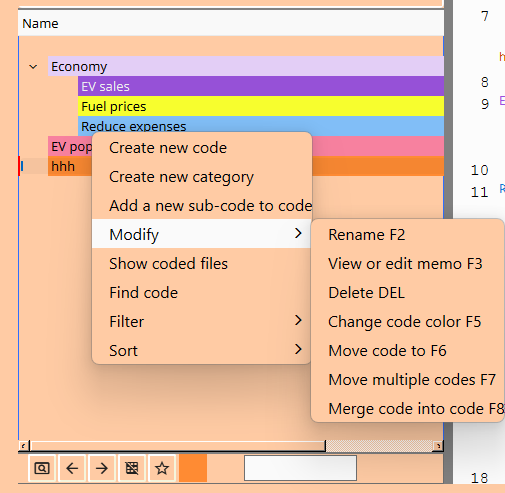
Show coded files
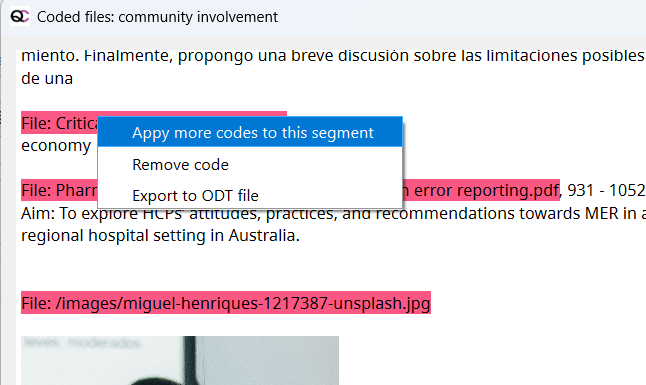
One option is Show coded files - this shows everywhere you have coded with the selected code. Clicking on a particular coded section will open that code in the original context for further insight.
With show coded files, you can right-click on the coloured header section for more options such as adding more codes, removing the code, and export the entire set of coded segments to a text file.
Sort the codes tree acending (key F11 when codes tree in focus), or descending (key F12 when tree in focus).
Accessibility and code colours
In the Coding menu there is an option called Colour scheme.
You can apply a range of colours to a range of selected codes, rather than rely on the random generated colours or a one at a time change of colours for each code. In this area you can also view how the code colours may appear to someone who has a variety of colour blindness: red-weak, red blind, green-weak or green blind.