Analysis menu options
- Coding retrieval - the main reporting function.
- Code Co-occurrence - for text files. Shows counts where a code abuts/overlaps/exact-matches another code.
- Code relations - for text files. Shows proximity, exact match, overlaps, distance between selected codes.
- Code text exact matches - for text files. Shows counts of exact matches between codes.
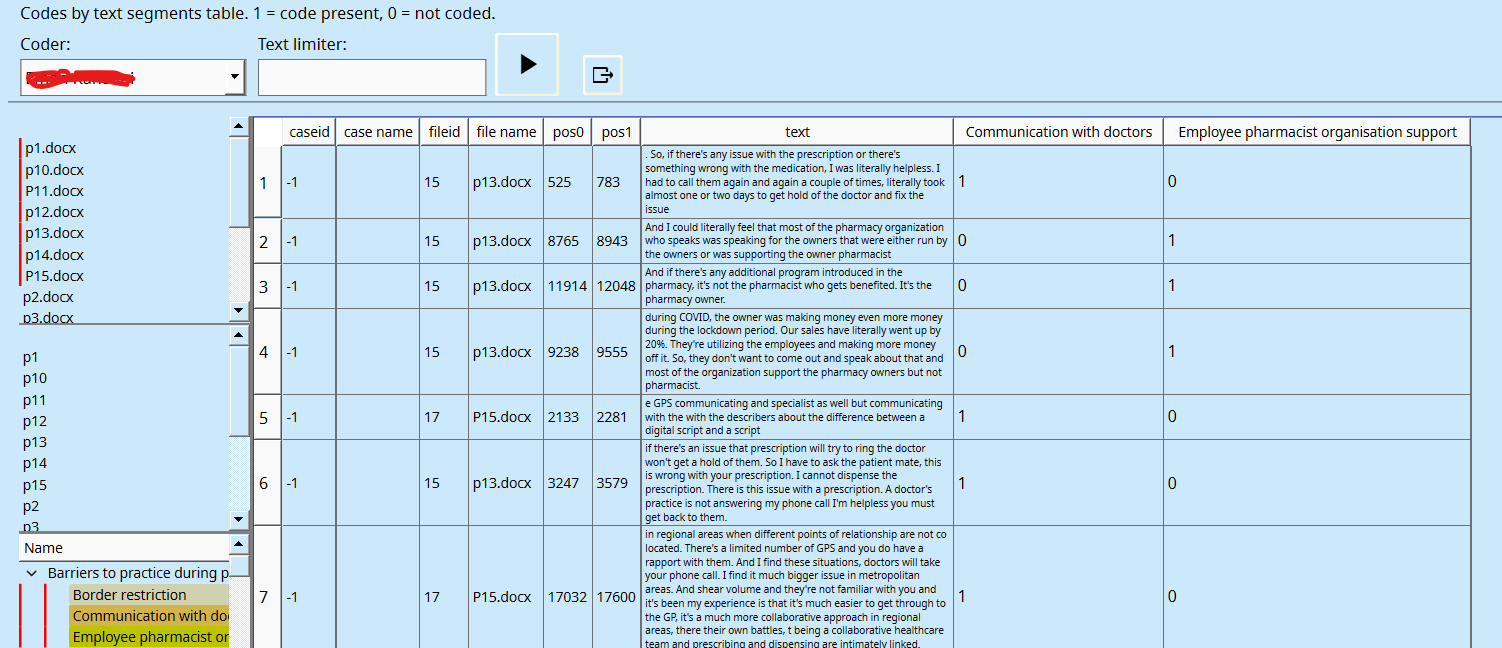
- Codes by text segments - Shows table of file names, coded text, and assigned codes.
- Graph. Create a mind-map, of objects and their linkages.
- AI assisted analysis - by topic, by text, by code.
Code Retrieval
This report gives a list, or matrix, of coded data based on your selections. One or more codes need to be selected. If a category is selected, all codes in that category are also selected. Multiple categories can be selected using the mouse and the ‘ctrl’ button.
The Search button (Play Button) will present the results.
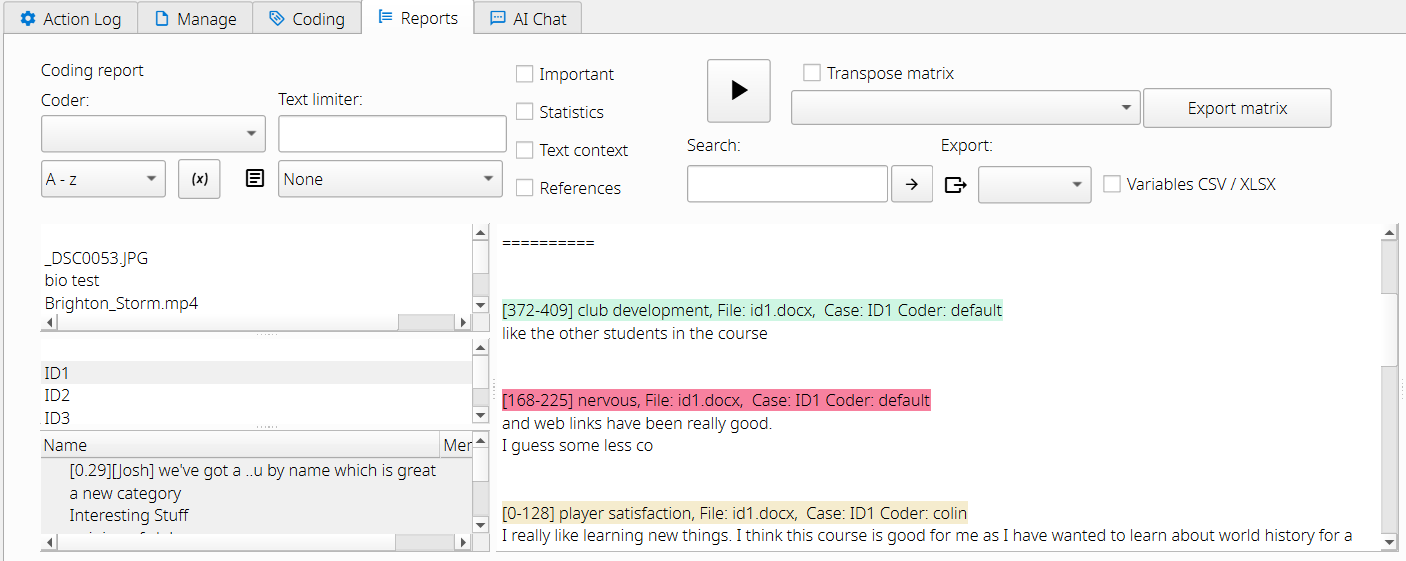
Coding results can be narrowed down by using the File selection, Case selection or Attribute selection buttons. Only codings within the selected files or cases will be presented. When case selections are used, file selections are ignored. Also when file selections are used, case selections are ignored.
If text is entered into the Search text field, only codings that contain the matching text will be presented. The search text also looks for matching text in memos for coded image areas and coded audio/video segments. The search text function must be used in combination with File selection, Case selection or Attribute selection.
Important coded text, images, segments
There is a tick box to select only the Important codings. This is useful for quickly finding those important exemplars that you may use in a written report.
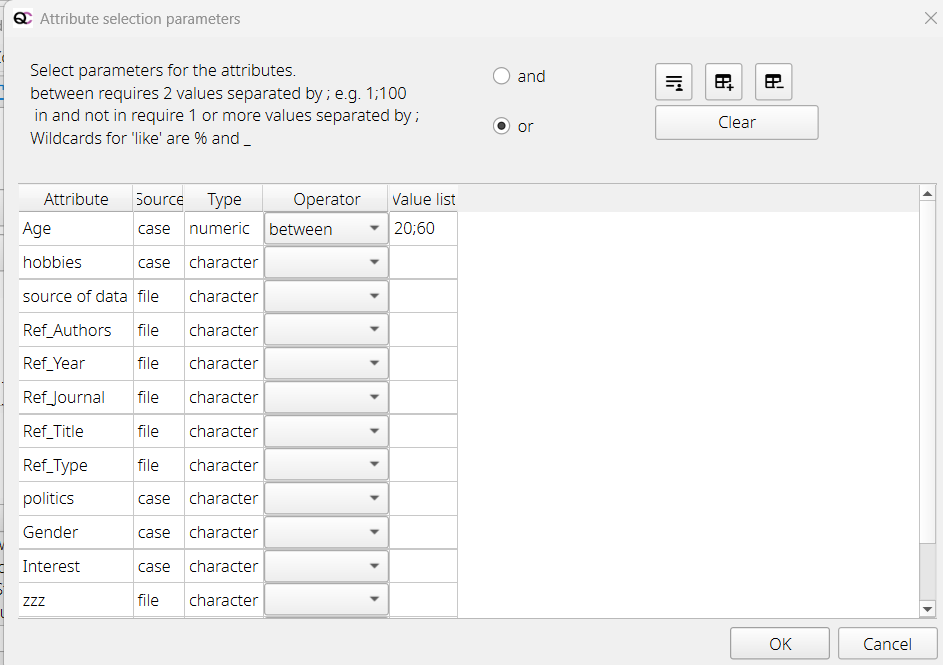
Attribute selection in reports
The Attribute selection button opens a window where you can select attributes for files and cases, for example: only interview files for people aged > 60. Additionally, attribute settings can be saved, loaded and deleted.
Coding matrix
If you are creating a report and selecting one of the matrix options, then the results pane will be split into two panes. The left pane shows the coded data in a list, and the right pane shows a matrix of rows and columns. The column types can be codes, categories, or top-level categories.
Matrix options: have codes/categories by file or by case. The matrix can be transposed, using the check box.
The panes can be widened or narrowed by dragging with the mouse on the bar that splits each section.
Reports can be exported to text, OpenDocument (ODT), HTML, or csv files.
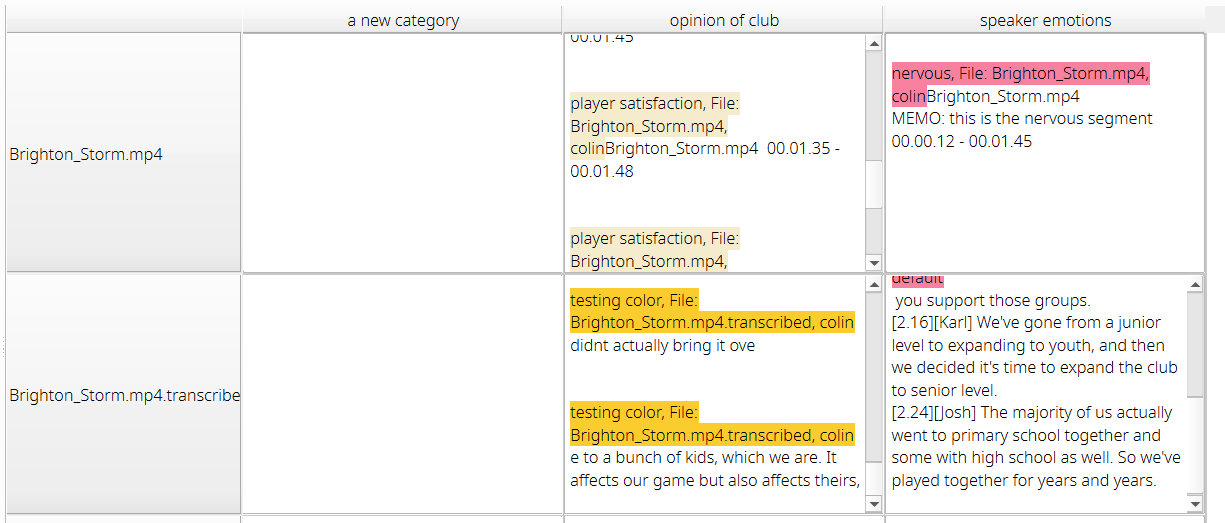
When cases are selected, another pane is displayed showing a table of cases (in rows) and categories or codes in columns
Check boxes
- Check box to show only coded segments that have been marked important.
- Check box to add summary statistics to the report.
- Check box for text context for coded text segments. This shows the surrounding 100 to 300 characters of text (set in Settings) to help put the coded section in context in the results. The coded text segment is shown in bold.
- Check box to add a reference to the coded result. This is if a reference has been imported and linked to the specific file.
Other functions
- Shortcut H. Pressing h will hide and unhide the top controls section of the window.
Memos
- Memo display. A drop-down box gives options to include no memos, various memo options, or to display text file annotations for selected text files.
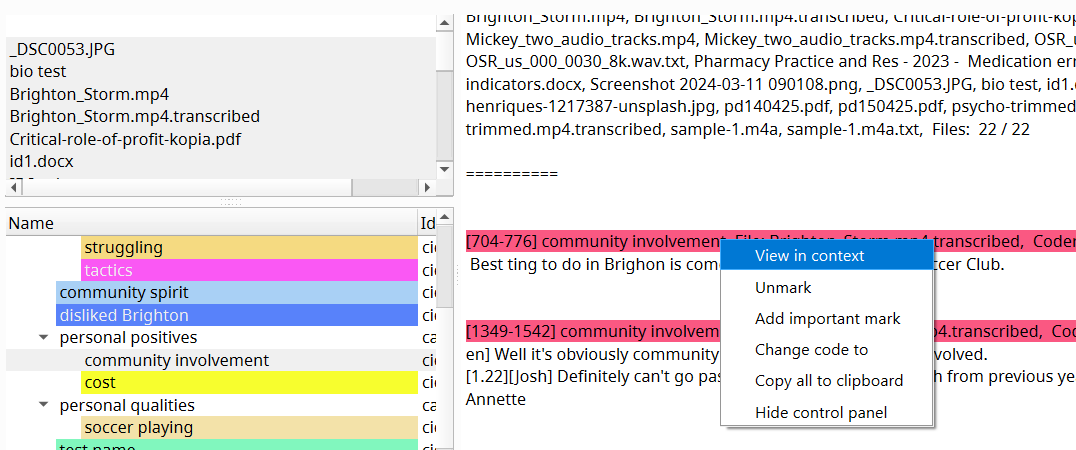
Right-click on a code heading in the generated report for more menu options: View in context, unmark, and change the code.
Exporting reports
Reports can be exported as html, odt, txt, csv, xlsx, (in 3.8+) iramuteq.
txt is a plain text file
csv is a plain text spreadsheet format
xlsx is a Microsoft Word spreadsheet, containing only text.
odt is Open Document Text. This is a format that can be opened with Microsoft Word or LibreOffice Writer. It will contain text, colours and images. For example, if you have images coded.
iramuteq is an export option for text. This allows the text to be imported into the Iramuteq software.
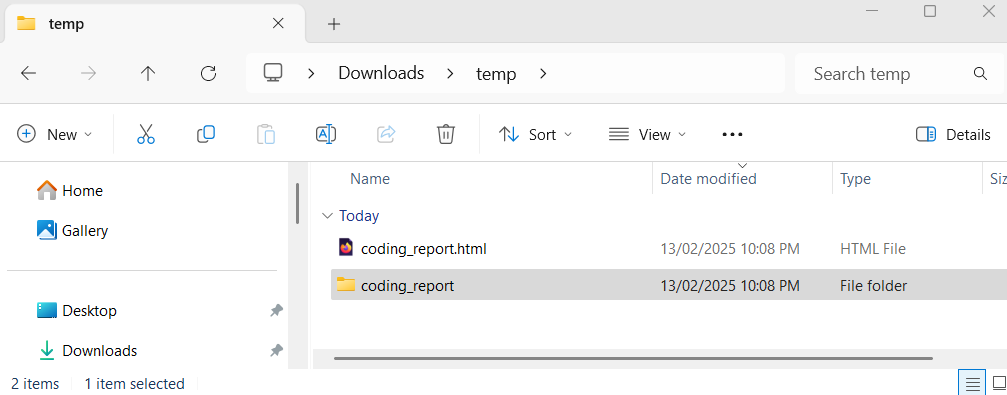
html is a web browser format. For plain text there will only be an html file, e.g. coding_report.html. If your coding contains images, audio or video, there will be a supplementary folder, e.g. coding_report folder. This folder contains the audio, video and image files needed for html display. To transfer the html to another person, or relocating within your folder structure, you must move BOTH the html and the associated folder, shown below.
Code co-occurrence Report
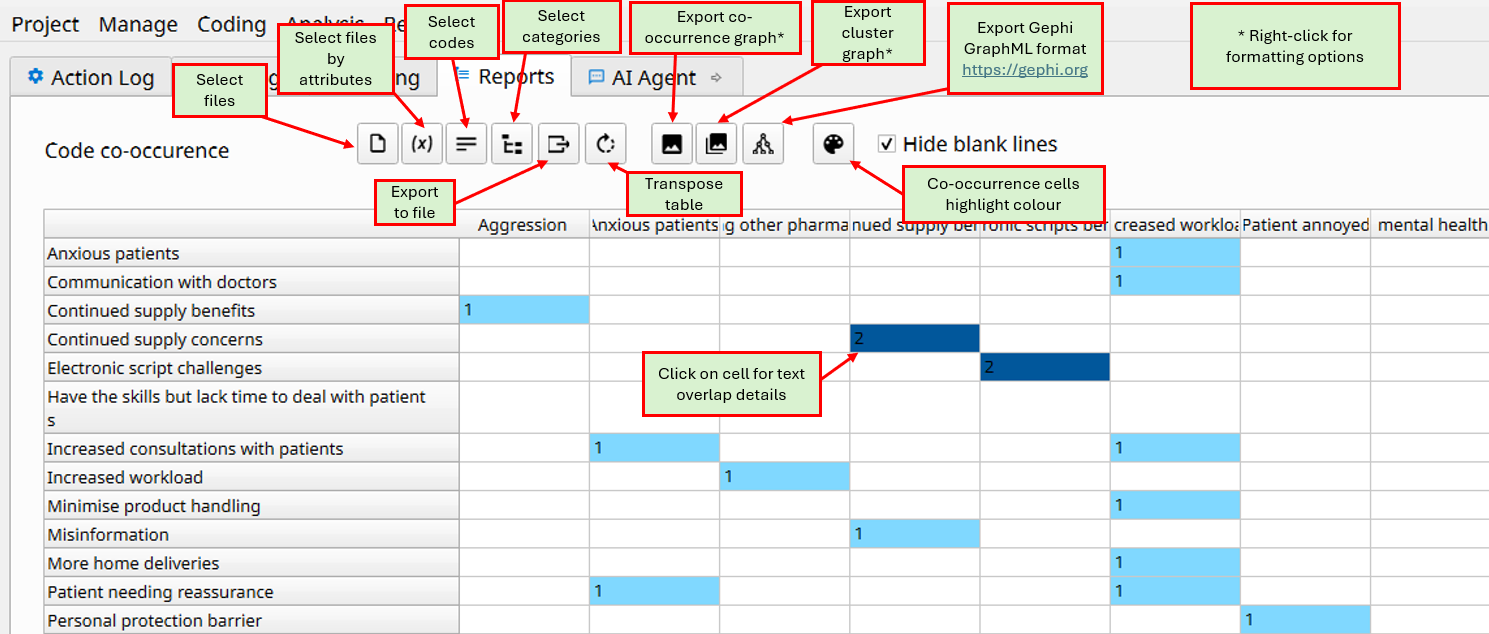
This report shows a table of code names along the x and y axes. The table cells show the count of coding co-occurrences. This is where two codes overlap or are directly abutting. Click on the cell to show the text coding details.
Options include: selecting specific text files, selecting files by attributes. Selecting specific codes, or selecting categories. There is an export-to-Excel option.
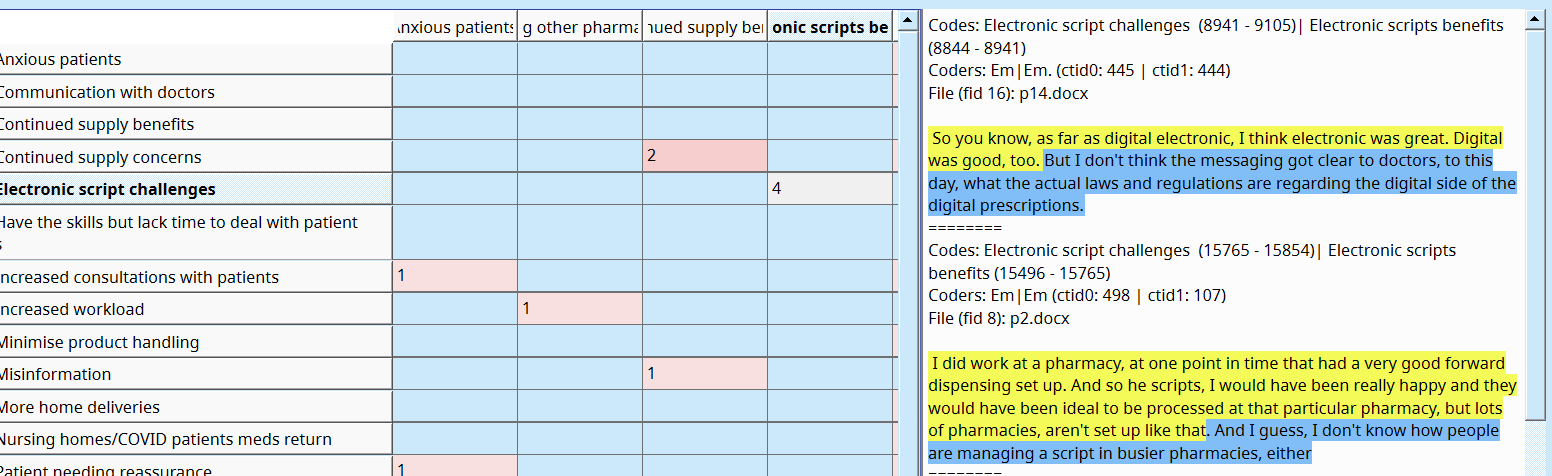
Clicking on a cell shows the text details.
You can right-click on a cell containing co-occurrence coded text to make a new merged code that combines the two overlapping codes.
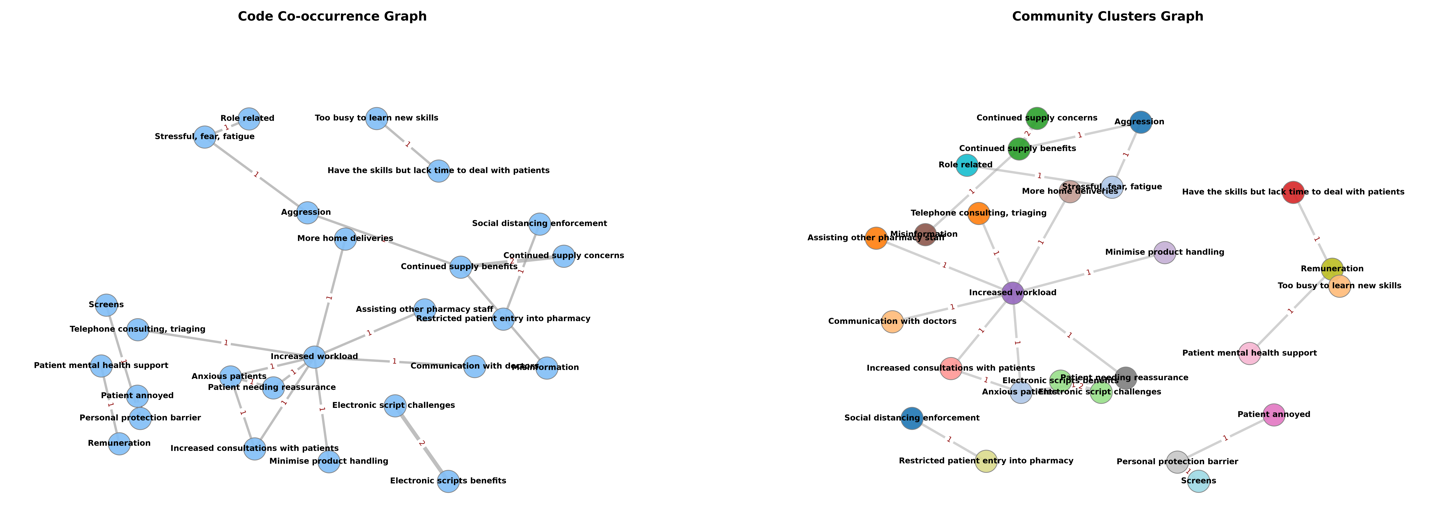
Examples of co-occurrence graph and cluster graph.
Code relations Report
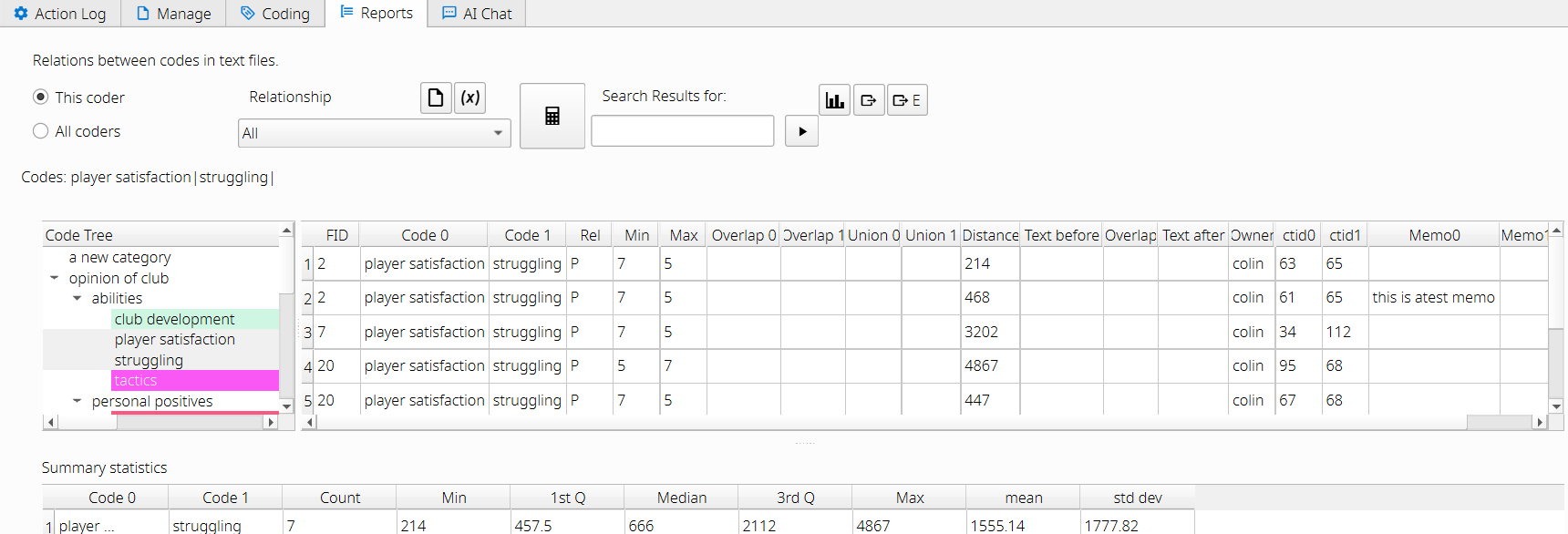
This dialog shows the relations between two or more codes. This can only be applied to text files. Select two or more codes, and press the Calculate button. This report may be useful to show proximity or overlaps between codes. Note, other reports such as Code Co-occurrence and Code Text Exact Matches also do this. This report gives a lot of fine details, such as the coding character positions for each code. A csv file can be exported.
The relations are:
- Proximity – Two codes do not overlap. The distance in number of characters is shown.
- Overlap – Two codes partially overlap. The lowest and highest character positions of the combination are shown. The union of the overlapping sections is shown in character positions.
- Inclusion – One code is included within another code. The lowest and highest character positions of the combination are shown. The union of the overlapping sections is shown in character positions.
- Exact – Both codes match in their start and end positions. The lowest and highest character positions of the combination are shown. The union of the overlapping sections is shown in character positions.
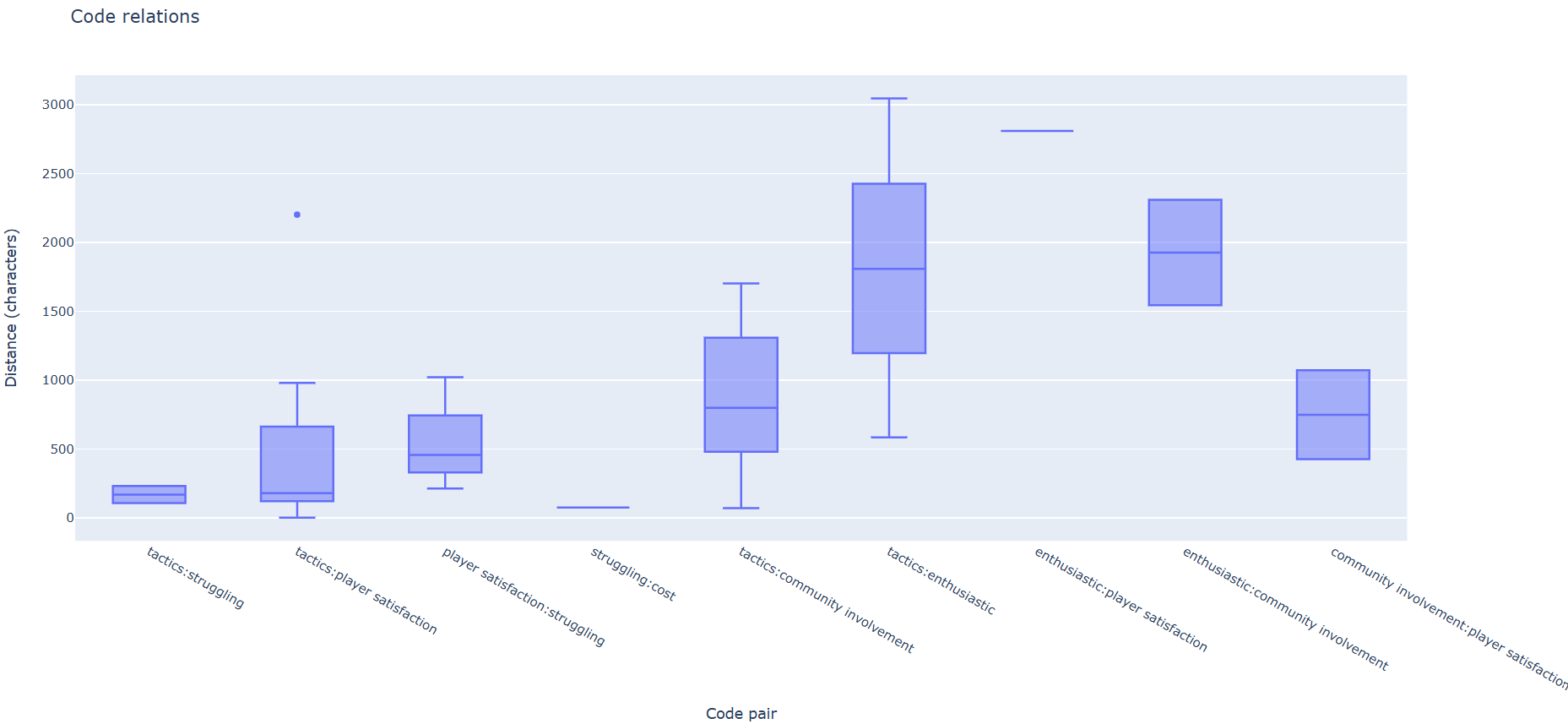
Summary statistics and box plots can be produced.
Code text by exact matches Report
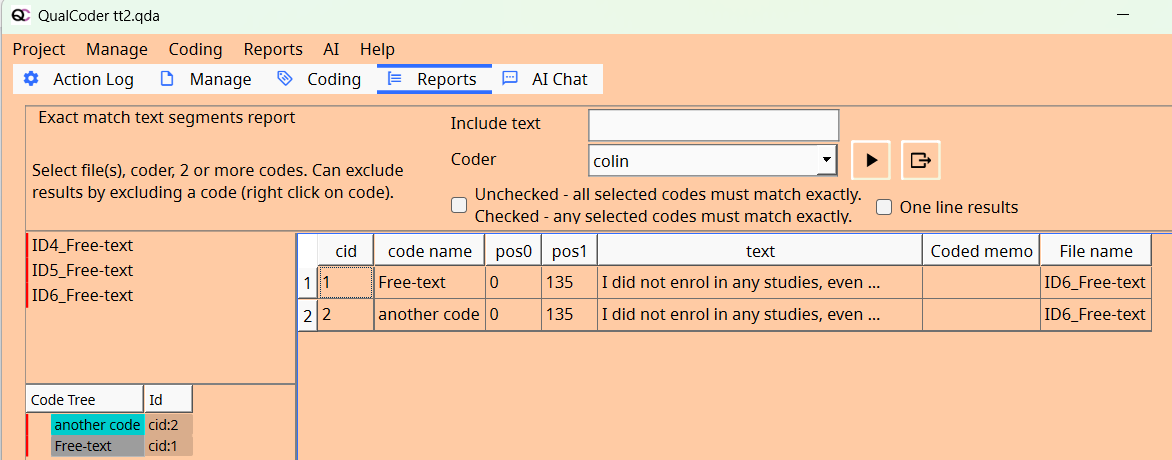
This report details all the exact matching coded text segments, where different codes are applied to the exact same text. Select text documents and two or more codes.
Codes by text segments Report
This report shows rows of coded text segments and columns of which code has been applied. For some users, e.g., legal area, it is convenient to see which codes have been applied to the same text segment. An Excel file can be exported.