Survey Imports
Open the Manage > Files page and press the Import Survey button.
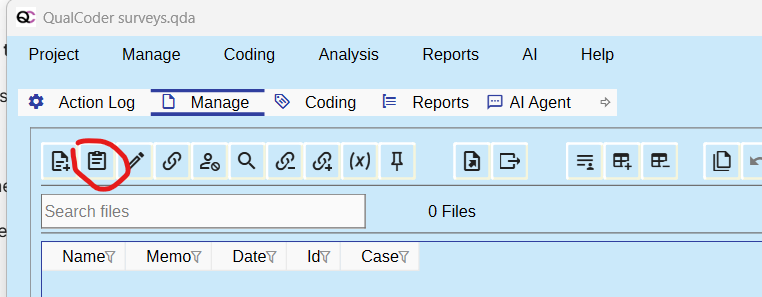
A survey can be imported from a CSV file (comma separated values) or Microsoft Excel file (xlsx). The first row must contain the headings for attributes and for the free text data. The first column must contain the unique identifiers for each survey respondent.
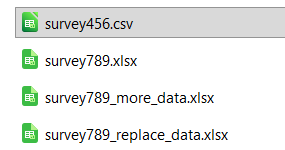
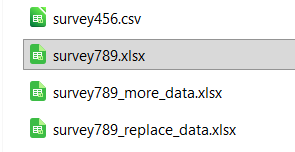
There are some example surveys in the Examples folder. These will be used in a walk-through of importing surveys:
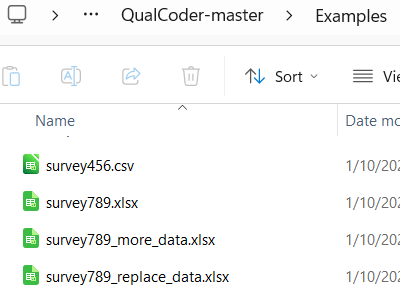
Above is the examples folder, showing several survey files.

Above is the data in survey456.csv
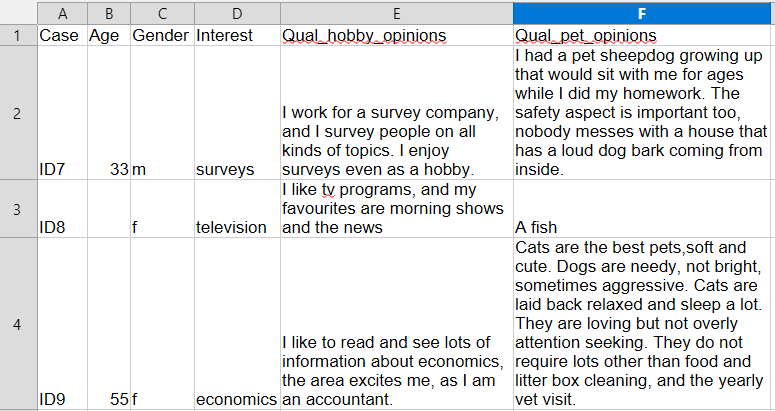
Above is the data in survey789.xlsx
Importing the file survey456.csv
Press the import survey button and select the file from the Examples folder.
The survey assistant reads the CSV file and shows the column names on the left.
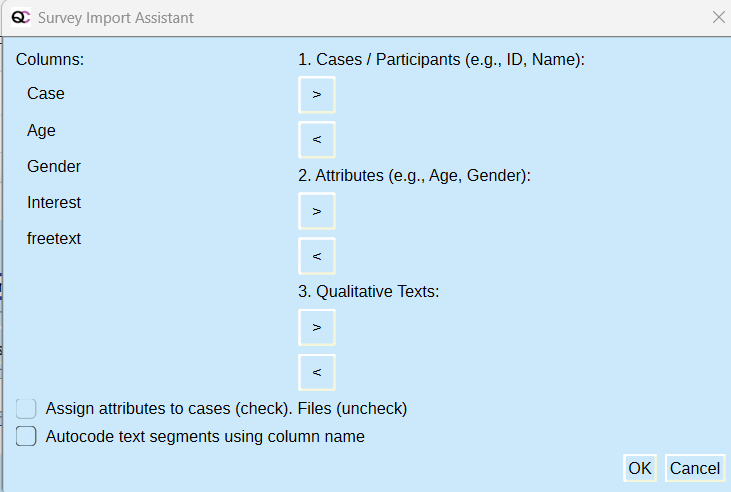
The participant identifier, called Case in this survey, can be assigned to the Cases/Participants section. The Age, Gender and Interests data columns can be assigned to the attributes. The freetext column can be assigned to Qualitative Texts. In this example we will assign the attributes to files, and we will not autcode the qualitative text with the 'freetext' column name. QualCoder will determine if the attribute columns are Numeric or Character. For Numeric columns, every cell must contain a number or be empty, otherwise entries will default to Character.
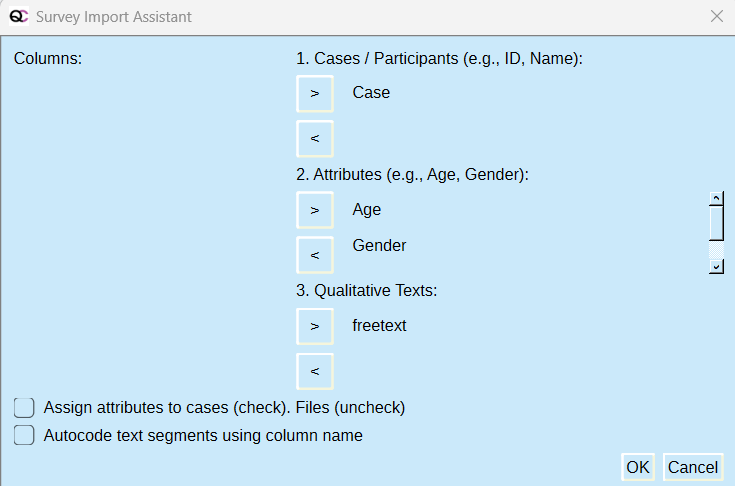
Press OK to enact the import.
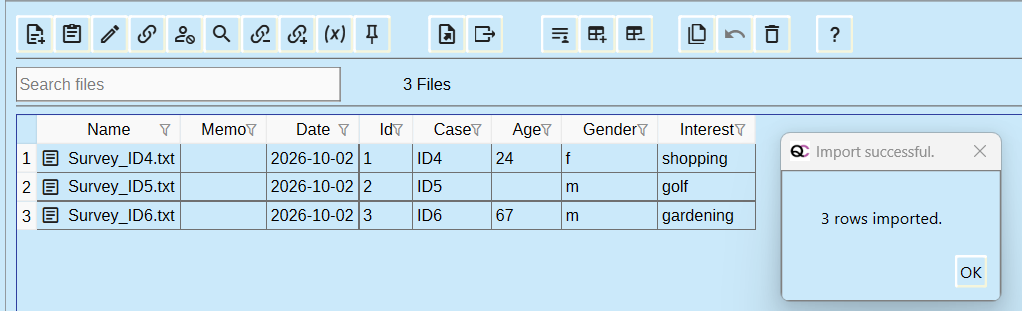
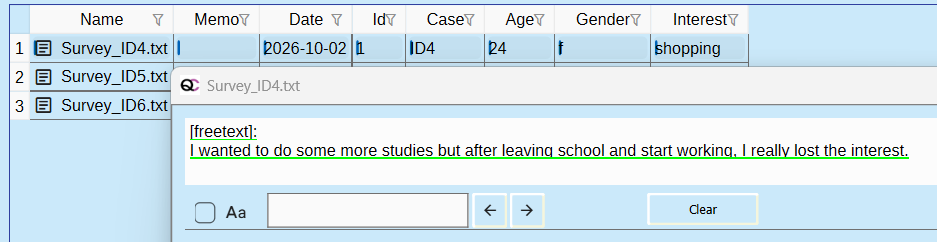
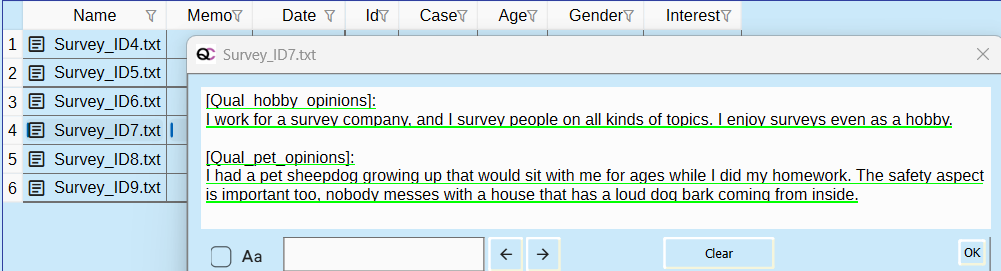
The attributes were assigned to each text file. Opening the text file shows the text detail. The text is underlined in green, this means the entire text is assigned to a matching case. In the image below, Survey_ID4.txt has been assigned to a newly created case called ID4.
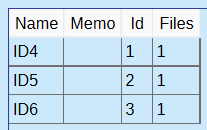
In the Manage > Cases screen it is shown like this, with one text file assigned per case:
Adding more data
Using the survey import button, select and import the survey789.xlsx file. Leave the checkboxes unchecked.
This has two different qualitative columns:
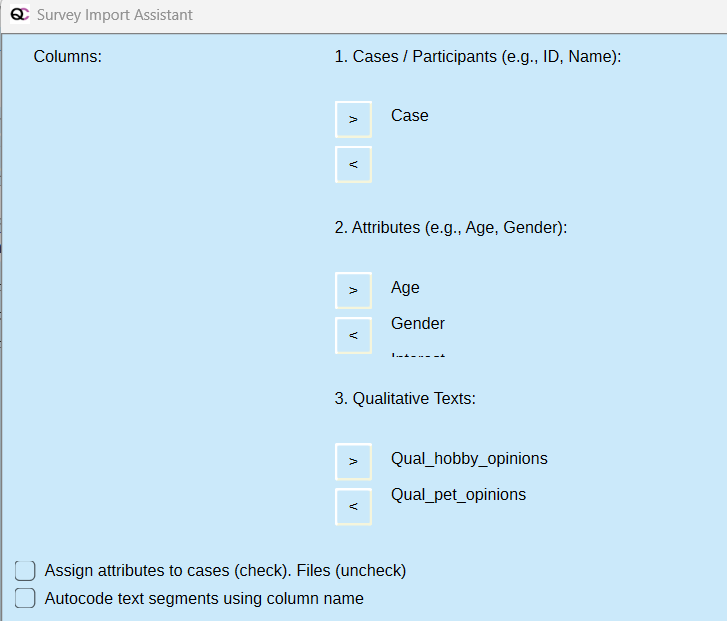
Press OK
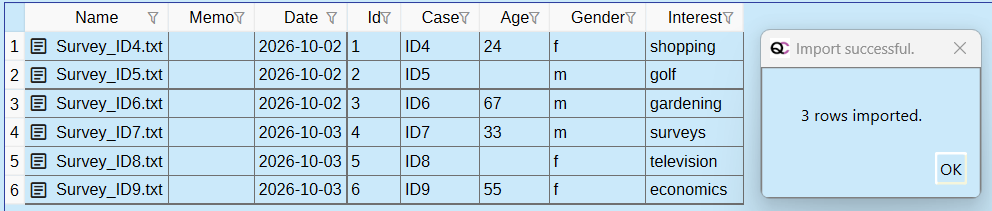
The new qualitative files have been added, and the file attributes are now extended with the three new survey responses. The difference here is that the new files had different qualitative components. Both qualitative response columns have been collated into one text file for each case.
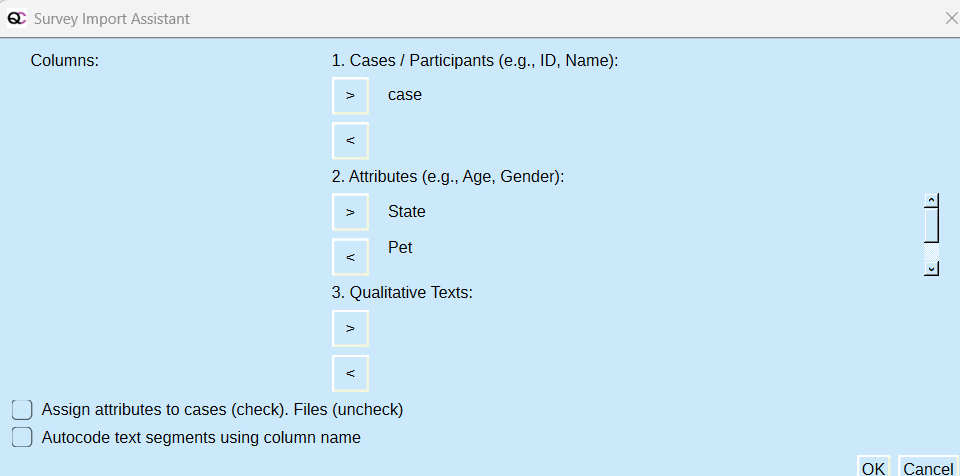
From the Examples folder, import survey789_more_data.xlsx, using the same import parameters as before. This contains more attributes of State, Pet, PetAge, for ID7, ID8 and ID9.
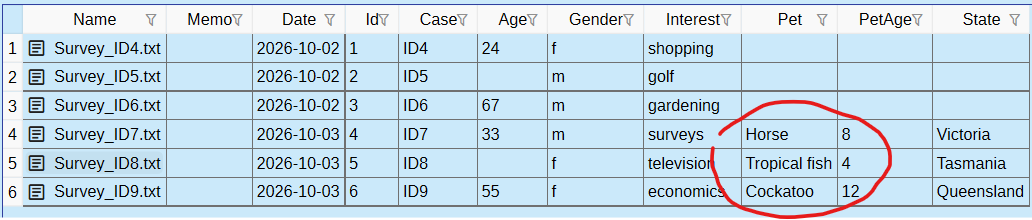
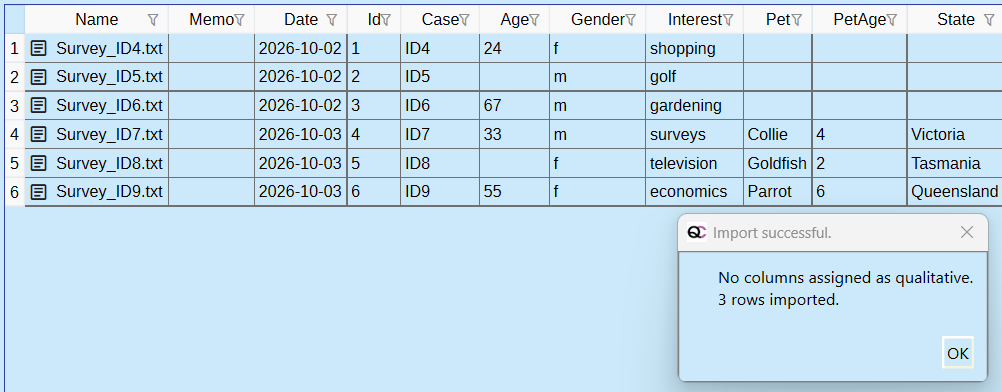
The additional information is imported and added to the correct cases
From the Examples folder, import survey789_replace_data.xlsx, using the same import parameters as before. This contains the attributes of Pet, PetAge, for ID7, ID8 and ID9. each of these attributes now contains different data, and will override the original data.