Coding images
Images can be coded in a similar way to text coding. Select a code. Left-click and drag to highlight the area you want to assign to the code. Right-click will open a menu where you can remove the coding or add a memo. At the bottom of the screen, there is a slider control to resize the image. Coded rectangles are coloured to match the code colour. Right-click the image to open rotation options.
The top right of the dialogue shows some details of a clicked on coded area - by showing the code name, pixel positions, and percentage area of the entire image. Hovering the mouse over this space will show any memo for the coded area.
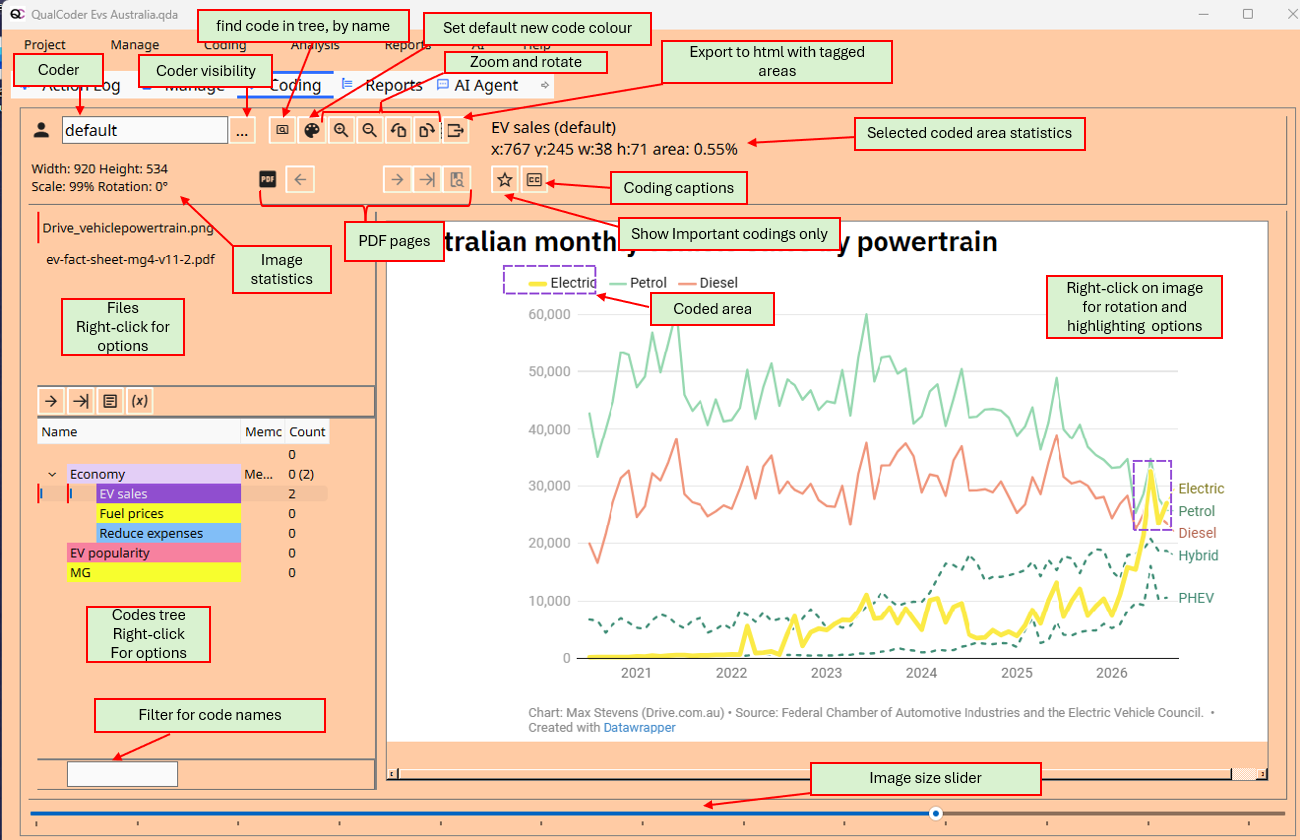
PDF image coding
PDFs can be image coded here or in the Code PDF section.
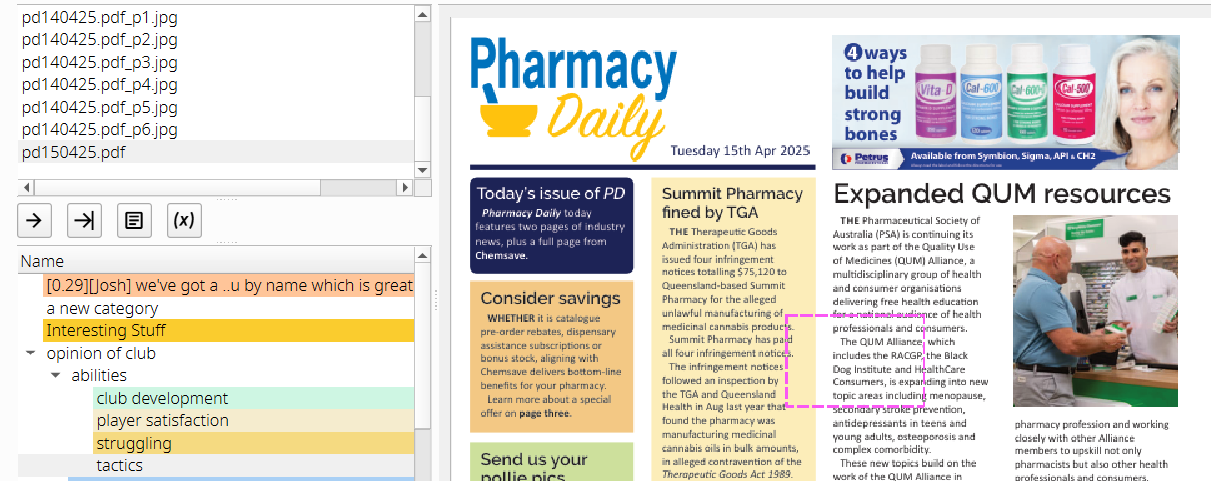
PDF navigation buttons:

Important coded areas
Important coded areas, such as exemplars for a report, can be flagged as Important by using the right-click menu when on the coded areas and selecting Important. At the top of the screen is a button with a star symbol. This button toggles between showing all coded areas and the coded areas flagged as Important.
Shortcuts
- Shortcut H. Press h when on the image to hide and unhide the top controls section of the screen.
- Shortcut L. Press L to 'Show codes like', to show a shortlist in the codes tree.
- Press + or - buttons to enlarge or shrink the image.
- Ctrl Z to restore the last unmarked coding area.
Convenience buttons underneath the files list
- Load the next file
- Load the file with the latest coding
- Open the file memo of the selected file
- Use a filter function show only those files that meet certain criteria. These can be from file attributes or if files are associated with certain cases. (Button that displays a tag)
Right-click on the image area for more options
Options include rotation and highlighting a specific code or coded area. These highlight options are: greyed out, blur, solarise, and they open in your default image viewing program to view and save.
The captions button will add a caption to each coded section chosen: Press once to add the code name. Press again to add any memos. Press again to turn off captions.
Highlight coded areas example, with captions:
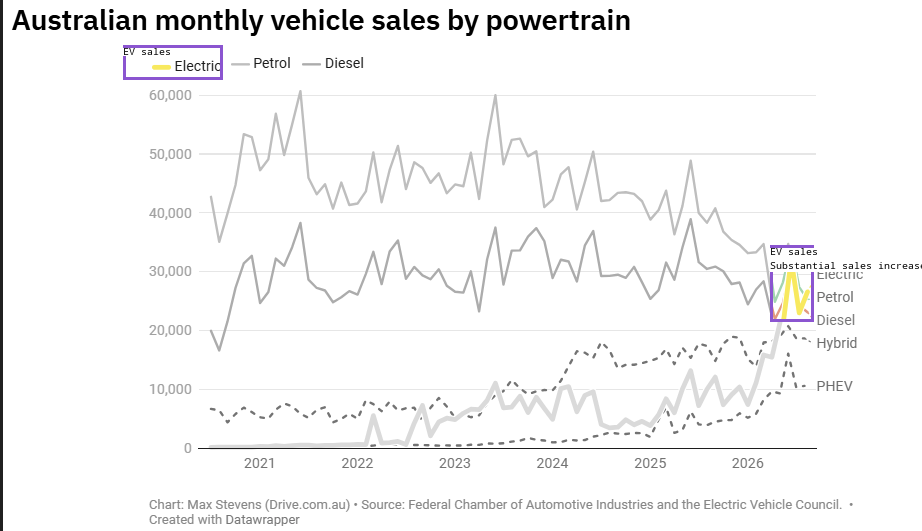
Export
The image with coded areas can be exported to an HTML file. After opening the file in a browser, mouse hovering over the coded areas shows the code name and memos.